
Use ctrlyoke on your phone
With Pro (or the 14-day remote-access trial), you can open the ctrlyoke dashboard on a phone or tablet and install it as an app. The app connects to the VS Code window running on your computer, so you can watch and take control of a running workflow away from your desk.
Setup has three parts: turn on HTTPS on your computer, trust ctrlyoke's certificate on the phone, then install the app. HTTPS is what lets the phone install ctrlyoke as an app and receive push notifications, and the phone only accepts it once it trusts the certificate.
Steps 1 and 2 are the same for every phone. After that, follow the section for your device: iPhone and iPad or Android.
1. Set up the server on your computer
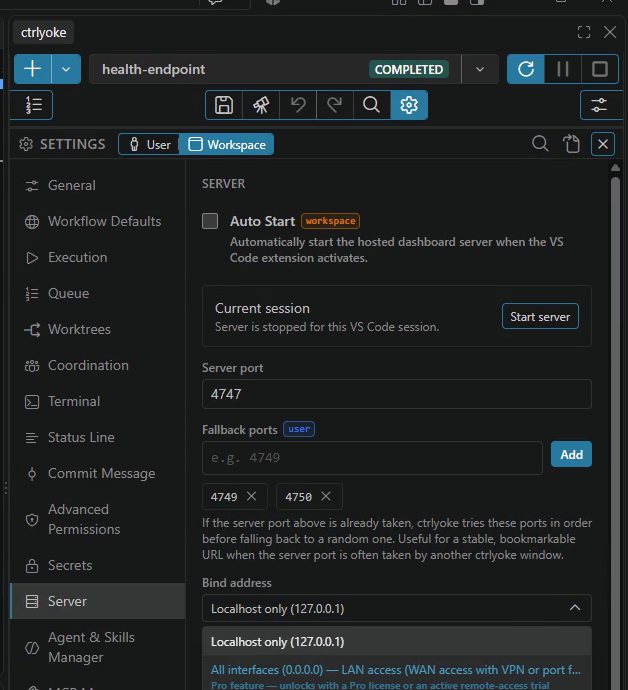
In VS Code, open the ctrlyoke dashboard, select the gear icon (Global Settings), and open the Server tab.
Watch the computer setup (30 seconds)
Set Bind address to All interfaces (0.0.0.0) so other devices on your network can reach the server.
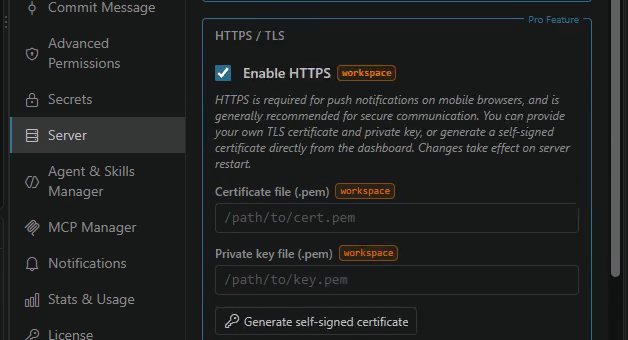
Turn on Enable HTTPS.
Select Generate self-signed certificate. Check that the list of addresses under Cert generated includes your computer's network address (such as
192.168.x.x), not onlylocalhostand127.0.0.1. ctrlyoke shows a warning under the certificate when it doesn't.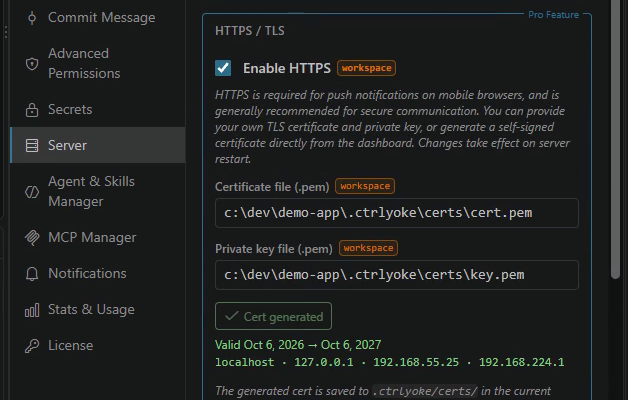
Select Start server. If the server was already running, select Stop server first, then Start server, so the new settings take effect. Optionally, turn on Auto Start so the server starts whenever VS Code does.
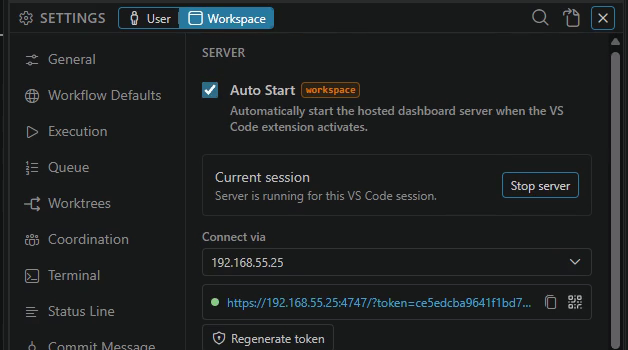
Do these in order. The certificate only covers the network addresses your computer has when you generate it, and it only includes them when Bind address is already All interfaces. If your computer's IP address changes later, or you see a certificate warning after installing the certificate, generate a new certificate, restart the server, and install the new one on your phone.
The phone must be on the same network as your computer, or connected to it through a VPN. To use it away from home, set up the VPN first, then follow Connect from anywhere before installing the app: the app belongs to the address you install it from.
2. Open ctrlyoke on the phone
On your computer, select the QR code button next to the server link. If your computer has more than one network address, choose the one your phone can reach under Connect via first.
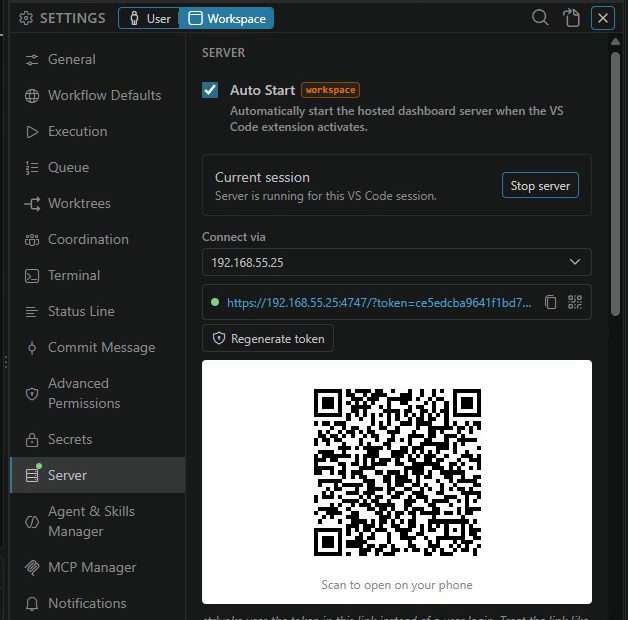
Scan the QR code with the phone's camera and open the link: Safari on iPhone or iPad, Chrome on Android.
The browser warns that the connection isn't private. This is expected, because the phone doesn't trust ctrlyoke's certificate yet. Continue to the site (Show Details → visit this website in Safari, Advanced → Proceed in Chrome).
The link contains an access token that works like a password. Share it only with people you trust, and select Regenerate token if it's exposed. Each workspace has its own token, so regenerating it only changes that workspace's link, and only its home-screen app needs to be added again.
Select any screenshot below to open it full size.
iPhone and iPad
Requires iOS 18.2 or later. iOS 18.0 and 18.1 never show the full-trust switch in step 4.
Watch the whole iPhone setup (1 minute)

Trust the certificate
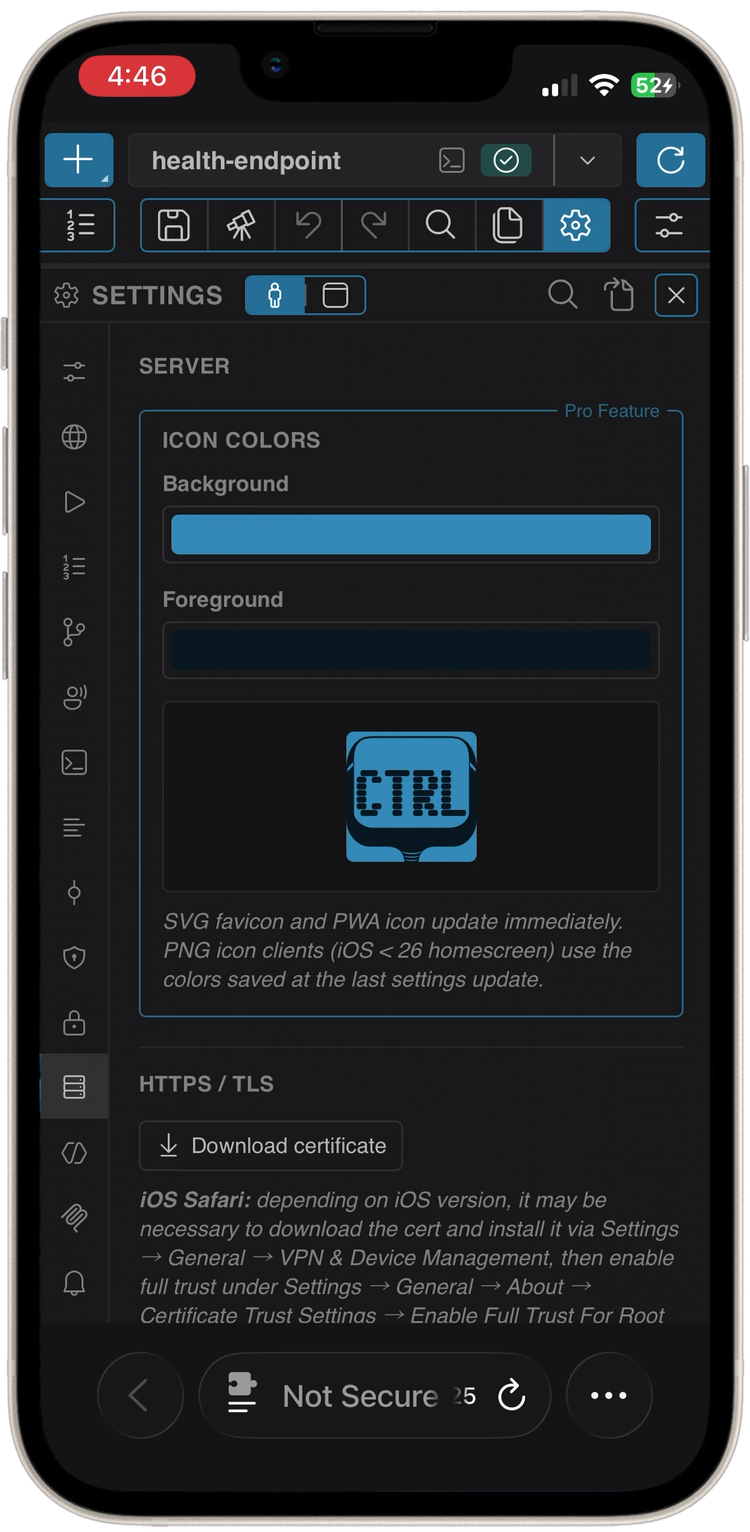
In the dashboard on the phone, open Global Settings → Server and tap Download certificate. Tap Allow to download the configuration profile, then Close.
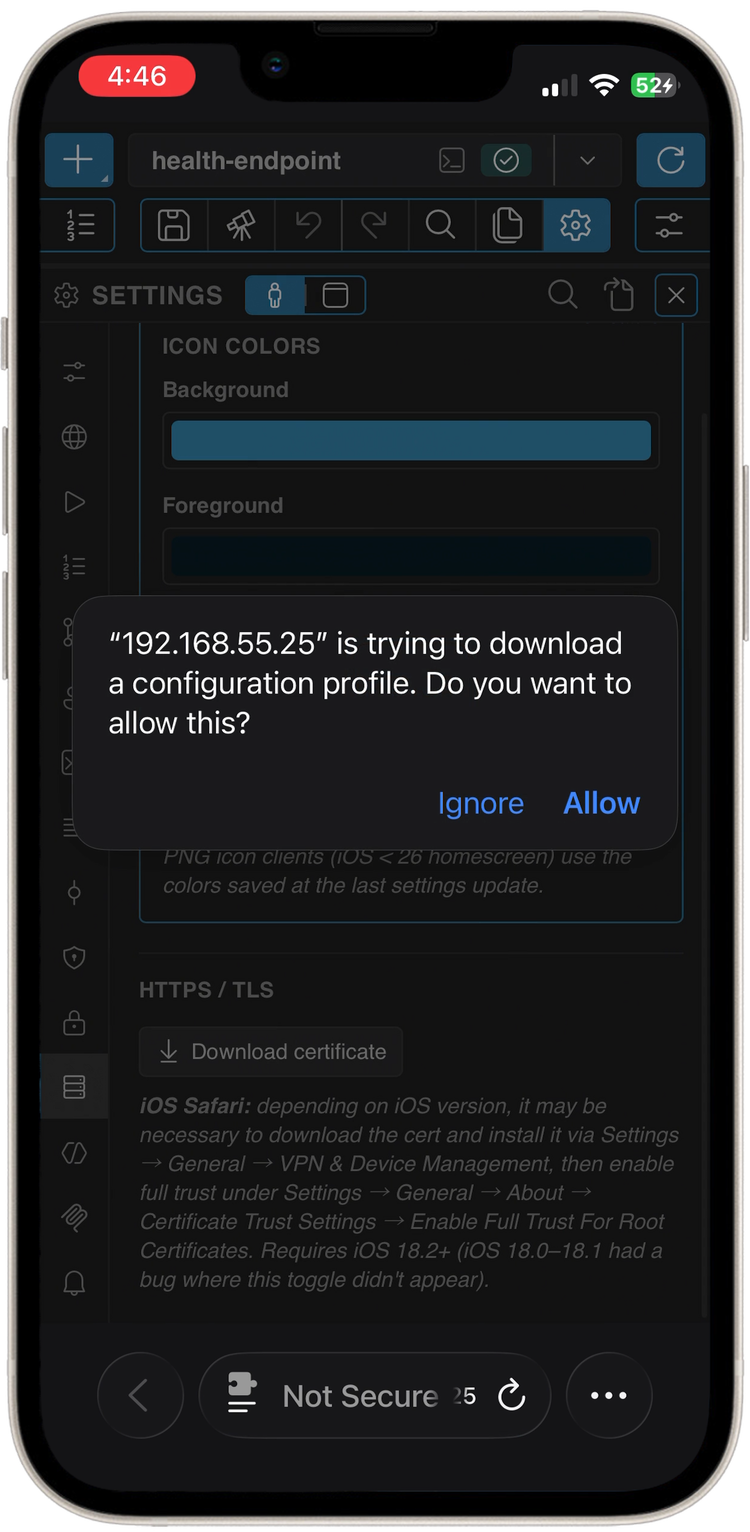
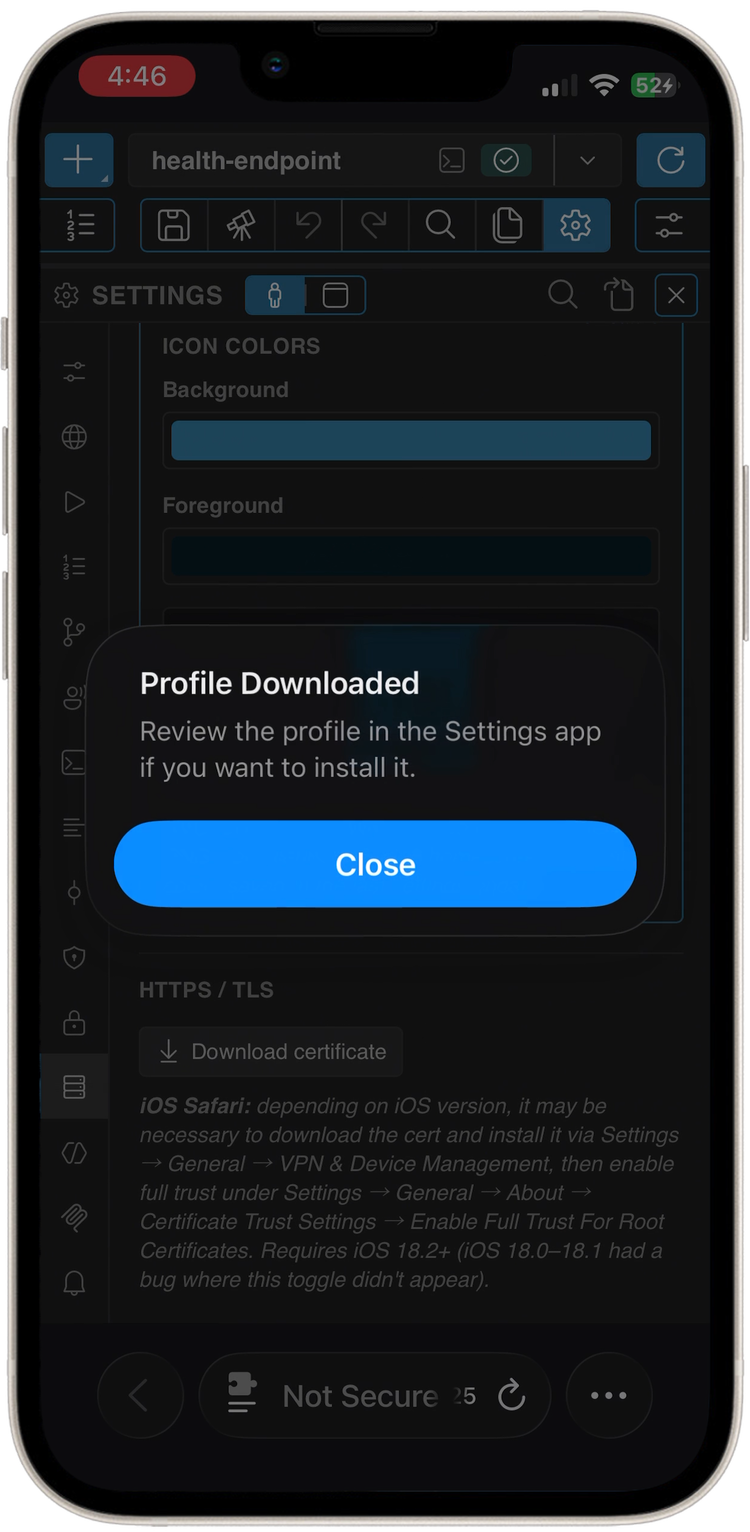
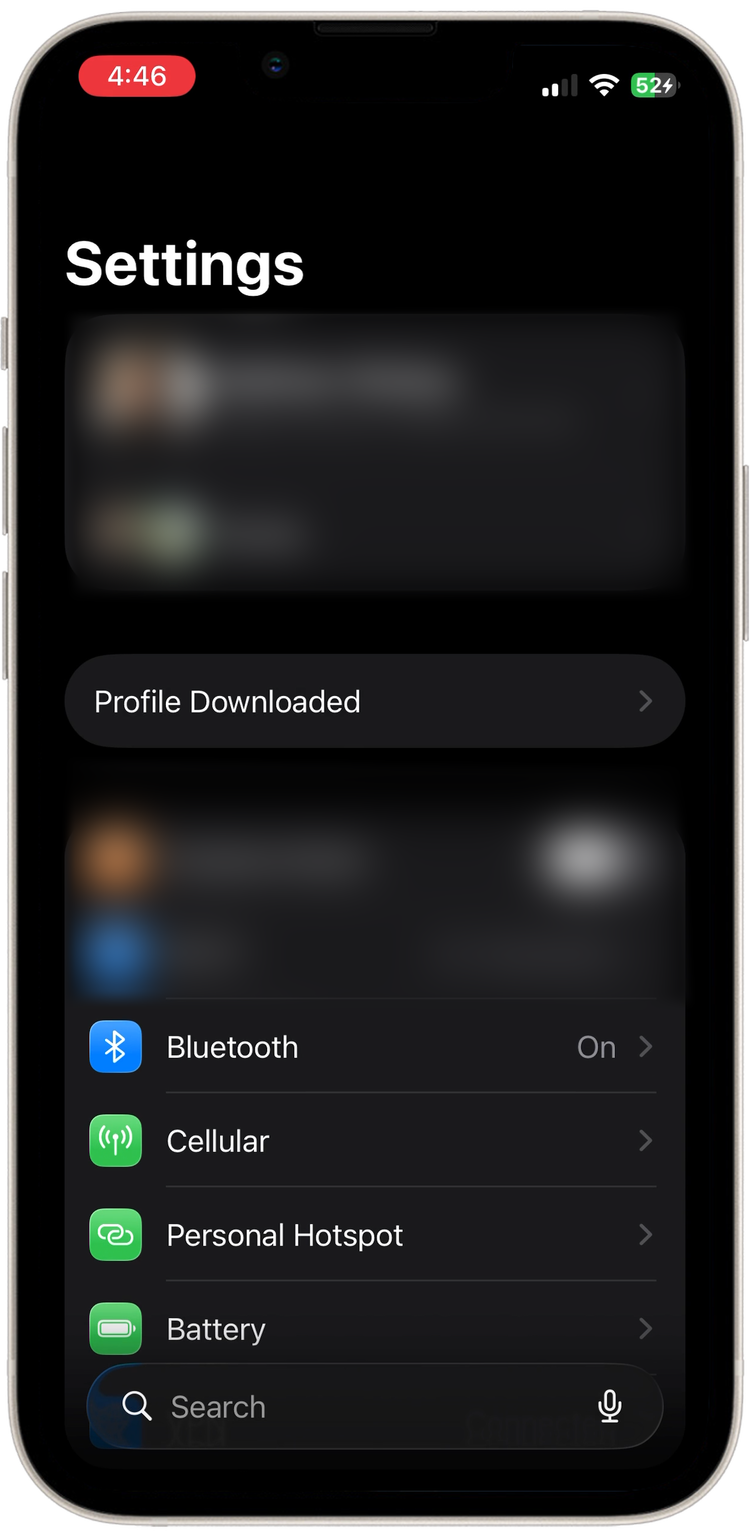
Open the Settings app and tap Profile Downloaded near the top (or go to Settings → General → VPN & Device Management), then tap the ctrlyoke profile.
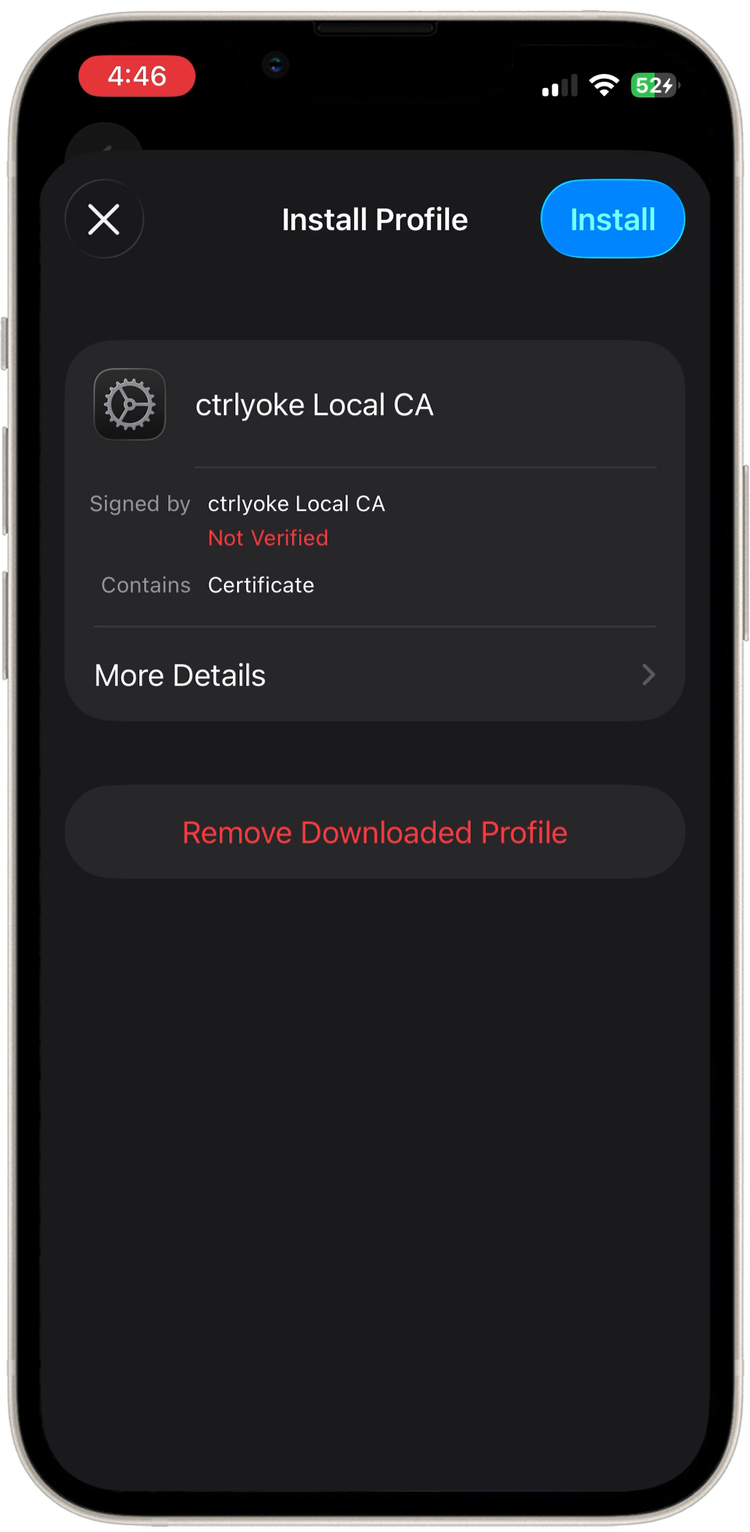
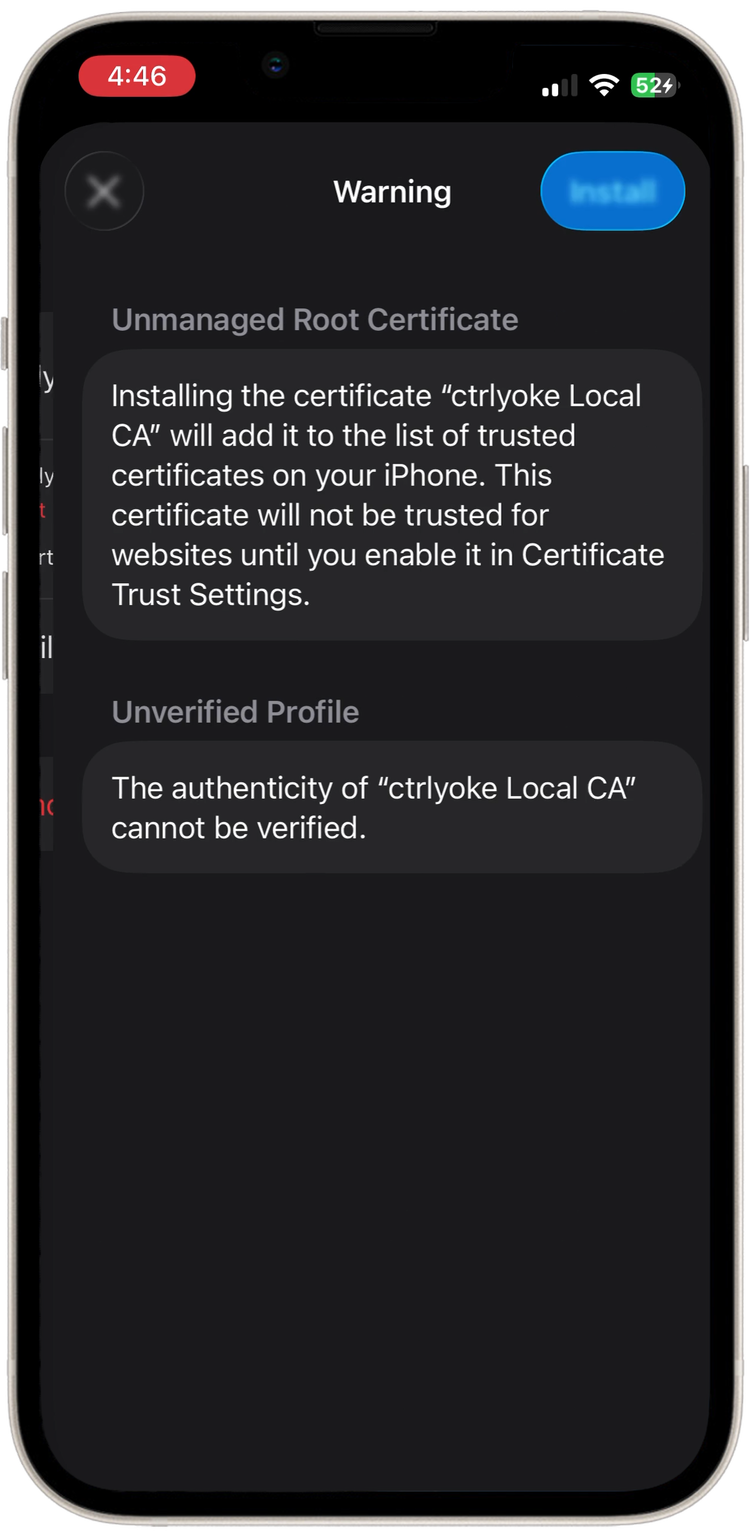
Tap Install, enter your passcode, tap Install on the root certificate warning, then Install again to confirm.
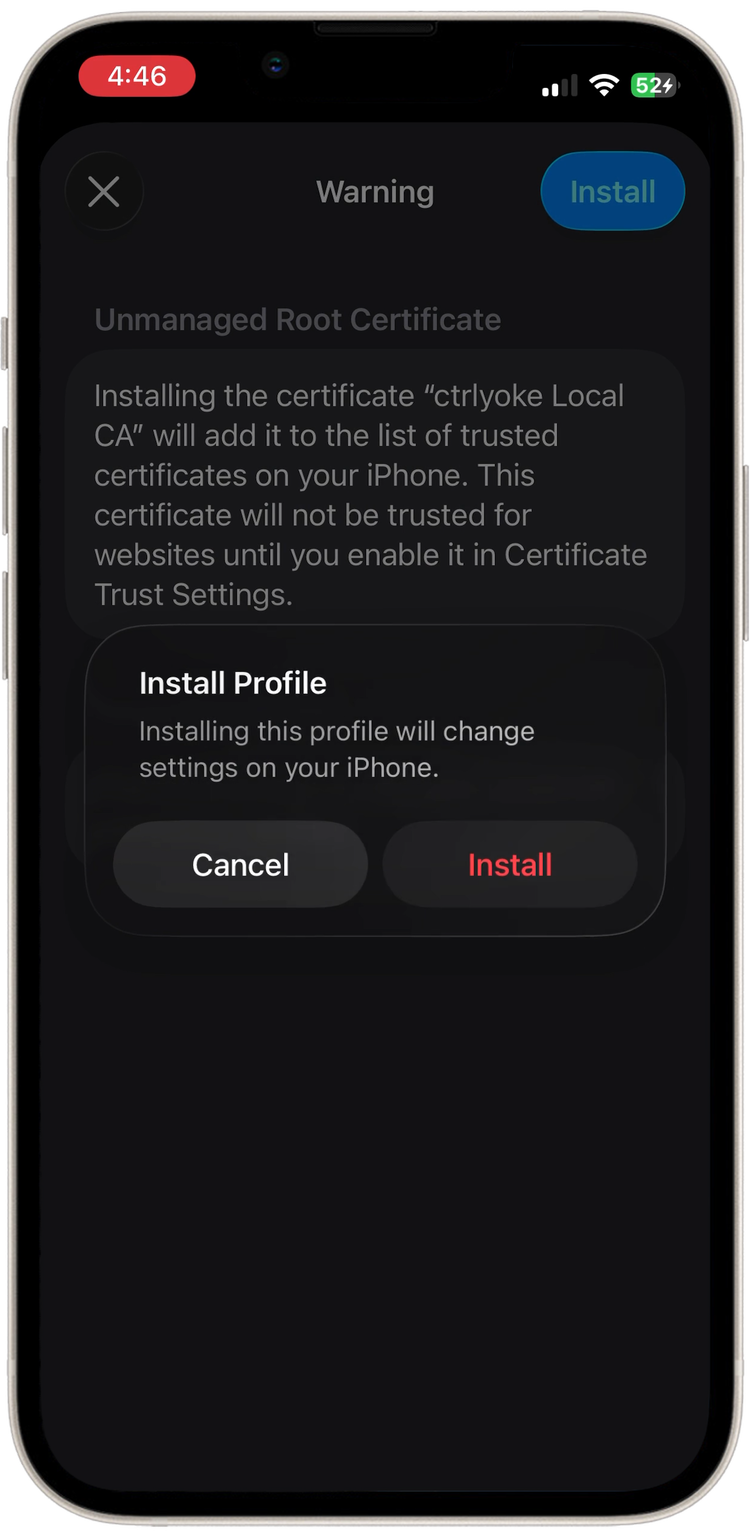
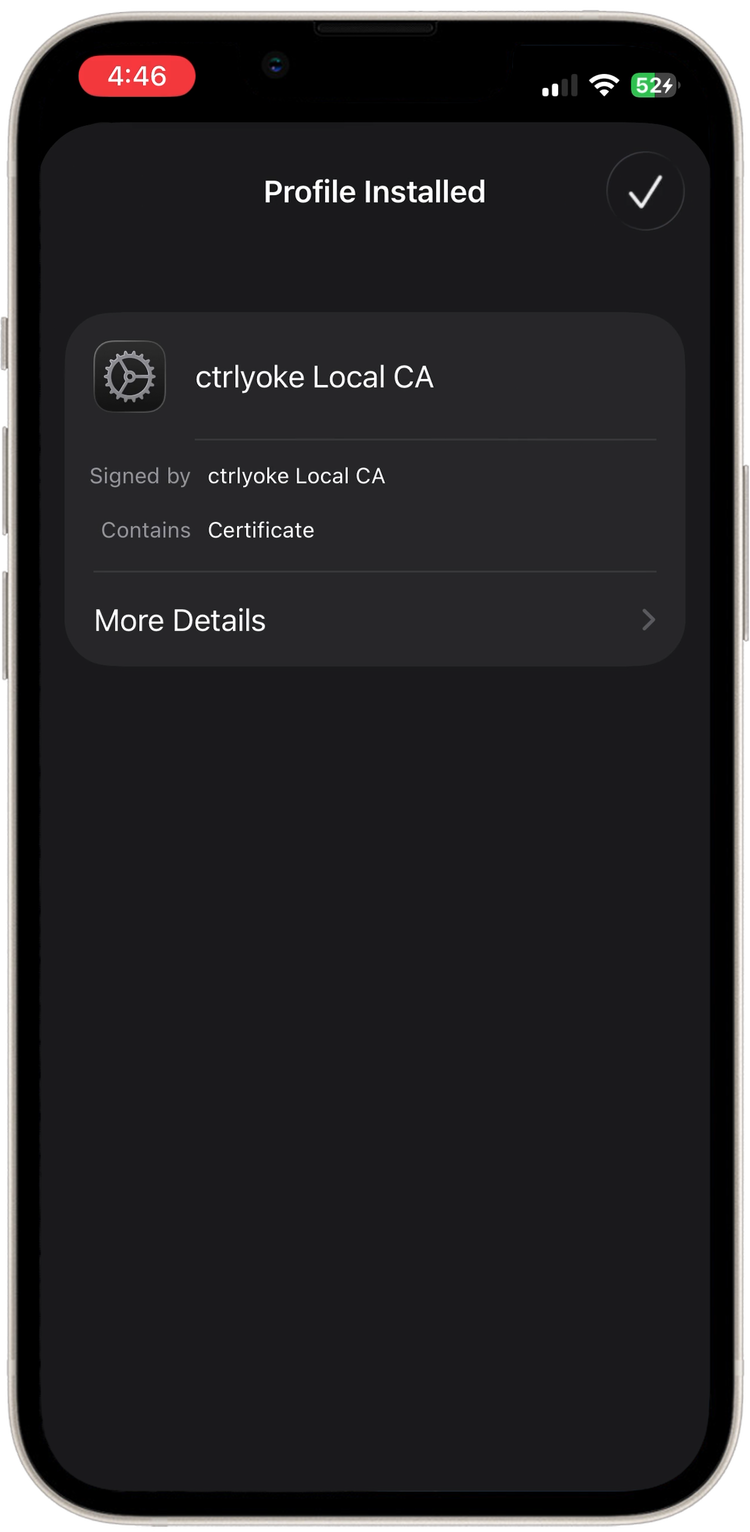
Go to Settings → General → About, scroll to the bottom, and tap Certificate Trust Settings. Turn on full trust for ctrlyoke Local CA, then tap Continue.
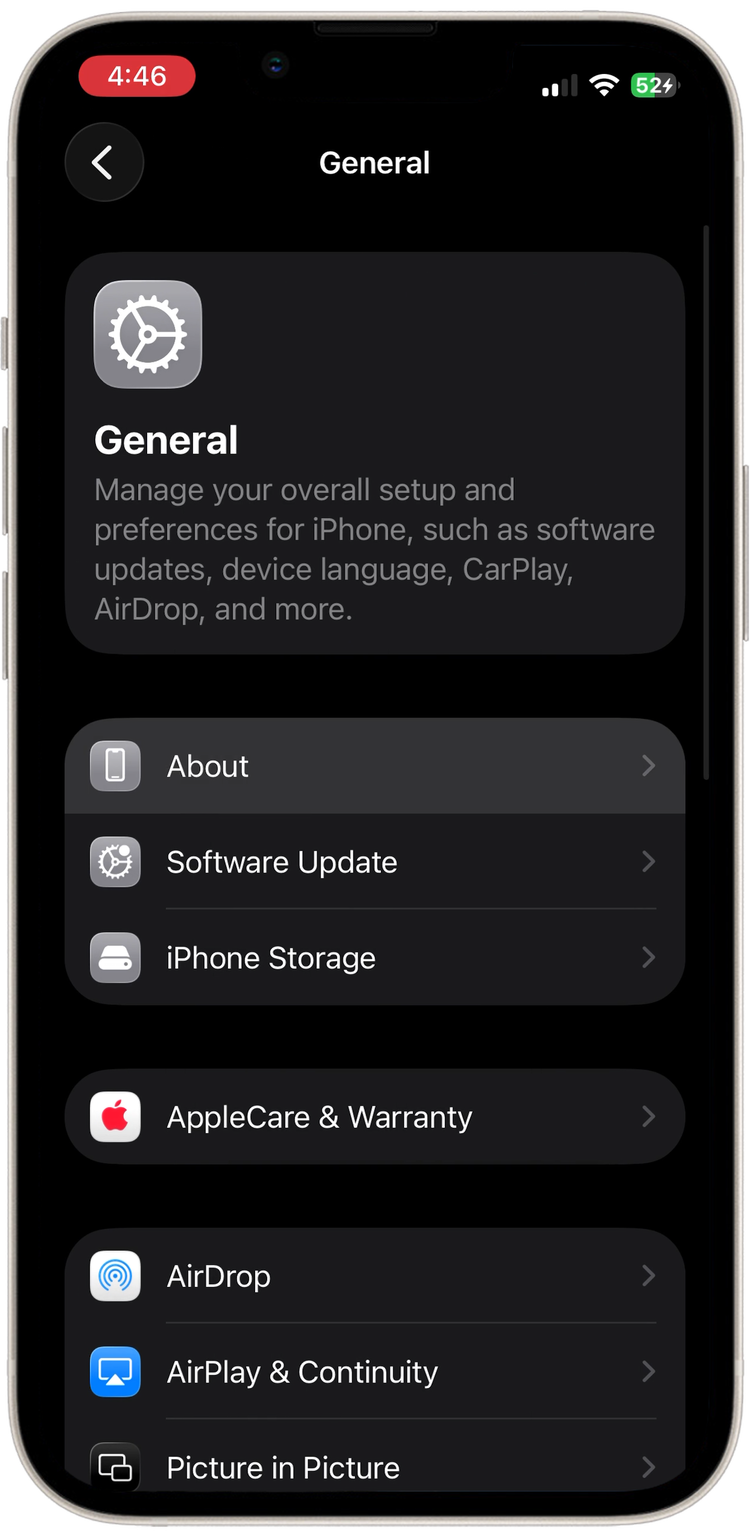
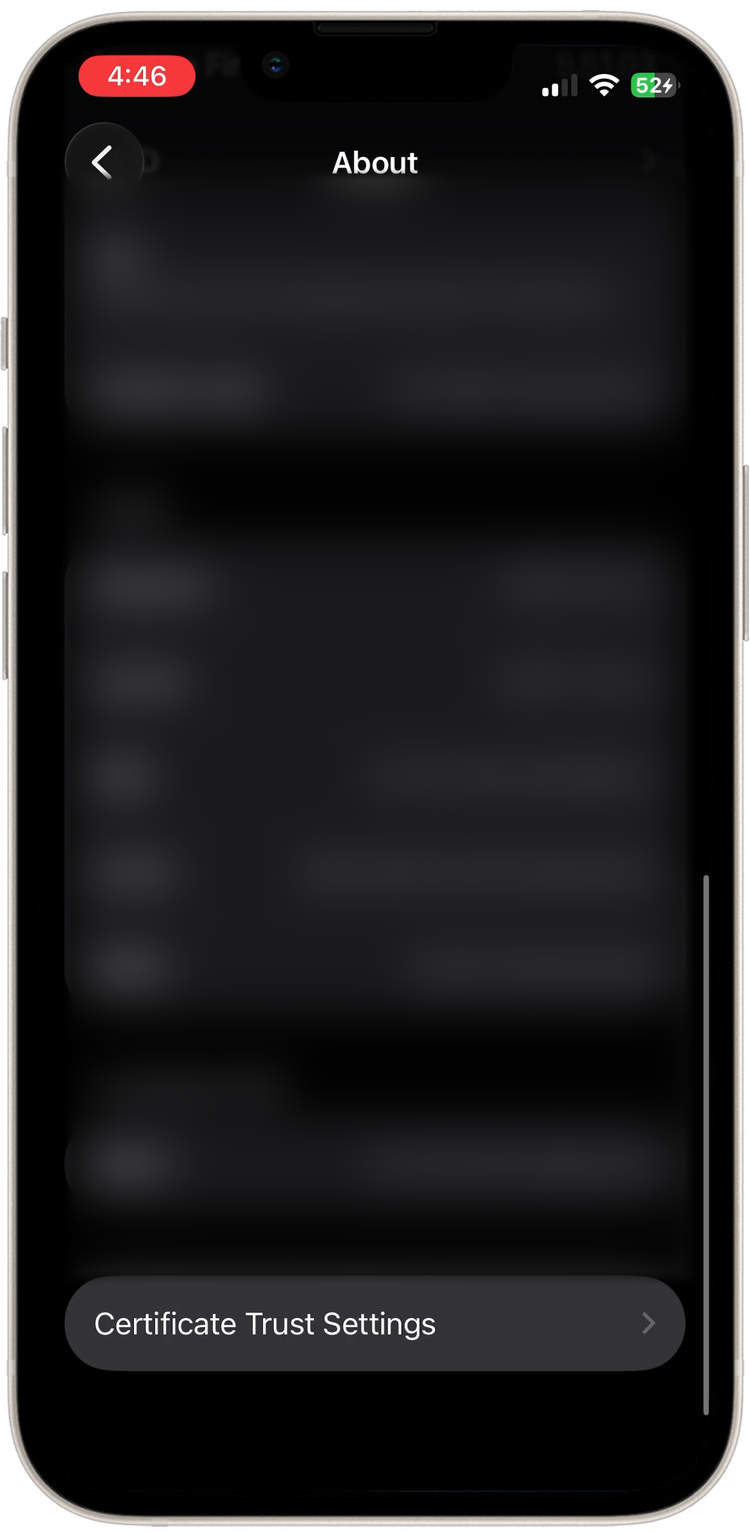
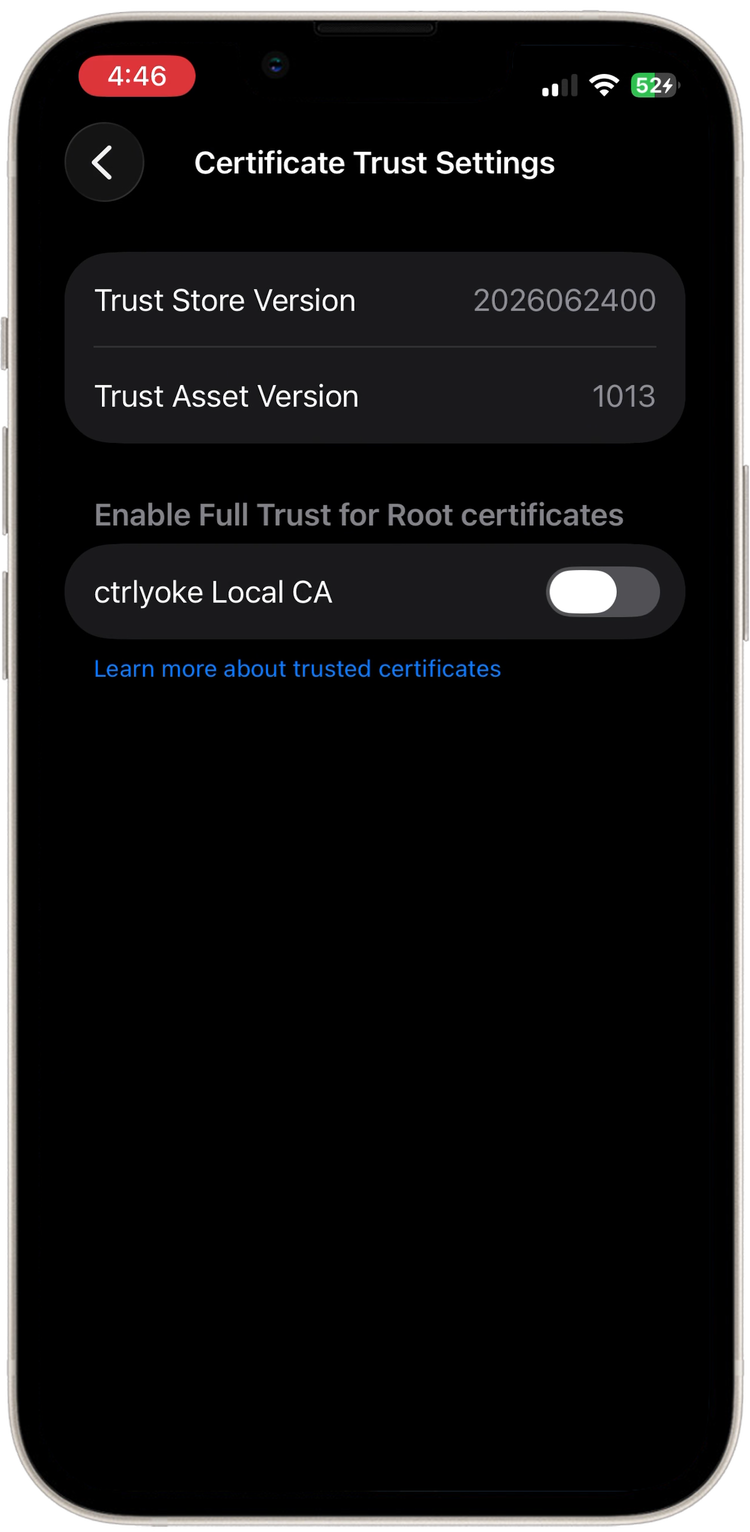
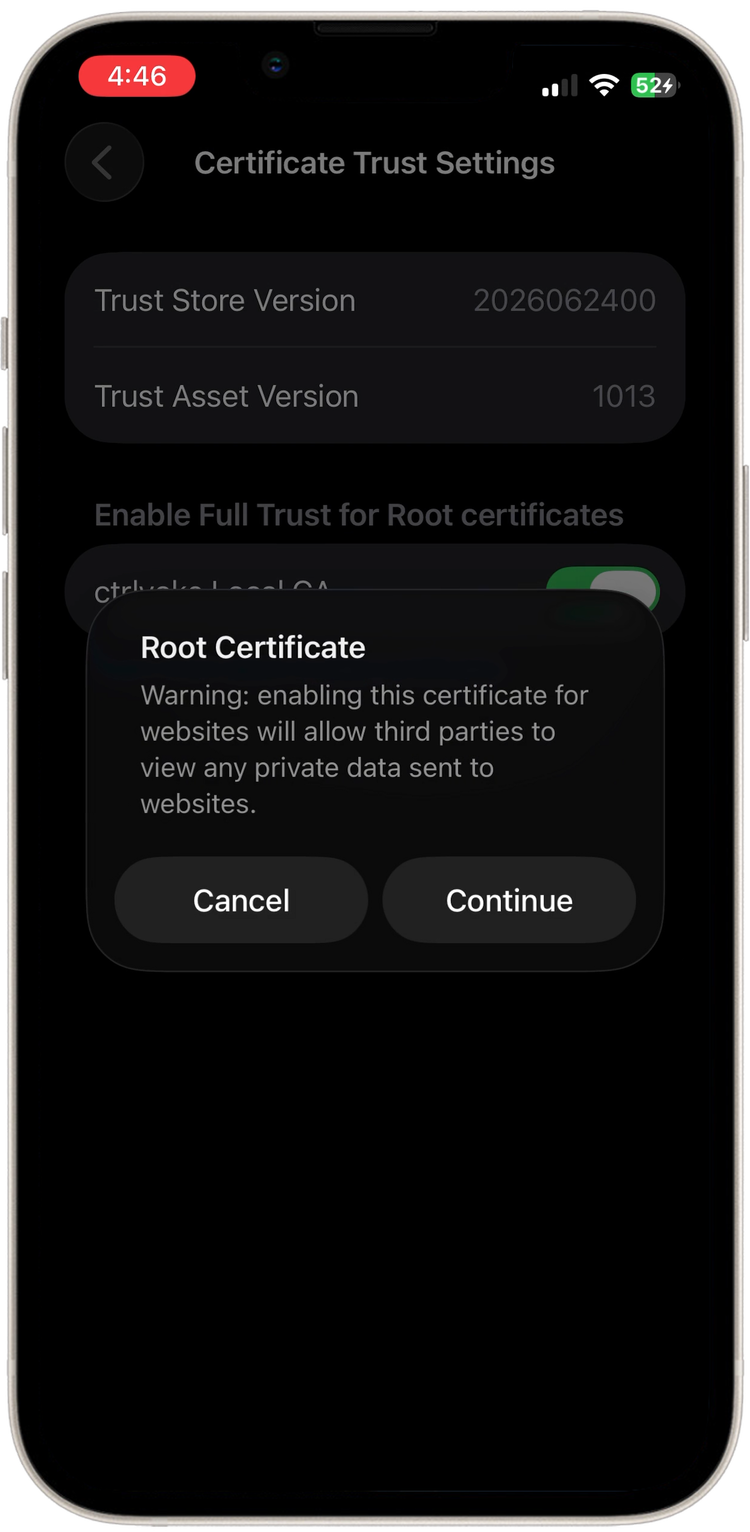
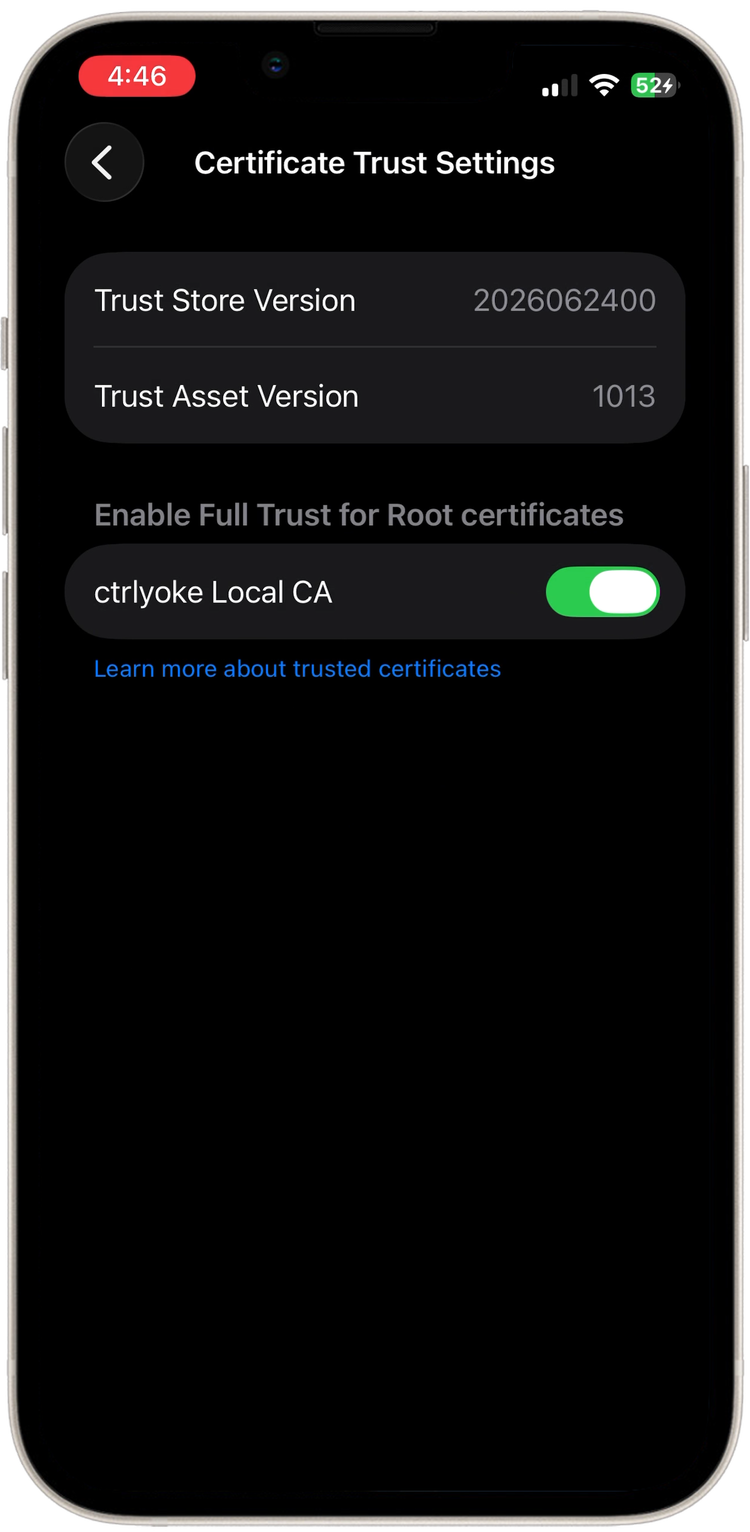
Step 4 is the one most often missed. Installing the profile alone isn't enough.
Install the app
- Open the ctrlyoke link in Safari again. There should be no certificate warning this time.
- Tap ⋯ → Share, then Add to Home Screen.
- Name the app, leave Open as Web App on, and tap Add.
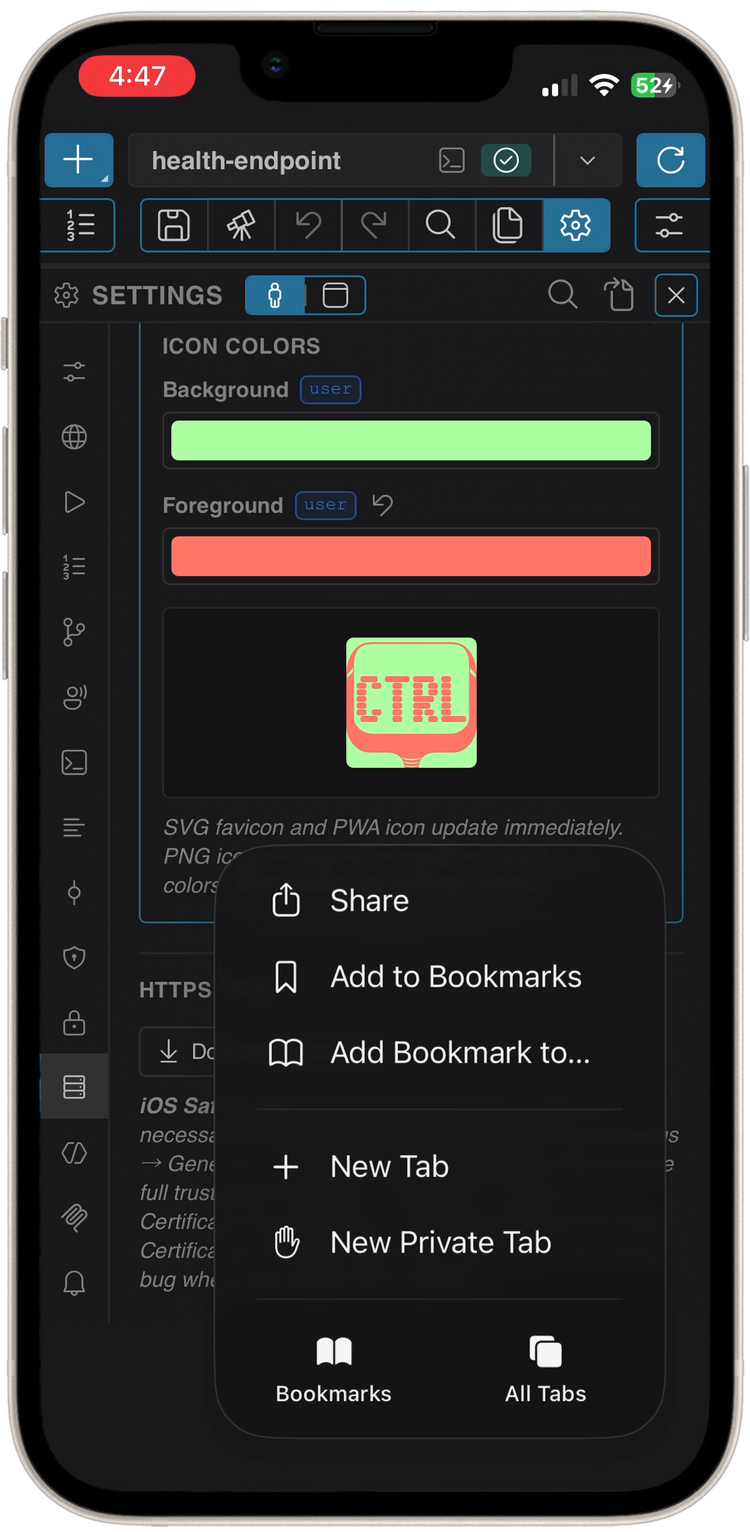
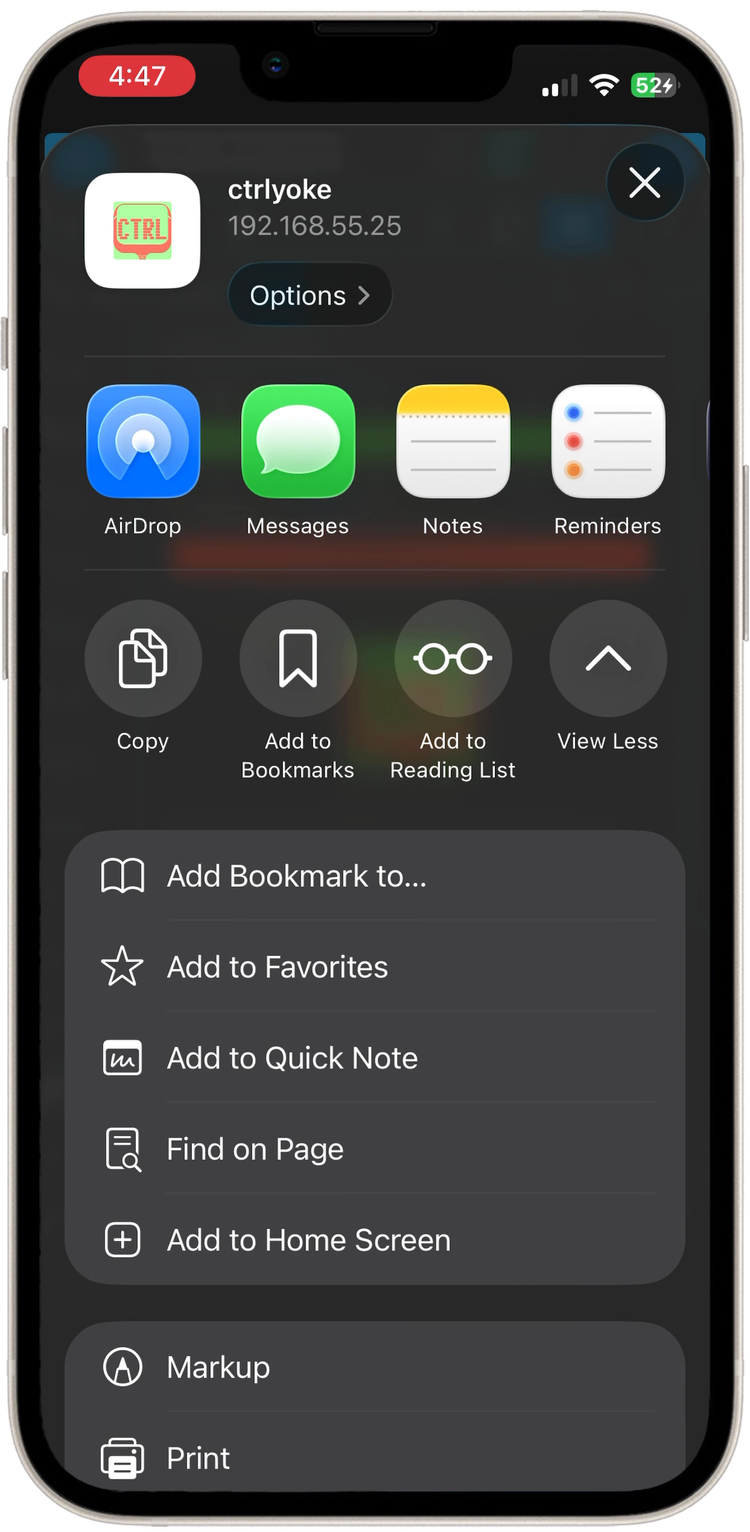
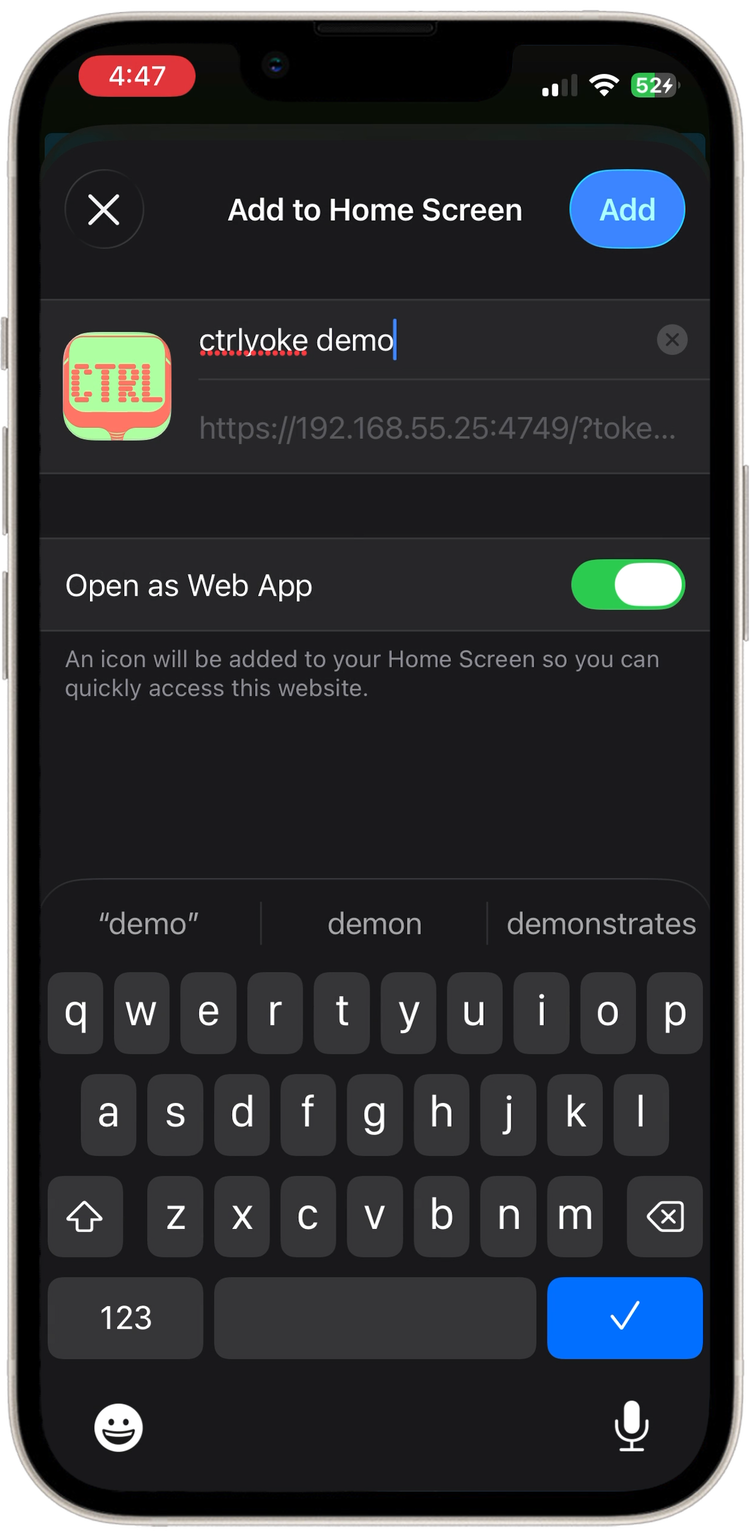
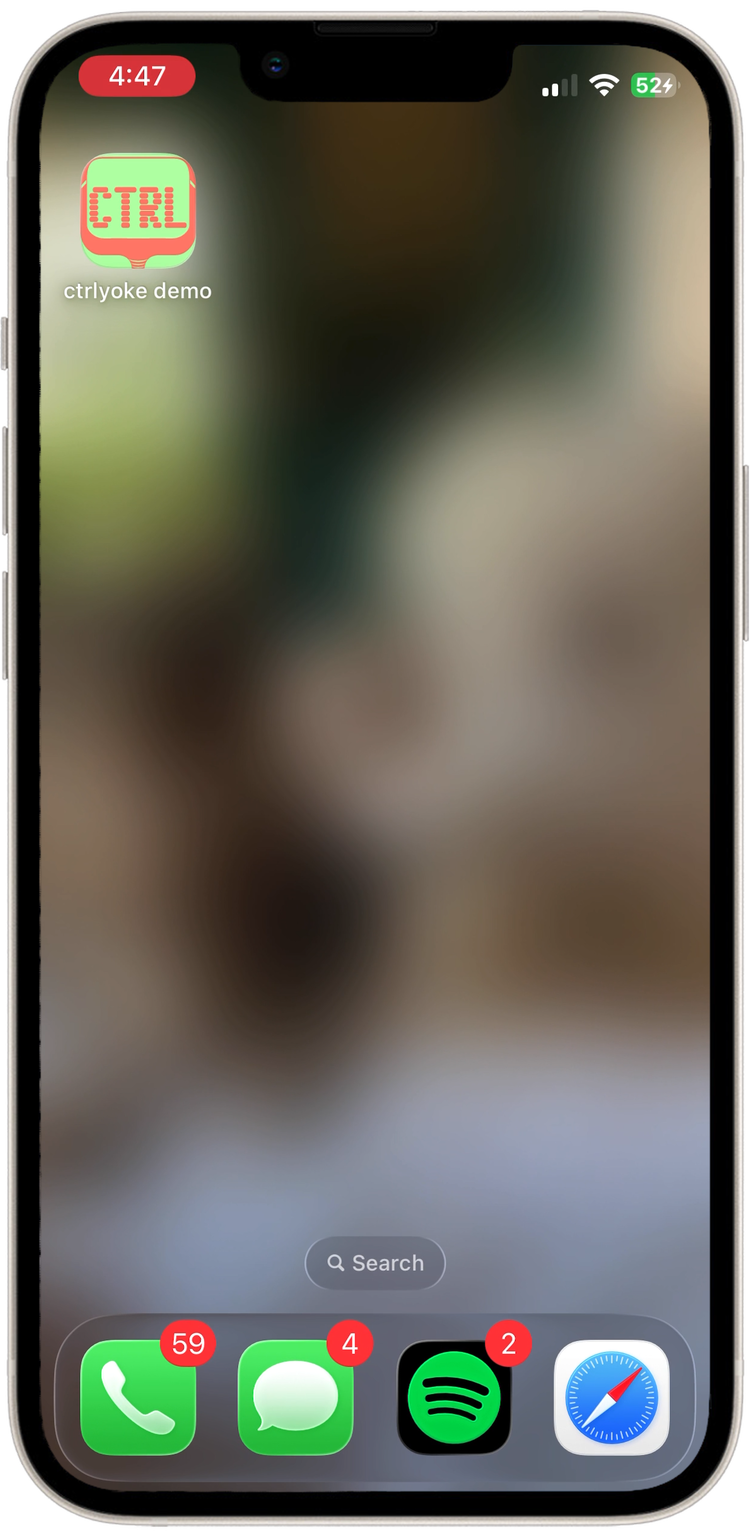
Open ctrlyoke from the home screen. It connects to the workflow running on your computer.
Android

The screenshots are from a Samsung tablet. Menu names and locations differ on other devices and Android versions; the text below covers the common variations.
Watch the whole Android setup (1 minute)
Trust the certificate
Tapping the downloaded file doesn't install it: Android only installs CA certificates from the Settings app.
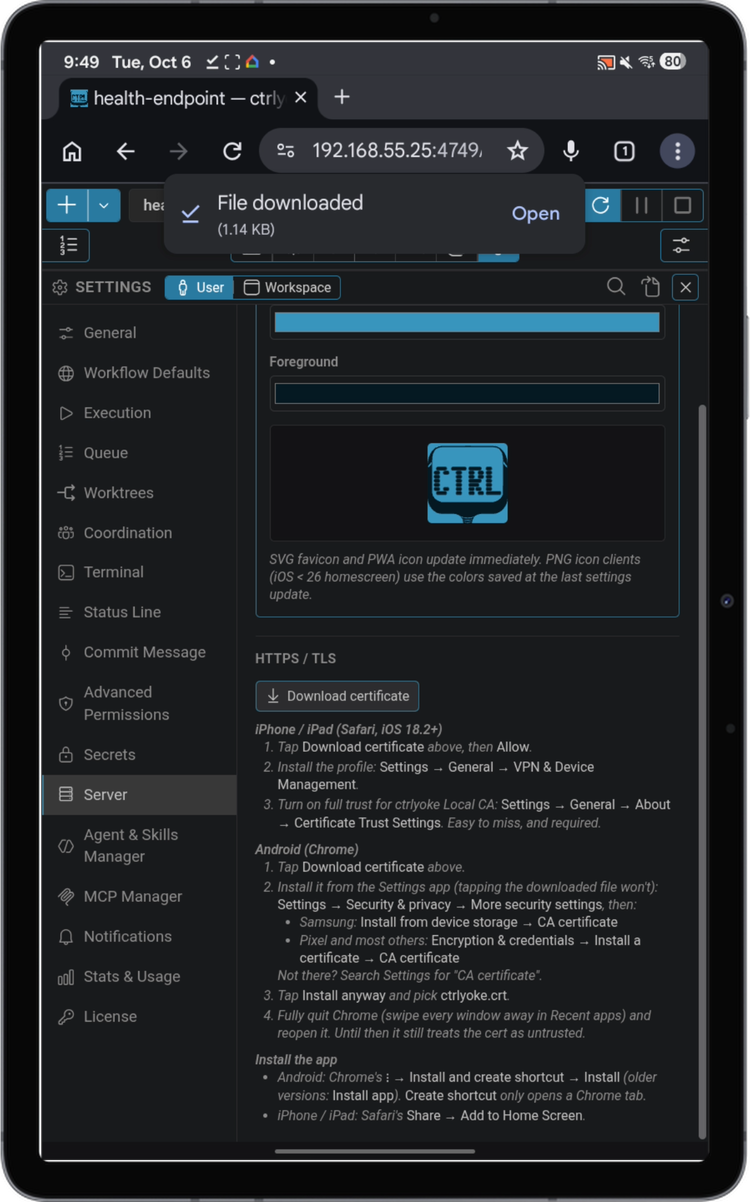
In the dashboard on the phone, open Global Settings → Server and tap Download certificate. Chrome saves
ctrlyoke.crtto Downloads.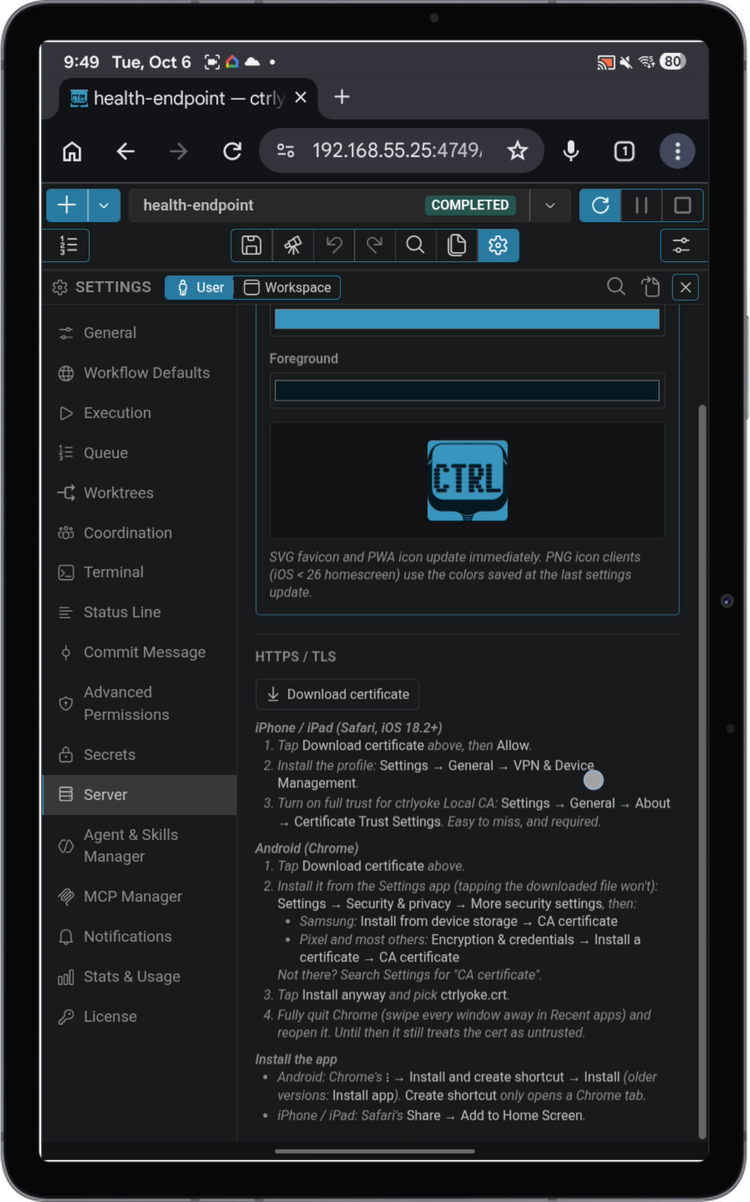
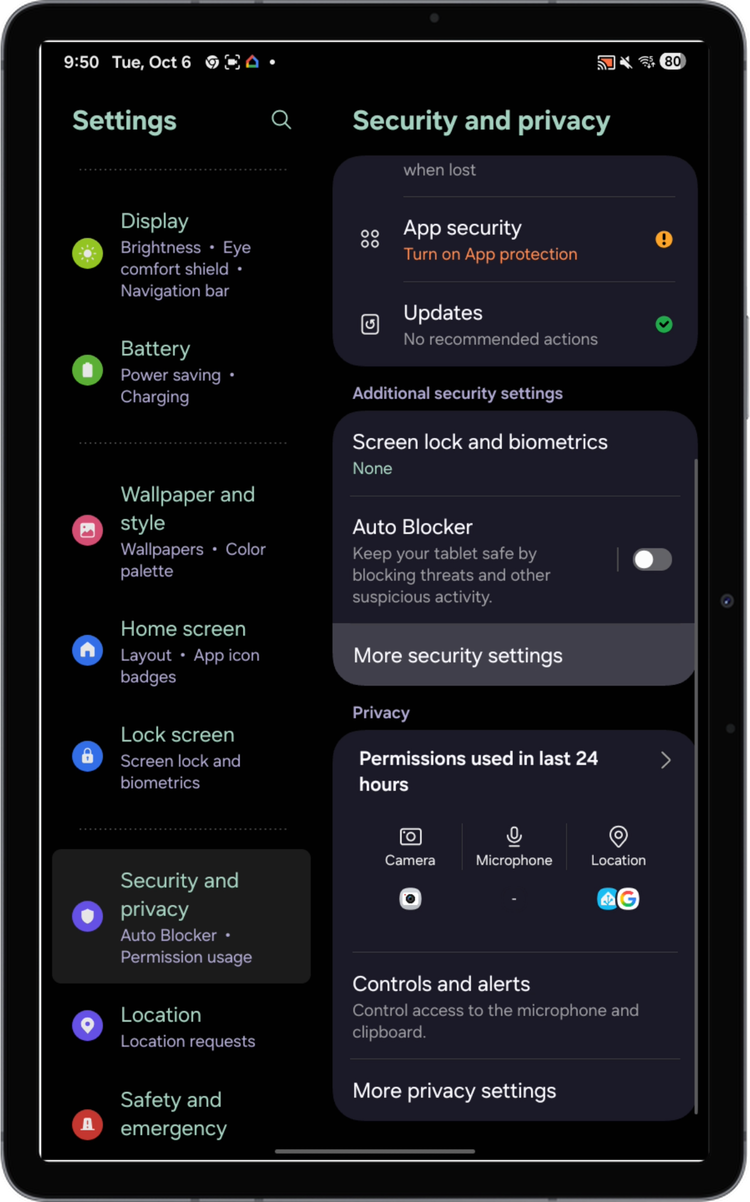
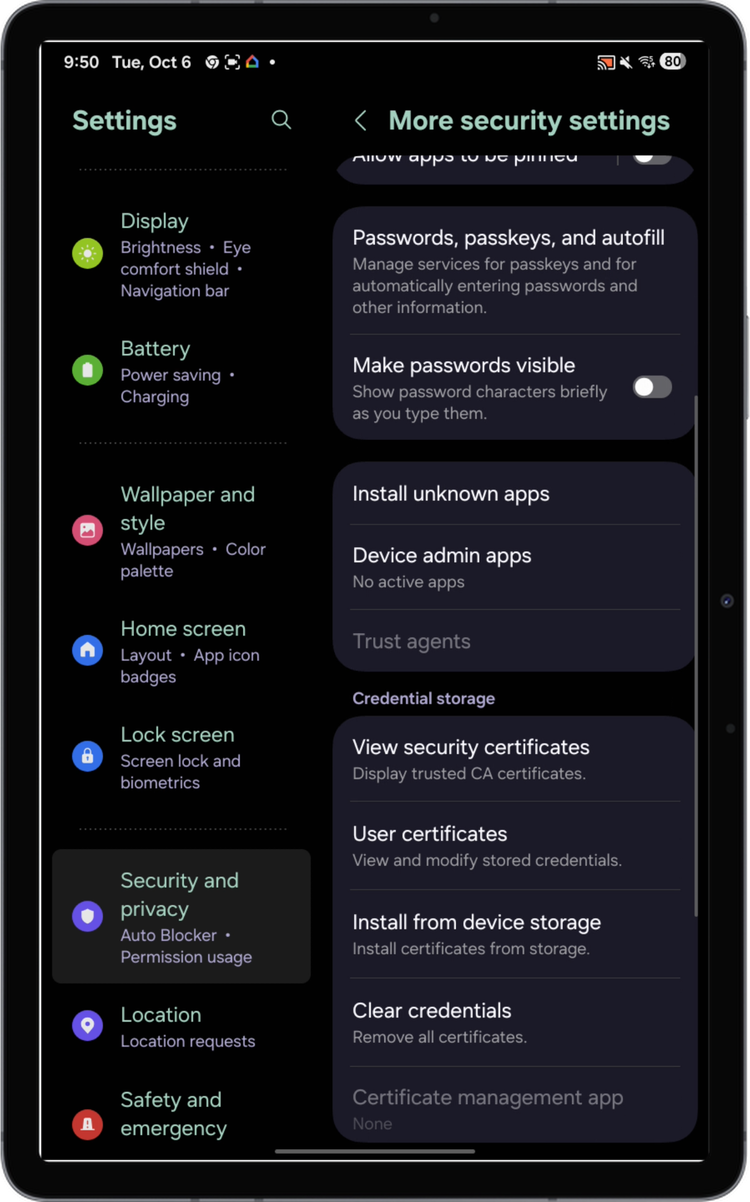
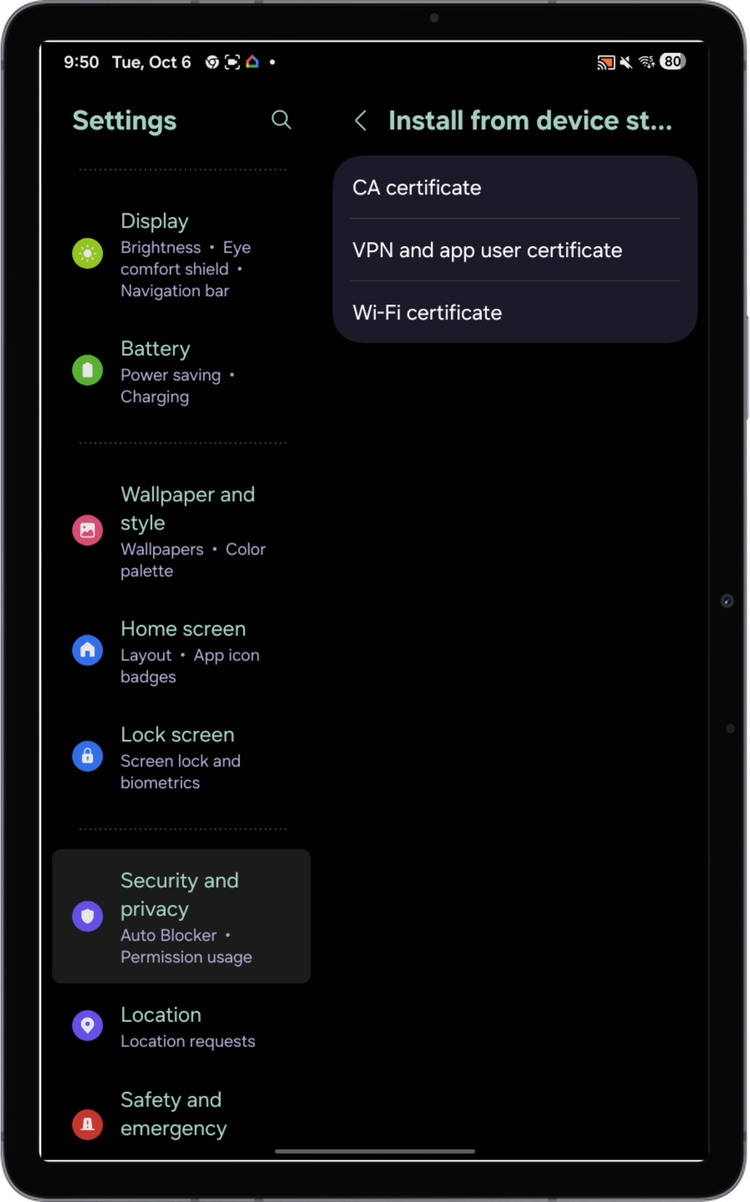
Open the Settings app and go to Security & privacy → More security settings. The next step depends on your phone:
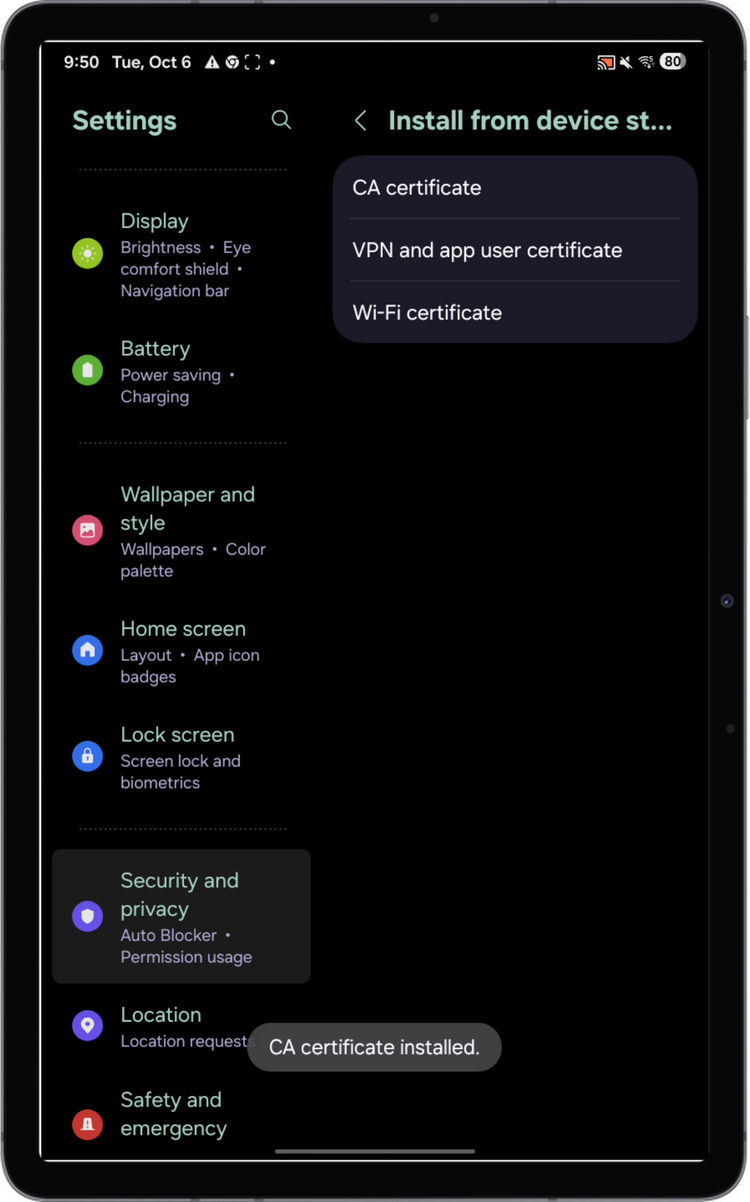
- Samsung: under Credential storage, tap Install from device storage → CA certificate.
- Pixel and most other phones: tap Encryption & credentials → Install a certificate → CA certificate.
If you can't find either, search Settings for "CA certificate".
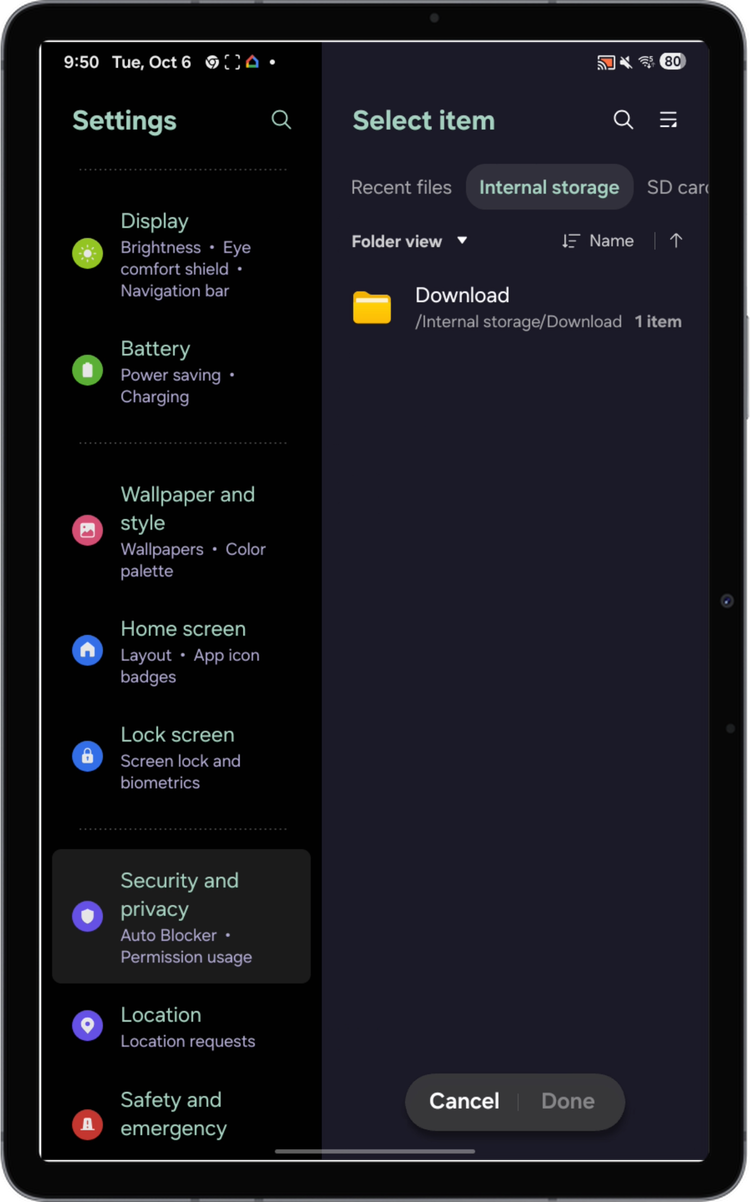
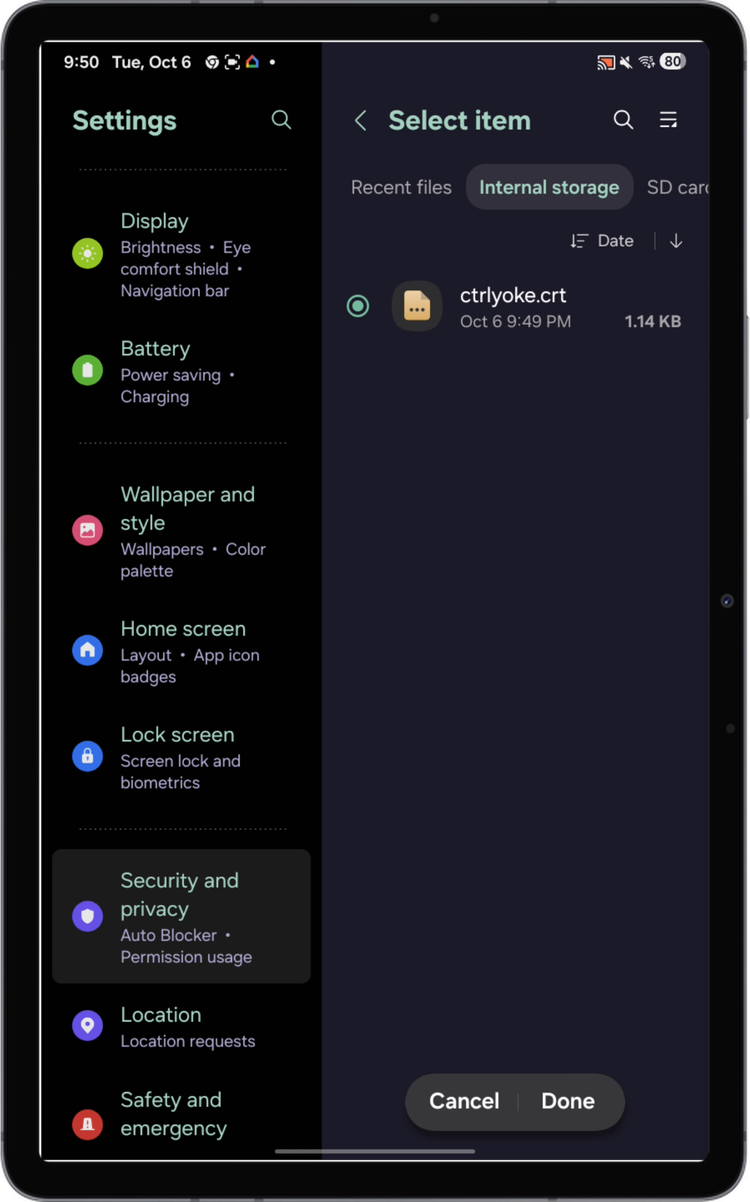
Tap Install anyway on the warning. In the file picker, open the Download folder, select
ctrlyoke.crt, and tap Done. Android shows CA certificate installed.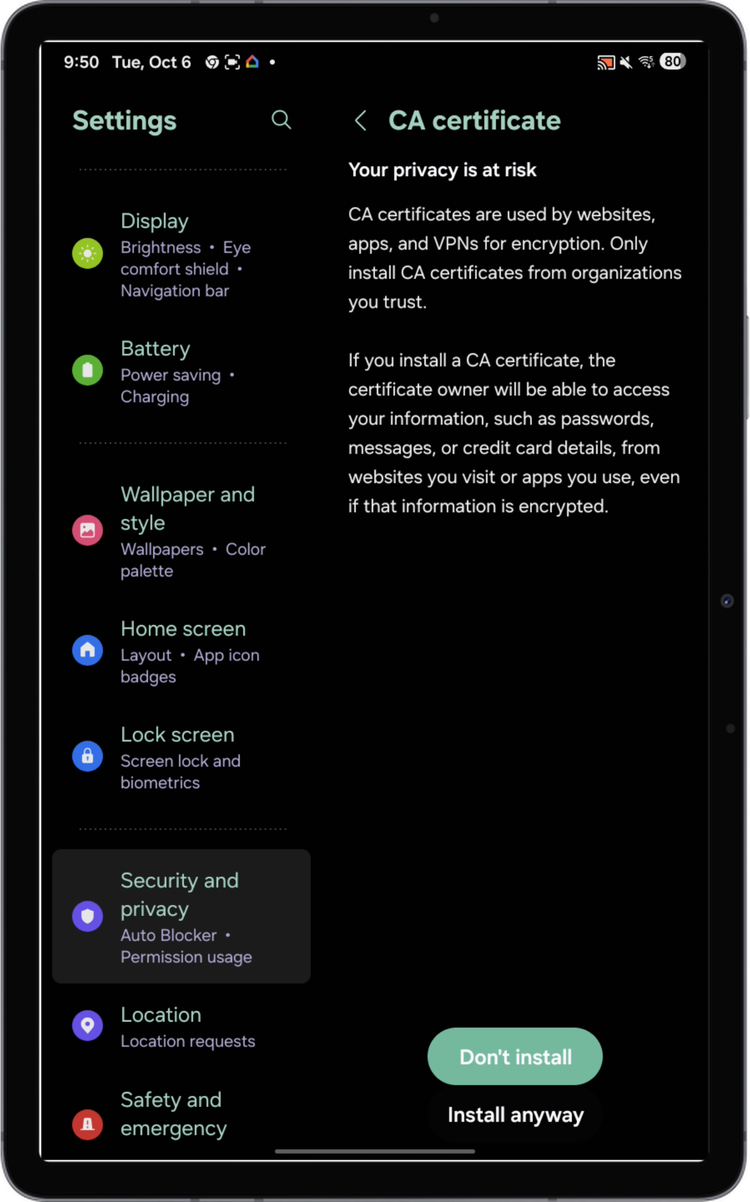
Optional: to check it worked, open User certificates (Samsung, under Credential storage) or Encryption & credentials → Trusted credentials → User. The ctrlyoke certificate should be listed.
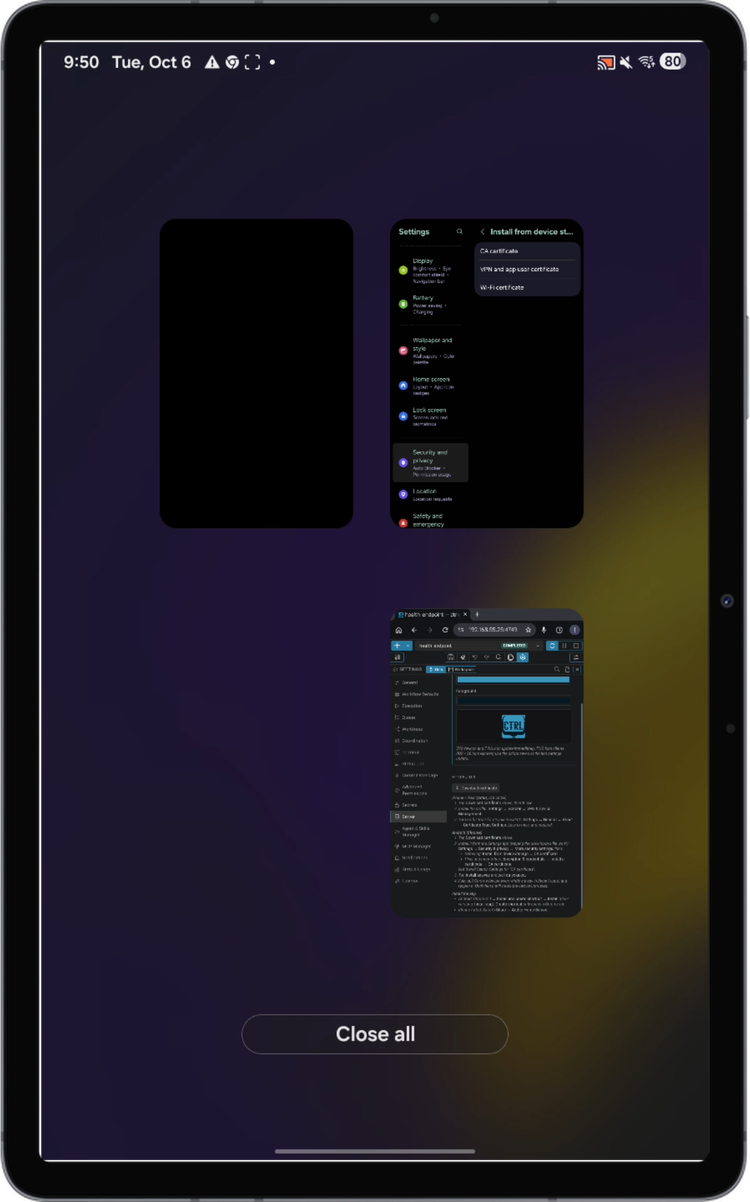
Fully quit Chrome: open Recent apps and swipe every Chrome window away, or tap Close all. Chrome keeps treating the certificate as untrusted until it restarts, even after it's installed.
Install the app
Open Chrome and the ctrlyoke link again. There should be no certificate warning this time.
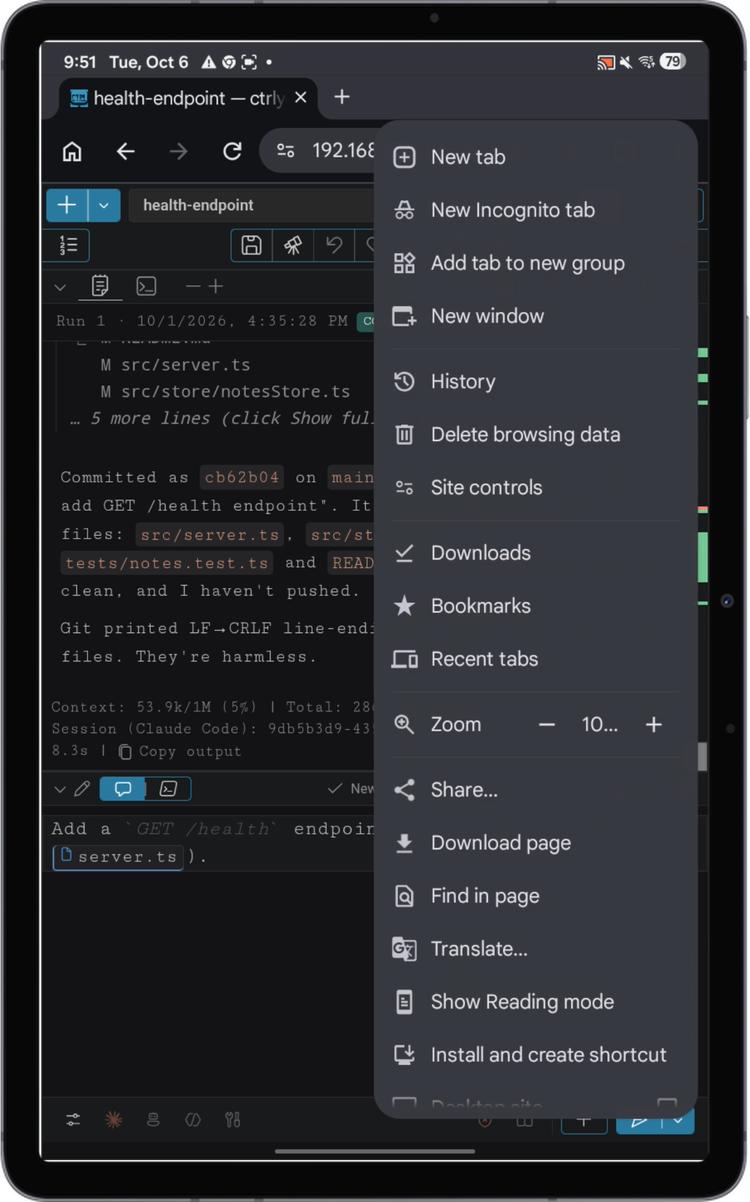
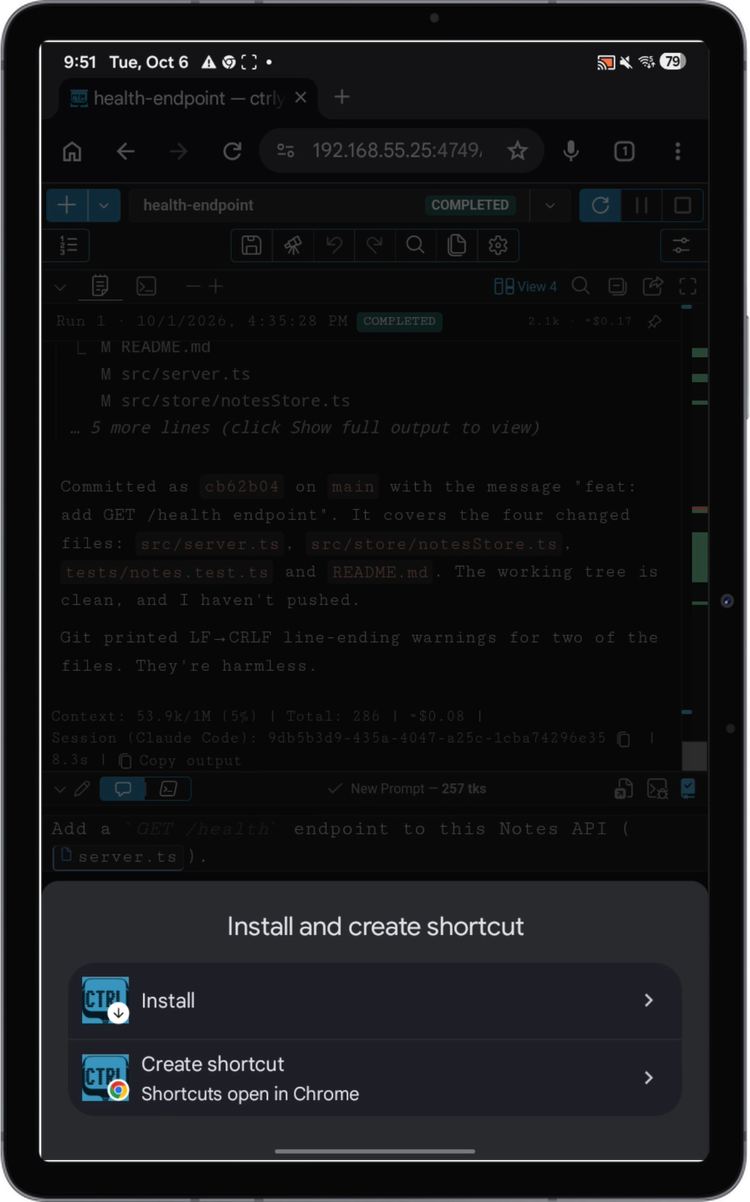
Tap the ⋮ menu → Install and create shortcut, then Install, and Install again to confirm. Older Chrome versions call this Install app or Add to home screen.
Choose Install, not Create shortcut: a shortcut only opens ctrlyoke in a Chrome tab, and Install doesn't work until the certificate is trusted.
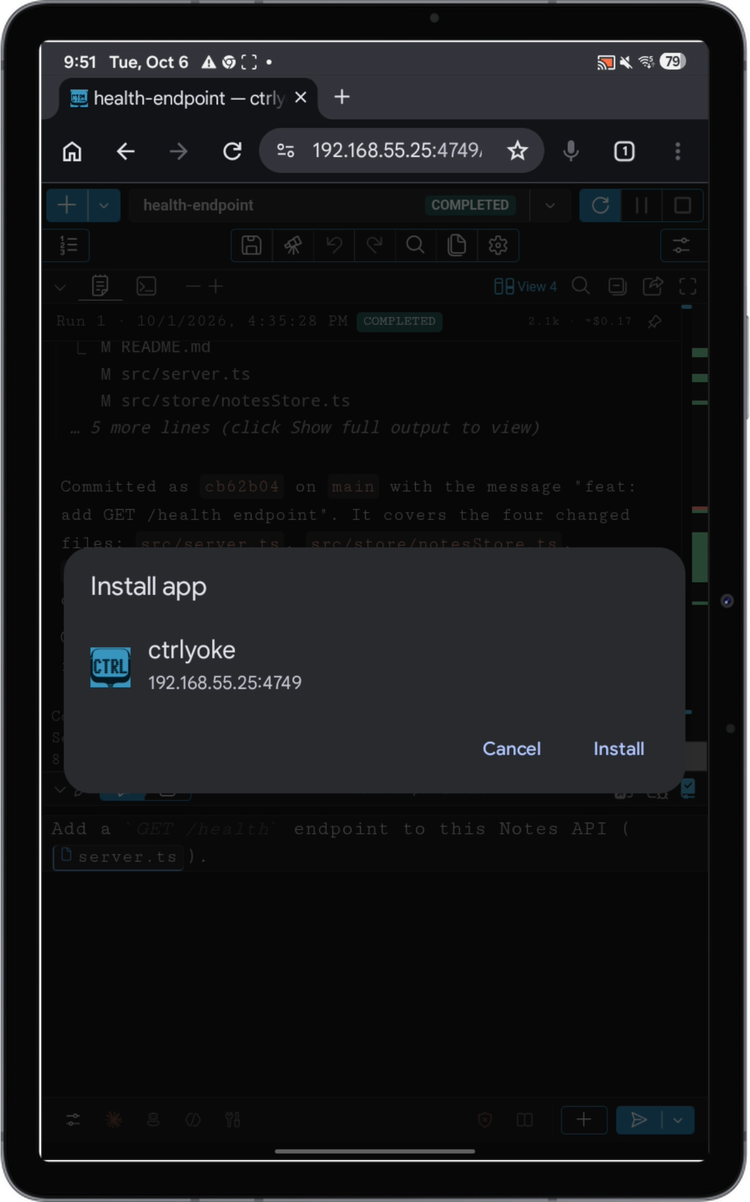
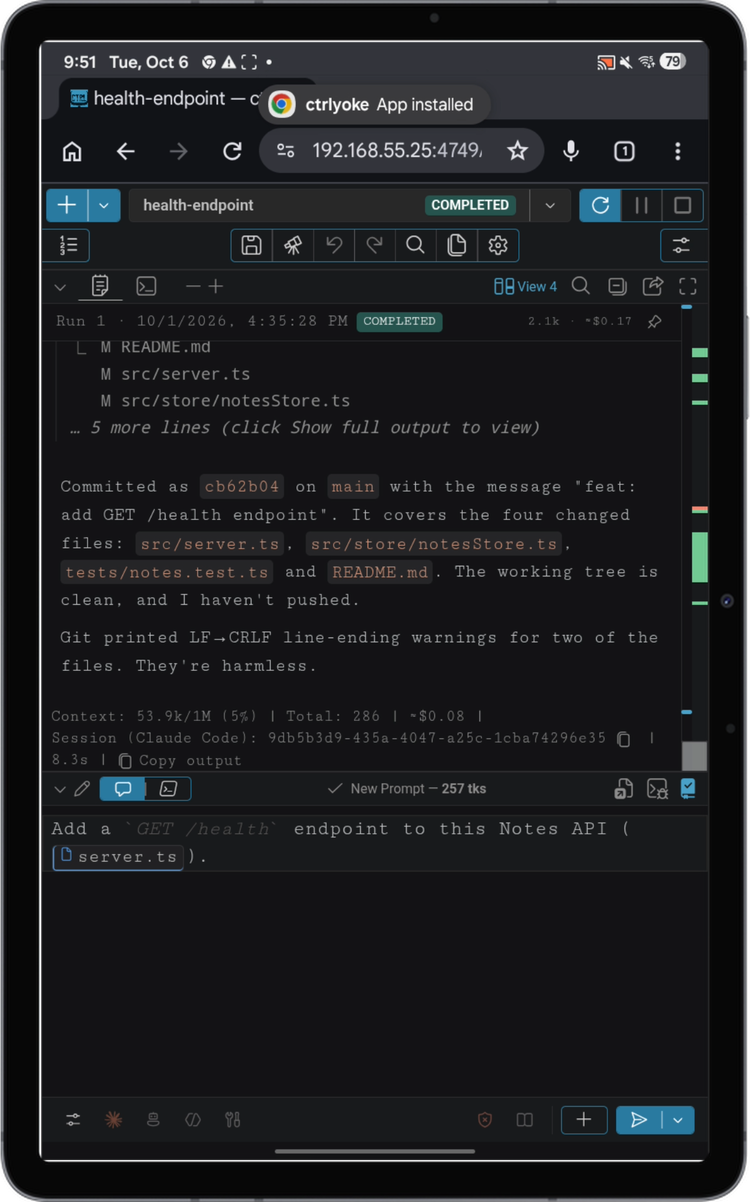
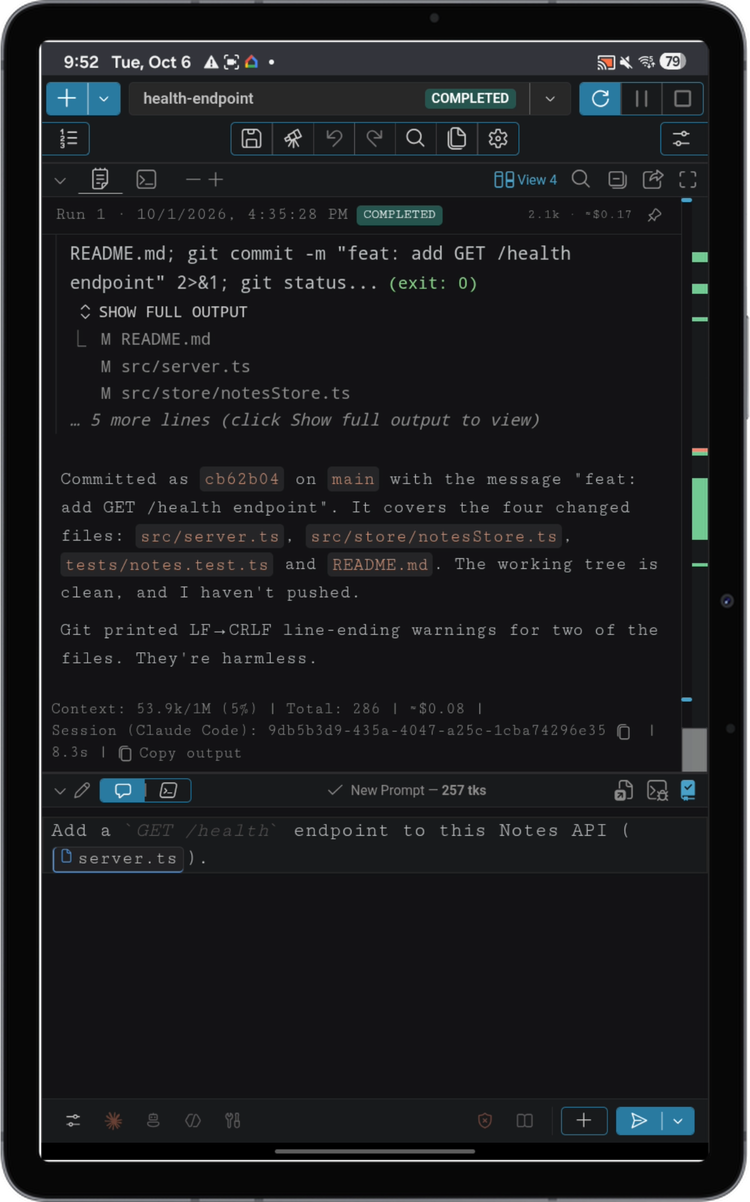
Open ctrlyoke from the home screen or app drawer. It connects to the workflow running on your computer.
Troubleshooting
- The warning is still there after installing the certificate. On Android, fully quit and reopen Chrome. Otherwise, the certificate may not cover the address you're using: generate a new one (see step 1), restart the server, and install it again.
- Android Chrome only offers "Create shortcut". The certificate isn't trusted yet. Finish Trust the certificate, including restarting Chrome.
- The app can't connect. Check that VS Code is open with the ctrlyoke server running, and that the phone is on the same network as your computer.