
Common errors
The workflow file validates in my head, but ctrlyoke refuses to run it
Run ctrlyoke validate <file> to see every schema and semantic error at once. Check the schema shape first: multi-step workflows use steps, not prompts.
"… unavailable. Install via: …"
The harness CLI could not be found. The message names the harness and its vendor's install command for your operating system, for example Install via: irm https://claude.ai/install.ps1 | iex on Windows. Each harness page lists the other install methods. Install it, make sure it is on the PATH that VS Code (or your terminal) sees, and sign in with the harness CLI once before running a workflow. After changing PATH, restart VS Code so the extension host picks it up. The standalone CLI exits with code 3 in this case.
The harness works in my terminal, but ctrlyoke says it is unavailable
ctrlyoke checks a harness by running its version command, such as claude --version, with the PATH that VS Code started with. It does not run your shell profile first. So a CLI that your profile puts on PATH works in a terminal but is missing for ctrlyoke. This is common with Node version managers (nvm, Volta, fnm), because the harness lives inside one Node version's folder.
- Windows. ctrlyoke looks the command up the way PowerShell does, without loading your PowerShell profile. A
.exe,.cmd,.bat, or.ps1file in aPATHfolder is found, including npm's.cmdshims (see the FAQ for how they are run). An alias or function defined in your profile is not. Add the folder that holds the CLI to your userPATHin Windows settings, not in your profile. - macOS and Linux. VS Code reads your login shell's environment when it starts, so a
PATHset in your shell profile usually reaches ctrlyoke. If it doesn't, start VS Code from a terminal where the CLI works, for example withcode .. - Node version managers. A global npm install belongs to the Node version that was active when you installed it. After you switch versions, either switch back or install the harness again under the new version.
ctrlyoke remembers where it found each CLI until VS Code restarts. After changing PATH or installing a harness, quit VS Code completely (every window) and start it again. To compare, run the harness's version command in a terminal; the standalone ctrlyoke CLI uses that terminal's PATH, so it can find a harness that the extension can't.
A step never completes
ctrlyoke detects that a harness finished a turn through that harness's hook or notification integration. These debug logs and the extension session log are written only when diagnostics.verboseLogging is true (the session log is always written in dev builds). Enable verbose logging before reproducing the issue. Then check .ctrlyoke/logs/ctrlyoke-<harness>-hook-debug.log (Codex CLI: ctrlyoke-codex-notify-debug.log; OpenCode: ctrlyoke-opencode-plugin-debug.log) and .ctrlyoke/logs/ctrlyoke-<timestamp>.log. No hook-log entries means the hook never ran; entries with a different session ID than the one in the session log mean the completion was attributed elsewhere. Also check whether the step runs in interactive or headless mode: in interactive mode you end the session.
"Another run in this workflow lineage is executing"
Only one run per workflow lineage executes at a time, enforced by runner.json in the lineage's run storage (see Troubleshooting). A lock is treated as stale, and reclaimed automatically, when its owner process has exited or it has missed its heartbeat for 30 seconds. If the message persists while no ctrlyoke process is running — for example, a lock written by another machine that syncs the same history — delete that lineage's runner.json.
Why can't I edit this workflow?
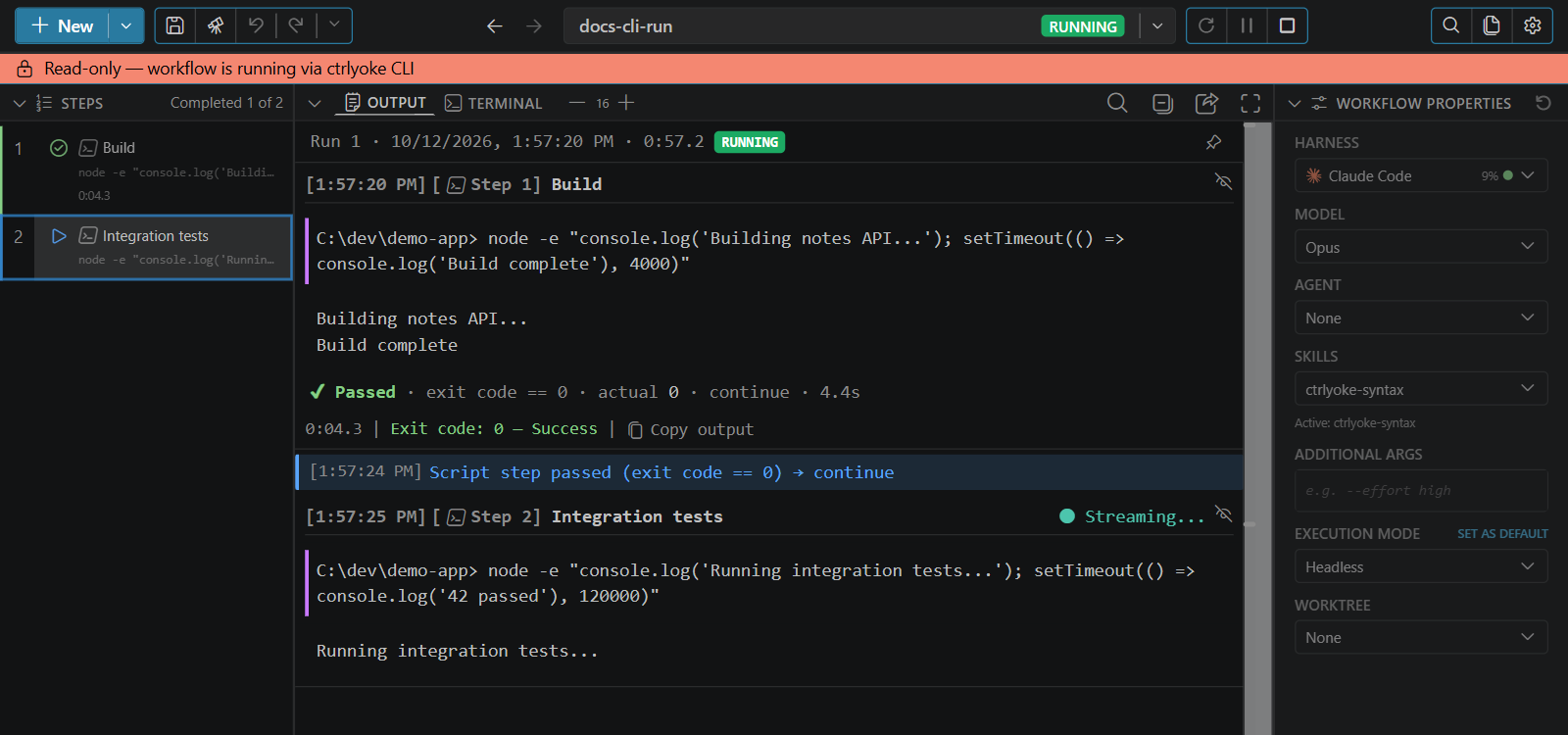
A red banner with a lock icon under the header tells you why the editing controls are disabled.
"Read-only — workflow is running via ctrlyoke CLI" (or another ctrlyoke window). The CLI or another VS Code window is running this workflow, and only the process that owns the run can change it. You can still watch its output, and the header's Stop button stops the run in the CLI or the other window. Once the run ends, the lock goes away and you can edit the workflow again. See Runs started somewhere else.
"Read-only — managed automatically by commit message generation". This is the commit-message-generation workflow, which ctrlyoke writes each time it generates a commit message. You can open its runs, but not edit it. Its Edit in settings link opens the Commit Message settings tab, which is where you change how it runs. See Commit messages.
A workflow file written by a newer version of ctrlyoke doesn't open at all. The message says it "uses workflow format N, which needs a newer ctrlyoke". Update ctrlyoke to open it.
"This workspace requests external file roots that have not been approved yet"
The workspace's .ctrlyoke/settings.json lists permissions.trustedExternalRoots that nobody has reviewed on this machine. Approve them when VS Code prompts you, or run ctrlyoke trust-external-roots. The related message "This workflow requests external file roots that have not been approved yet" refers to a workflow's trustedExternalRoots; run ctrlyoke trust-workflow-external-roots <file>. Both block the run until approved.
"This workspace's settings choose programs for ctrlyoke to run"
The workspace's .ctrlyoke/settings.json or MCP registry sets a shell, hook, MCP server, harness flag, or default script that nobody has reviewed on this machine. ctrlyoke ignores these values until you approve them. In a terminal, ctrlyoke run asks about each one. Without a terminal, it exits with code 2. Run ctrlyoke trust-workspace-settings to review them. In VS Code, the dashboard asks when it opens. See Settings that run programs.
"This workflow requests secret grants that have not been approved yet"
Approve the workflow's secret grants from the ctrlyoke panel in VS Code or with ctrlyoke trust-secret-grants <file>.
Secret "NAME" is missing for scope …
A secret the workflow declares is neither stored as a managed secret nor set in the environment. Store it (ctrlyoke secret set NAME, or the Secrets tab in the dashboard's settings) or export NAME in the environment that launches ctrlyoke. ctrlyoke secret check <file> checks every declared secret without starting a harness. By default a missing secret is a warning when a run starts; set execution.contextResolutionFailure to fail to make it an error.
"No encrypted OS credential store is available" means the host has no usable credential-store backend (common on headless Linux). Use environment variables instead of managed secrets there.
A later step did not continue the conversation I expected
Check:
- whether the step set
resumeSession: trueorsessionId - whether the earlier step actually captured a runtime session ID
- whether you changed harnesses between steps
My validation script failed and the workflow stopped
There are two different cases.
The condition failed. The script ran, but its result did not match expected. An end condition's onFail defaults to stopWorkflow, so the run stops. Set onFail: retry to send the step back to the harness; when maxRetries is omitted, one retry is allowed, and no retryPrompt is required because ctrlyoke builds a fallback from the condition result. Check:
- whether
compareSource,operator, andexpecteddescribe the check you meant — a numeric operator (gte/gt/lte/lt) fails outright when either side is not a number, andmatchesis an unanchored regex unless you add^and$ - the script's actual stdout, stderr, and exit code in the dashboard output or with
ctrlyoke history show
The script could not run. A command that cannot be started (for example, an interpreter that is not installed) or a timeout is an error, not a failed condition, and it is handled by errorBehavior (onError: stopWorkflow, retry, or continue). Check the script path or command and the timeout (timeoutSec on the condition, or the execution.scriptTimeoutSec setting). A script file that is missing usually makes its interpreter exit non-zero, which counts as a failed condition instead.
Dynamic workflow did nothing
Confirm that the step includes:
mcpServers:
  - ctrlyoke
Without the built-in server, the harness cannot call the tools that append steps. The built-in server is allowed on parallel-group members.
Step limit reached
An append can be refused with a message such as Step limit reached: this run has 30/30 steps (workflow maxSteps: 30). Do not retry; finish without appending. The effective cap is the workflow's maxSteps when set, otherwise the global queue.maxSteps setting. Raise the effective cap if the run needs more steps, or set workflow maxSteps: -1 to remove the cap for that workflow. The count includes appended steps, parallel members, and disabled steps; it does not include finalStep iterations or end-condition retries.
The CLI finished, but I wanted an interactive session
Use --interactive on ctrlyoke run, or make sure stdin and stdout are attached to a TTY so the CLI does not auto-select headless mode.
"--prompt cannot be used together with a file argument"
ctrlyoke run takes either a workflow file or --prompt <text>, not both. To change one step of a workflow, edit the file or use --var for values the workflow references.
The extension host crashes shortly after a workflow completes
If VS Code reports that the extension host terminated unexpectedly, or the window disappears, a few seconds after a run finishes, the extension host most likely ran out of JavaScript memory. That is usually one large allocation on a heap that was already big, such as loading a long run's output, rather than a slow leak.
Confirm it. VS Code writes a crash dump for each crash. On Windows they are in %APPDATA%\Code\Crashpad\reports\; on other systems, look in the Crashpad folder inside VS Code's user data folder. A dump from a memory crash contains the text is_heap_oom=1. In PowerShell:
Select-String -Path "$env:APPDATA\Code\Crashpad\reports\*.dmp" -Pattern "is_heap_oom=1" -SimpleMatch -ListSee what led up to it. With diagnostics.verboseLogging turned on, the session log (.ctrlyoke/logs/ctrlyoke-<timestamp>.log) records memory use while ctrlyoke runs. [MemoryWatchdog] lines track the extension host and [PanelMemory] lines track the dashboard. A new line is written only when memory moves by a large step, and each one names what ran since the previous line. After a memory crash, the log usually stops mid-line with no error. The last few memory lines show how big the heap had grown and what was loading. Include them, and the dump check above, when you report the problem.
If other apps crash too, the whole machine probably ran out of memory, and ctrlyoke may be only a bystander. This is likely when a window closes with renderer process gone (reason: oom) while the ctrlyoke memory lines look normal. On Windows, open Event Viewer and look in the System log for event 2004 from Resource-Exhaustion-Detector. Its details list the processes that were using the most memory.