
Run history and search
Every time a workflow runs, ctrlyoke keeps the run: its steps, settings, output, file changes and script results. This page covers searching that history, getting back to a run, and how long runs are kept.
Search History
Open the Search History drawer with the magnifier button in the header, Ctrl+Shift+F (Cmd+Shift+F on macOS) while the dashboard has focus, or the ctrlyoke: Search ctrlyoke History command. It searches every run in this workspace's history.
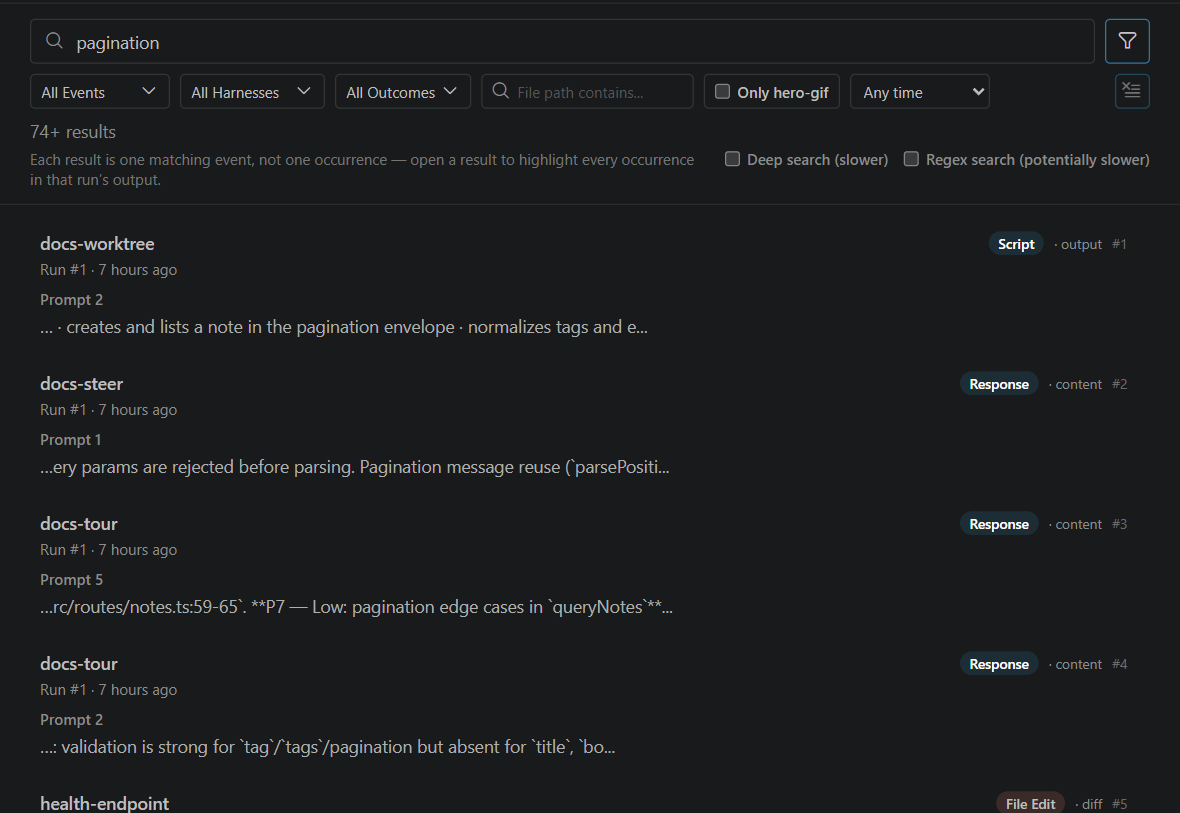
Type at least two characters. Results update as you type.
Each result shows:
- the workflow name, the run number and when the run started;
- a badge for the kind of event that matched, such as Prompt, Response, Thinking, Bash, File Edit, Tool, MCP Tool or Script;
- the part of the event that matched:
content,output,diff,path,command,responseorerror; - which step it came from, and a snippet around the match.
Each result is one matching event, not one occurrence. A response that mentions your search term ten times is one result. The count is marked with + (for example 74+ results) while ctrlyoke has not scanned far enough to know the exact total; scrolling down loads more.
Opening a result
Click a result, or press Enter to open the first one. The drawer closes, the run opens in the Output pane, and the output find bar is filled in with your search, so every occurrence in that run is highlighted, starting at the step that matched. If you had hidden that step's output, it is shown again. Press Esc to close the drawer without opening anything.
From the opened run you can use the run controls as usual, for example Re-run it or continue it from an earlier step.
Filters
Click the filter button beside the search box to show the filter row. A number on the button counts the active filters, and the clear button at the end of the row resets them.
| Filter | What it limits |
|---|---|
| Events | Event kinds, grouped as File (read, write, edit, delete), Execution (Bash, CLI command, tool, MCP tool, web search), Conversation, Script, and Run status. |
| Harnesses | The harness that ran the step. |
| Outcomes | The run's state, such as completed, stopped or error. |
| File path contains | Events that touched a file whose path contains this text. |
| Only workflow | Just the workflow you are viewing. Shown only while a run is open. |
| Date range | Any time, Last 7 days, Last 30 days, Last month or a Custom range. |
Deep search and regex
- Deep search (slower): by default, search looks at the first 2,000 characters of each event's text. A term that only appears later in a long output can be missed. Deep search re-reads the matching runs from disk to find it.
- Regex search (potentially slower): treats the search as a case-insensitive regular expression. The output find bar searches for plain text, so when you open a regex result it may not highlight the matches.
The search index
Search uses an index that ctrlyoke keeps beside your run history. After a large history change it is rebuilt once, and the drawer shows Rebuilding search index with a progress bar until it finishes. While the index catches up you may see Index updating or Using fallback search next to the result count.
runs.historySearchCacheMb (default 320) sets how much memory ctrlyoke may use to keep recently searched runs ready. Set it to 0 to turn the cache off.
The CLI can search the same history: see ctrlyoke history search.
Getting back to a run
Click the workflow name in the header to open the Workflows menu, which lists recent workflows and each one's numbered runs. When a workflow has more than one run, the Run N badge in the header opens the same list. See The workflow menu.
A finished, stopped or paused run can be continued from an earlier step, or have steps added to it. See Continuing from an earlier step. From a terminal, the same operations are ctrlyoke rerun, ctrlyoke append and ctrlyoke continue.
Runs started somewhere else
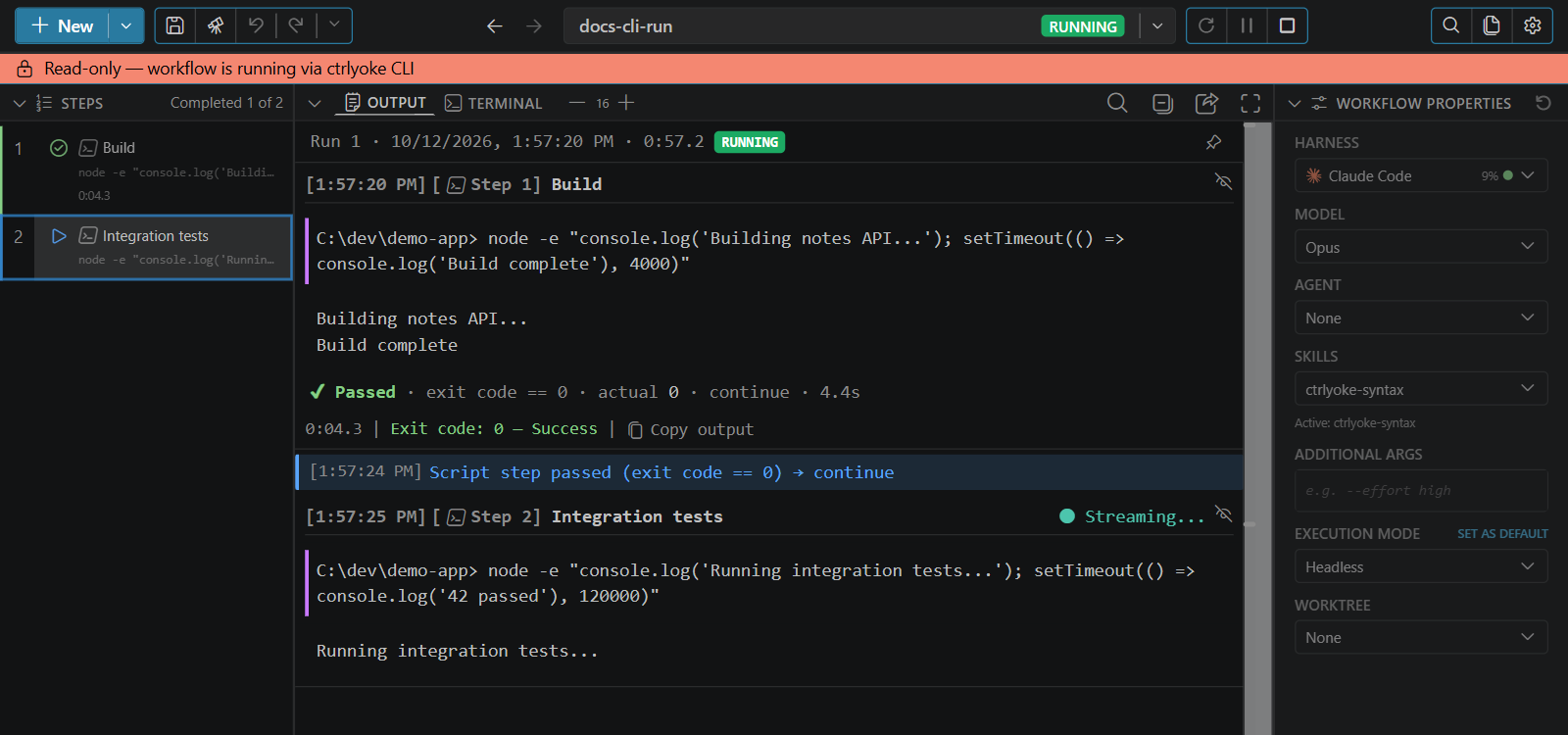
The dashboard also shows runs that the CLI or another VS Code window is executing in the same workspace. They appear in the Workflows menu's Running list with a CLI or Other VS Code Window badge, and their output streams in live.
You can watch such a run but not edit it. A banner reads Read-only — workflow is running via ctrlyoke CLI (or another ctrlyoke window), and the editing controls are disabled. The header's Stop button still works: it stops the run in the CLI or the other window.
Where runs are stored
By default run history lives in your home folder, under ~/.ctrlyoke/projects/, not in the workspace. To keep it in <workspace>/.ctrlyoke/ instead, set storage.runHistoryLocation to workspace. It is a user-only setting and takes effect after a window reload. Existing history isn't moved: the other location shows up as a separate history, and switching back brings it back. The search index, Recently deleted runs and saved usage move with this setting.
For the files inside each run, see Run files.
How long runs are kept
History is always on, and by default every run is kept.
runs.maxRunscaps the number of runs kept per workflow. When a new run starts, that workflow's oldest runs are deleted permanently, definition and output together. They don't go to Recently deleted. Running runs, and runs another workflow uses as prior context, are kept, so the count can briefly go over the limit.-1(the default) means unlimited.- Deleting a run or workflow yourself, from the Workflows menu or with Clear all history…, moves it to Recently deleted. It stays there for
storage.trashRetentionDaysdays (30 by default).
To restore a deleted run, open Settings → General, find Run History, and click View next to Recently deleted. Each entry has a Restore button, and a Delete button that asks before deleting it for good. From a terminal, use ctrlyoke history trash.