
MCP servers
MCP servers give a harness extra tools: a database, an issue tracker, a browser. ctrlyoke keeps one list of your servers and attaches the ones a step needs to whichever harness runs that step, in the format that harness expects. You configure a server once instead of once per harness.
mcpServers:
  - ctrlyoke # ctrlyoke's own server
  - github # a server from your ctrlyoke registry
steps:
  - prompt: Triage the open issues labelled "bug" and add a step per fix.
The registry
ctrlyoke's own list of servers is its registry. It lives in two files:
| Scope | File |
|---|---|
| User | ~/.ctrlyoke/mcp/servers.json, for every workspace |
| Workspace | .ctrlyoke/mcp/servers.json in the workspace, shareable with your repository |
Both are read together. When the same ID is in both, the workspace entry wins. A workflow names a registry server by its ID, as in github above.
The MCP Manager
Open the dashboard's settings and choose MCP Manager. The scope switch at the top of the settings drawer picks which registry you are editing.
Managed servers lists the registry's servers. Each row shows the server's command or URL and a badge for every place it is installed: the ctrlyoke registry and any harness config files that also have it. Expand a row for details, or use Edit and Delete.
Add MCP server creates a stdio server (a command, arguments and environment variables) or a remote server (a URL, a transport and HTTP headers).
The globe button on a row adds the server to, or removes it from, Default MCP servers, which every workflow inherits (see Which servers a step gets).
Save on a row copies the server into another tool's native config file, so you can use it outside ctrlyoke too. The targets are VS Code and each of the six harnesses, at user or workspace scope:
Target Workspace file User file VS Code .vscode/mcp.jsonVS Code's user mcp.jsonClaude Code .mcp.json~/.claude.jsonCopilot CLI .github/mcp.json~/.copilot/mcp-config.jsonCodex .codex/config.toml~/.codex/config.tomlOpenCode opencode.json~/.config/opencode/opencode.jsonQwen Code .qwen/settings.json~/.qwen/settings.jsonAntigravity .agents/mcp_config.json~/.gemini/config/mcp_config.jsonDelete removes the server from the registry or from one of those files. ctrlyoke never needs these copies itself; it attaches registry servers on its own at run time.
Tick several rows to Save, Delete or Set default for all of them at once.
Importing servers you already have
Discover & import finds servers to add to the registry:
- Local configs scans the files in the table above and lists every server they define. Import copies one into the registry. Scan again re-reads them, for example after installing a server from VS Code's own MCP Servers panel.
- Registry searches the public MCP Registry, sorted A–Z, Z–A or by recently updated. Verified entries are marked. Import adds the server to your registry.
Adding servers to a workflow
mcpServers is a list. Each entry is one of:
- A registry ID, such as
github. ctrlyoke, ctrlyoke's own server (see below).- A full server definition, for a server that only this workflow uses:
mcpServers:
  - id: local-db
    command: node
    args: [./tools/db-mcp-server.js]
    env:
      DATABASE_URL: ${secret:DEMO_DB_URL}
  - id: docs-search
    url: https://mcp.example.com
    transport: streamable-http # or sse
    headers:
      Authorization: "Bearer ${secret:DEMO_API_KEY}"
    deniedTools: [delete_index]
A definition needs an id and exactly one of command (a stdio server) or url (a remote server). args and env are for stdio servers; transport and headers are for remote ones. Every field is in the schema reference.
In the dashboard, the MCP tab of the workflow properties panel lists your registry's servers to tick.
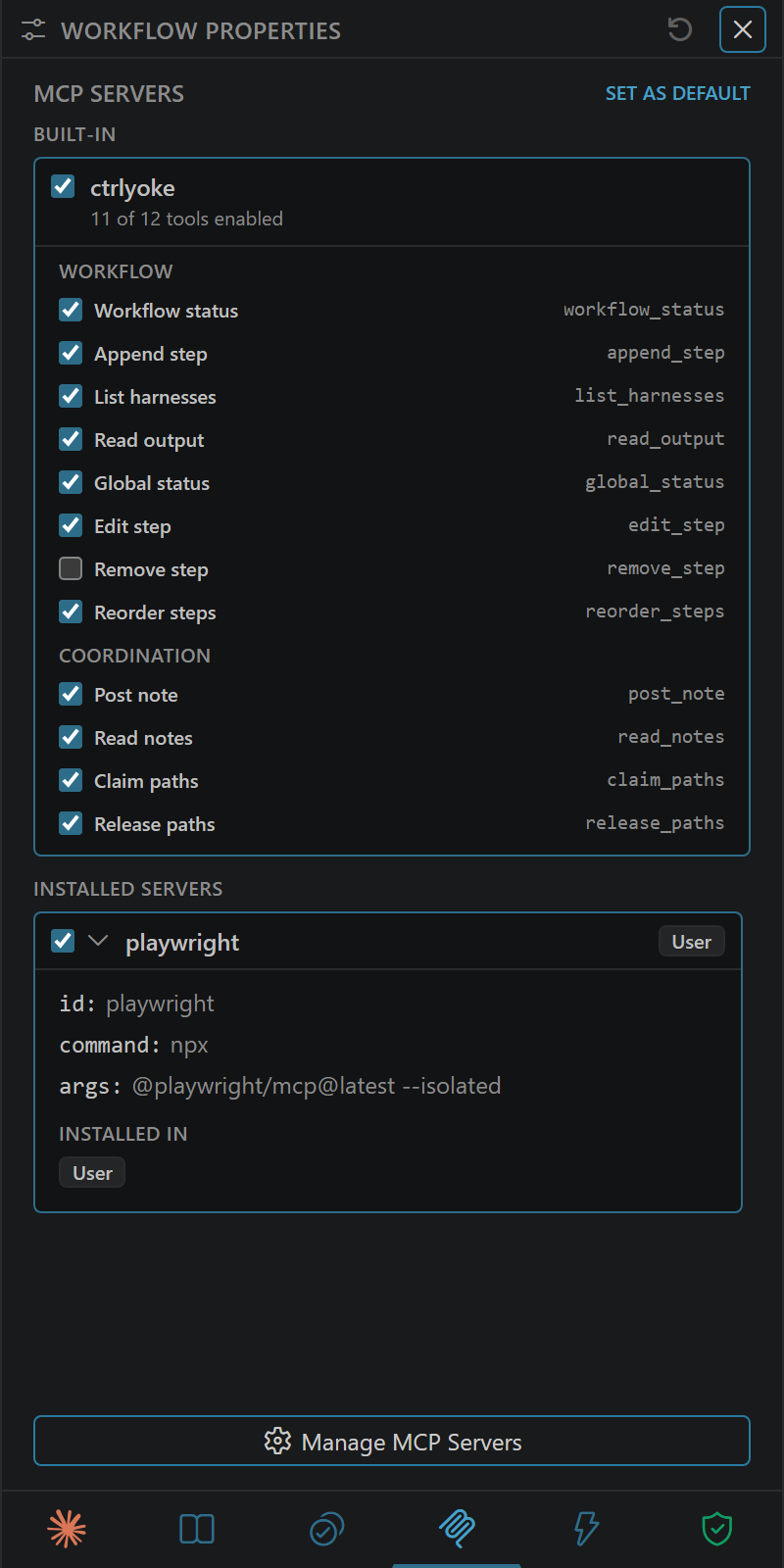
Denying individual tools
deniedTools lists tools from that server the harness may not call, by their bare names. ctrlyoke turns each into an mcp__<server-id>__<tool> deny pattern in the step's permissions. Every harness except Antigravity supports this; Antigravity attaches the whole server.
You can also deny an MCP tool directly in a permission list with the same mcp__<server-id>__<tool> pattern.
Secrets in a server's settings
Write ${secret:NAME} in a server's env or headers instead of a token. The value is filled in when the server starts and never stored in the workflow or the run. Naming a secret there grants it to the step, and a server that comes from your user-scope registry needs no separate grant approval. See Secrets.
Which servers a step gets
mcpServers can be set on a step, on the workflow, or in the defaults.mcpServers setting. The first one that is set wins, and its list is used as a whole; lists from different levels are not combined.
- Omit it to inherit the next level.
- Set a list to use exactly those servers.
- Set it to
nullto attach no servers at all, not even the defaults.
Edit the defaults in Settings → Workflow Defaults → MCP, or with the globe button in the MCP Manager.
Attaching a server from the prompt
/mcp:<server-id> in prompt text attaches that registry server to the step on top of its list, even when mcpServers is null. Type /mcp: in the prompt editor to pick from your registry.
steps:
  - prompt: /mcp:github List the open pull requests that touch @src/api/.
    mcpServers: null
A /mcp: name or registry ID in an mcpServers list that isn't in the registry shows a warning when the step starts and is skipped. Set execution.contextResolutionFailure to fail to stop the step instead.
The built-in ctrlyoke server
ctrlyoke in mcpServers attaches ctrlyoke's own server. It is not in the registry. Its tools let the harness read the run's status and earlier output, add and change pending steps, and coordinate with other workflows in the workspace. See Dynamic workflows for what that enables and MCP tools for every tool.
To switch off some of its tools, use the object form:
mcpServers:
  - id: ctrlyoke
    deniedTools: [append_step, remove_step]
When MCP is blocked: skill mode
Some environments don't allow MCP servers at all, for example by an organization policy. Set execution.ctrlyokeMcpMode to skill, or choose MCP mode → Skill in Settings → General. ctrlyoke then attaches built-in skills instead of its server, and the harness calls the same tools as shell commands. This only affects ctrlyoke's own server; other servers are attached as usual. See Dynamic workflows: skill mode.
Servers from shared workspace files
A stdio server starts a program on your machine. So a stdio server that comes from a workspace file, either the workspace registry or defaults.mcpServers in the workspace's .ctrlyoke/settings.json, is held back until you approve that exact entry on this machine. VS Code asks when the dashboard opens; from a terminal, run ctrlyoke trust-workspace-settings. Until then, your user settings apply. Remote (URL) servers and servers you add yourself through the MCP Manager don't need this. See ctrlyoke trust-workspace-settings.
How each harness receives them
ctrlyoke passes servers to each harness through its own channel. Most use a temporary file or an inline argument for the one process. Antigravity has no such option, so ctrlyoke adds its servers to the workspace's .agents/mcp_config.json and removes them afterwards. See Files ctrlyoke writes for each harness, and the compatibility matrix for per-server tool filtering.