
Worktrees
A workflow can run in a separate Git worktree instead of your working checkout. The harness then edits files on a branch of its own while you keep working, and two workflows can run on the same repository without touching each other's files.
worktree:
  mode: managed
  base: main
  setup: npm ci
  merge: true
steps:
  - prompt: Add input validation to @src/api/users.ts and cover it with tests.
  - type: script
    script: npm test
worktree is a workflow-level field; steps cannot set their own. In the dashboard it is the Worktree picker on the Harness tab of the workflow properties panel.
Choosing a mode
| Value | Dashboard | What happens |
|---|---|---|
false | None | The workflow runs in your working checkout and shares it with your own edits. |
true or { mode: managed, … } | Managed | A throw-away worktree and branch for each run. The branch is kept for review afterwards. |
"branch-name" or { mode: named, … } | Named | A persistent worktree on a branch you own. ctrlyoke never commits, merges or removes it. |
When a workflow omits worktree, the defaults.worktree setting applies. Its default is false.
Pick Managed for one-off runs you will review and then merge or throw away. Pick Named for a branch you keep coming back to, such as a feature you develop over several runs or a workflow you append follow-up prompts to.
Worktrees need a workspace with exactly one Git repository, and every workspace folder must be inside it. If a workflow sets worktree in a workspace that doesn't qualify, the run fails before any step starts. A worktree that only comes from defaults.worktree is skipped instead: the run uses the working checkout and records a notice saying why.
Managed worktrees
worktree:
  mode: managed
  base: main # optional; defaults to the commit your checkout is on
  setup: npm ci # optional; runs once in the new worktree
  merge: true # optional; merge the result back into your checkout
  keep: false # optional; keep the directory after the run
steps:
  - prompt: Upgrade the date library and fix any breakages.
worktree: true is shorthand for { mode: managed }.
Each run gets a new branch named ctrlyoke/<workflow-name>/<run> and a new worktree directory checked out from base. When the run ends:
- ctrlyoke commits everything the run changed on that branch with the message
chore(ctrlyoke): auto-commit changes for "<workflow name>". - If the run changed nothing and the directory isn't kept, the branch is deleted.
- With
merge: true, the branch is merged into your working checkout (see Merging back). - Unless
keep: trueis set, the worktree directory is removed. The branch stays, so you can review, merge or delete it yourself.
Merging back
merge: true tries a fast-forward first and falls back to a merge commit. It only touches your working checkout when it is safe to:
- the checkout must still be on the branch it was on when the run started;
- it must have no uncommitted changes;
- no other Git operation (merge, rebase, cherry-pick) can be in progress.
If any of these fails, the merge is skipped and the run reports why. If the merge conflicts, ctrlyoke aborts it, leaves your checkout as it was and lists the conflicting files. In every case the branch is still there to merge by hand.
Keeping the directory
Removing the worktree directory also ends file-change undo for that run. Set keep: true (Keep directory in the dashboard) when you want to inspect the files in place, undo individual changes afterwards, or append follow-up prompts to the run.
Appending to a managed run whose directory was removed recreates the directory from the branch. Ignored files such as node_modules are gone, so setup runs again; with a slow setup, keep: true saves that cost on every append.
What blocks landing
ctrlyoke refuses to commit a managed worktree when it contains ctrlyoke runtime files that Git would pick up. That covers untracked runtime output, and always covers .ctrlyoke/certs/, notifications/, temp/ and logs/ even if you track them, because they can contain secrets or short-lived data. The run then reports the paths and keeps the worktree so you can clean it up. Runtime files you track on purpose, such as saved prompts and attachments, land normally.
Named worktrees
worktree: feature/search-filters
steps:
  - prompt: Add a date-range filter to the search page.
The string form is shorthand for { mode: named, branch: feature/search-filters }. The object form adds base and setup:
worktree:
  mode: named
  branch: feature/search-filters
  base: main # used only when the branch doesn't exist yet
  setup: npm ci # runs only when ctrlyoke creates the worktree
steps:
  - prompt: Add a date-range filter to the search page.
ctrlyoke looks for an existing worktree of that branch and uses it. If there isn't one, it creates the worktree, and creates the branch from base (or from your current commit) if needed. The branch must not be the one checked out in your working checkout.
ctrlyoke never commits, merges or removes a named worktree. What the harness changes stays as uncommitted work in that worktree, and the next run on the same branch picks up where the last one left off. Commit and merge it when you are ready, or use Sync in the Worktrees settings tab.
Setup commands
setup runs once, in the new worktree's root, right after ctrlyoke creates it. Use it to install dependencies or generate files that are ignored by Git and so missing from a fresh checkout:
worktree:
  mode: managed
  setup: npm ci && npm run build
vars:
  env: staging
steps:
- prompt: Run the {{env}} smoke tests and fix what fails.- Setup output streams into the output pane as the run starts and is saved with the run's history.
{{name}}variables are substituted into the command.- The
execution.scriptTimeoutSecsetting limits how long it may run. - A setup that already succeeded for a worktree is not run again. A managed worktree whose directory is recreated runs it again.
When setup fails
A failed setup stops the run before any step starts and marks it as failed. Setup is not covered by errorBehavior, because no step is running yet; retrying or continuing past a worktree that was never set up would only fail later.
There is no separate retry action. Fix the cause (or the setup command) and press Run again: ctrlyoke reuses the same worktree and runs setup again. The failed attempt's output stays in that run's history.
Parallel groups
All members of a parallel group run in the workflow's one worktree, side by side. ctrlyoke does not give each member its own worktree or merge their work, so give each member independent files to change.
Files from your working checkout
Some files a prompt references live only in your working checkout because Git ignores them: pasted images in .ctrlyoke/attachments/, saved prompts in .ctrlyoke/prompts/, ctrlyoke's own logs, and similar. A worktree run can still use them:
- A whole-file
@reference, such as a pasted image, is copied into the worktree at the same relative path, so the harness can open it. - A
#selection:or#sym:excerpt, or a step whose prompt is a file, is read from your working checkout. - A directory reference (
@.ctrlyoke/attachments/) is not allowed.
The output pane notes each file read or copied this way. This applies only to ignored files. A tracked or untracked-but-not-ignored file that is missing from the worktree is a real difference between branches, so it is not imported.
Where worktrees and history live
Worktree directories go next to your repository, in <repository>.worktrees/. If that folder can't be created, ctrlyoke uses ~/.ctrlyoke/worktrees/ instead. To put them somewhere else, set worktrees.root to an absolute or ~-prefixed path. It is a user-only setting.
A worktree run's history belongs to the checkout that started it, so it shows in that VS Code window's dashboard like any other run. If you open a worktree directory as its own VS Code workspace, that window keeps a separate history.
Managing worktrees
The Worktrees tab in the dashboard's settings shows the effective worktree root and, under Manage Worktrees, every linked worktree of the repository with its owner (ctrlyoke-owned for managed worktrees, user-owned for named ones), branch, and whether a run is using it. The command ctrlyoke: Manage Worktrees opens the dashboard.
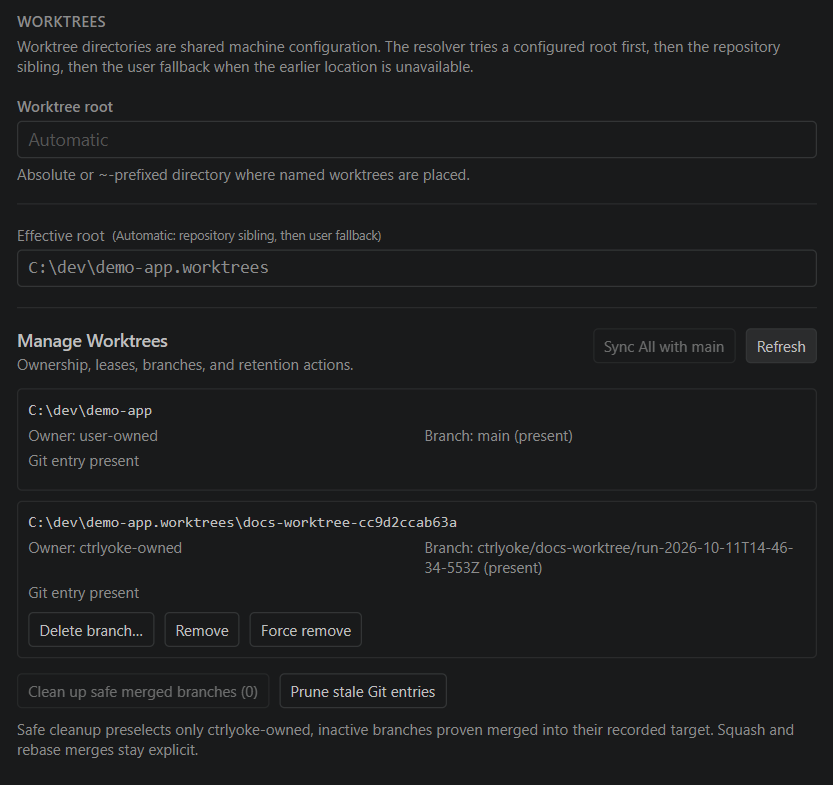
Actions on a row depend on the worktree:
| Action | Does |
|---|---|
| Sync with <branch> | For a named worktree: merges its branch into your checkout's branch, then merges that branch back into it. |
| Delete merged branch | Deletes a ctrlyoke branch that is provably merged into the branch it was created from. |
| Delete branch… | Deletes a ctrlyoke branch that isn't provably merged, after confirmation. |
| Remove / Force remove | Removes a managed worktree's directory. Force remove also discards uncommitted changes in it. |
| Repair entry | Fixes a stale Git worktree entry. |
Above and below the list:
- Sync All with <branch> syncs every named worktree in turn. A branch that can't merge cleanly is skipped and reported; the rest still run.
- Clean up safe merged branches deletes the selected ctrlyoke branches. Only inactive branches proven merged are preselected; squash and rebase merges stay a manual choice.
- Prune stale Git entries clears worktree entries whose directory is gone.
A worktree in use by a run can't be removed. Its row names the run, and in VS Code Open owning workspace opens the window that owns it.
See also
worktreein the workflow schema reference- Workflow properties panel
- Parallel steps
- Error handling