
Settings
ctrlyoke keeps its settings in its own JSON files, not in VS Code's settings. The dashboard's Settings drawer edits those files for you, and the CLI reads the same ones, so a value set in one place applies everywhere.
This page covers where settings live and how they combine. For every setting, its default and what it does, see the settings reference.
Settings files
| Scope | File | Use it for |
|---|---|---|
| User | ~/.ctrlyoke/settings.json | Your own preferences, on every project on this machine |
| Workspace | <workspace>/.ctrlyoke/settings.json | Project choices you want to share with the team through Git |
Both files are optional. A setting that neither file names uses its built-in default.
The files accept comments and trailing commas. Saving a setting from the Settings drawer rewrites the file as plain JSON, so comments in it don't survive an edit from the dashboard. VS Code validates both files against ctrlyoke's settings schema as you type. Changes made by hand, the CLI, or another VS Code window are picked up by running commands and refresh the open Settings drawer. Settings used to start the hosted server take effect the next time it starts; server.autoStart is read when the extension activates, so changing it requires reloading the window.
If a file isn't valid JSON, ctrlyoke ignores it (as if it were empty) and refuses to save changes to it, so it never overwrites the only copy of your settings. Fix the file by hand.
How the scopes combine
ctrlyoke starts from the defaults, applies the user file on top, then the workspace file:
built-in defaults → user settings.json → workspace settings.json → CLI flags- Objects merge key by key. A workspace file that sets only
execution.scriptTimeoutSecchanges that one value and keeps every otherexecutionsetting from your user file.modelPricingfollows the same rule: user and workspace rates combine per harness and model, and a workspace rate wins when both files define the same model. The Model Pricing editor shows and saves only the selected scope's rates. - Arrays replace. A list set in the workspace file replaces the user file's list as a whole; the two are not combined. The one exception is
permissions.trustedExternalRoots: roots from both files are combined, and the workspace's roots still need your approval before ctrlyoke reads from them. - CLI flags apply last. Options such as
--timeoutand--script-timeoutoverride both files for that one command and are never written back. See CLI.
User-only settings
Some settings describe your machine rather than the project, so a workspace file can't set them:
storage(where run history is kept)worktrees(where managed worktrees are created)statusLineusageTracking.enabledlanguageServers.idleShutdownMinutes,languageServers.maxRunningandlanguageServers.startOnLaunch
If a workspace file sets one of these, ctrlyoke ignores that value and uses your user setting instead. The Settings drawer won't save them at workspace scope. Where a tab shows one, such as the worktree root, its control is disabled at workspace scope, with a note to switch to User.
Workspace settings that run programs
A workspace file comes from the repository, so anyone who can commit to it could choose what runs on your machine. Settings that launch a program therefore take effect from a workspace file only after you approve them:
terminal.shellExecutabledefaults.additionalArgsdefaults.hooksdefaults.mcpServersentries that start a local commanddefaults.endConditionanddefaults.preCondition
The first time ctrlyoke finds one, it asks which values to trust. Unchecked values stay blocked, and your own user setting applies instead. Approval is recorded per workspace and per value, so a later commit that changes the value asks again. A value identical to your own user setting never needs approval, and a value you save at workspace scope from the Settings drawer counts as approved. To change an earlier answer, run ctrlyoke: Review Workspace Settings That Run Programs.
The Settings drawer
Open it from the gear button (Global Settings) in the dashboard header.
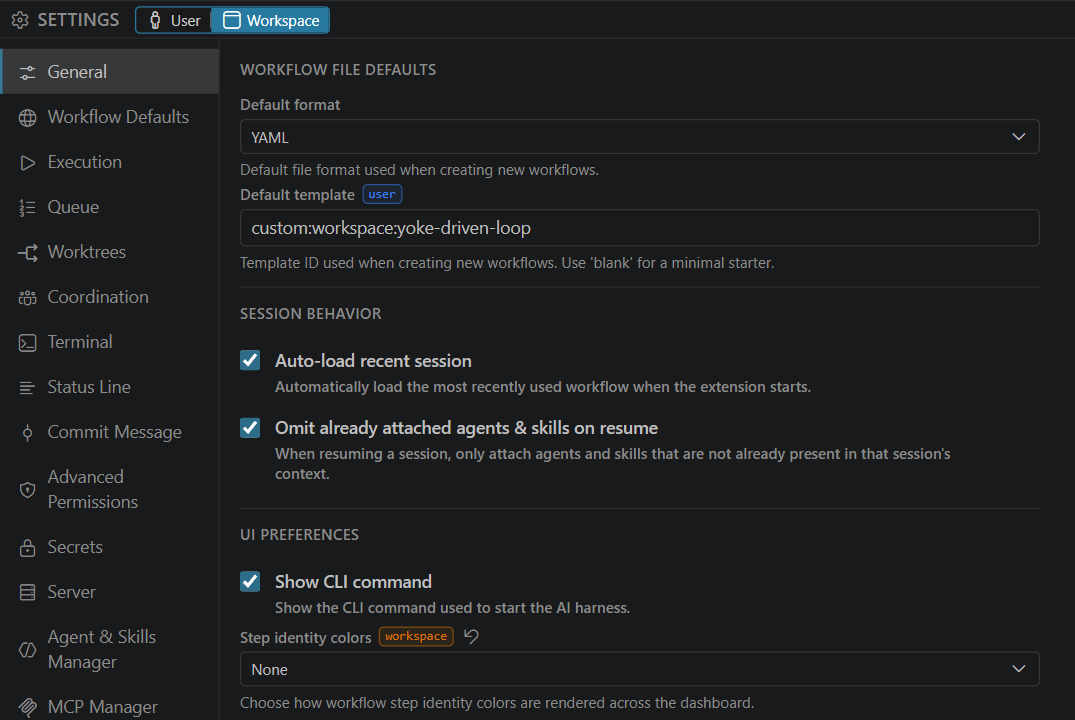
- Scope switch. User and Workspace in the title bar choose which file your edits are saved to. The drawer opens on User.
- Source badge. A setting set in a file shows a small
userorworkspacebadge next to its name. No badge means it is using the default. - Reset. Hover a setting set at the scope you are editing to show its Reset button. Reset removes the value from that file, so the setting falls back to the other file or the default. A value set at the other scope can't be reset from here; switch scope first.
- Search. The search button, or Ctrl+F, finds settings across every tab. Each tab shows how many matches it holds.
- Open settings file. Opens the
settings.jsonfor the selected scope in the editor.
The drawer has 19 tabs:
| Group | Tabs |
|---|---|
| Core | General, Workflow Defaults, Templates |
| Execution | Execution, Queue, Worktrees, Coordination |
| Output | Terminal, Status Line, Commit Message |
| Security | Advanced Permissions, Secrets |
| Integrations | Server, Agent & Skills Manager, MCP Manager, Language Servers |
| Insights | Notifications, Stats & Usage |
| Account | License |
In Language Servers, the Command field accepts quoted arguments. Wrap an argument that contains spaces in single or double quotes, for example: "C:\Program Files\nodejs\node.exe" server.js --stdio.
Workflow Defaults uses the same Harness, Context, Validation, MCP, Hooks and Permissions tabs as the workflow properties panel. Values there are the defaults.* settings, which every workflow inherits unless the workflow or step sets its own.
Templates lets you choose the default template for New Workflow and save variable values for each template. The drawer's User/Workspace scope switch applies here too. Saved values fill in when you create a workflow from that template; variable defaults authored by the template remain available when you clear a saved value. See Templates.
If a settings file was written by a newer version of ctrlyoke, the drawer shows These settings use a newer format. Update ctrlyoke to edit them. and stays read-only until you update.
Run history and CTRLYOKE_HOME
By default, run history is kept under your home folder (~/.ctrlyoke/projects/), not in the workspace. storage.runHistoryLocation set to workspace keeps it in <workspace>/.ctrlyoke/ instead. It is a user-only setting and takes effect after a window reload; existing history is not moved.
The CTRLYOKE_HOME environment variable moves ctrlyoke's per-machine state folder, including user-scope run history, somewhere other than ~/.ctrlyoke. It does not move your user settings: those are always read from ~/.ctrlyoke/settings.json.
Multi-root workspaces
The workspace file lives in the .ctrlyoke folder of the workspace root, which ctrlyoke picks in this order:
- The
ctrlyoke.workspaceDirectoryVS Code setting, if set. - The folder containing the
.code-workspacefile, when one is open. - The first workspace folder.
ctrlyoke.workspaceDirectory is the only ctrlyoke setting kept in VS Code's own settings, because ctrlyoke needs it to find .ctrlyoke/settings.json in the first place. It accepts an absolute path or a path relative to the .code-workspace file, and supports ${workspaceFolder} and ${workspaceFolder:Name}. If it resolves outside the open workspace folders and the .code-workspace file's directory, ctrlyoke keeps using it for state but asks for a one-time external-root approval before it can grant file access under that location. An untrusted VS Code workspace cannot set this value.