
Permissions
A harness asks before it runs a shell command, writes a file or calls a tool. In an unattended workflow nobody is there to answer, so ctrlyoke decides up front what each step may do and passes that to the harness as command-line flags.
Two settings control this:
- Tool permissions (
toolPermissions): which tools the harness may use without asking. - Trusted external folders (
trustedExternalRoots): which directories outside the workspace ctrlyoke may read, and which it hands to the harness.
toolPermissions:
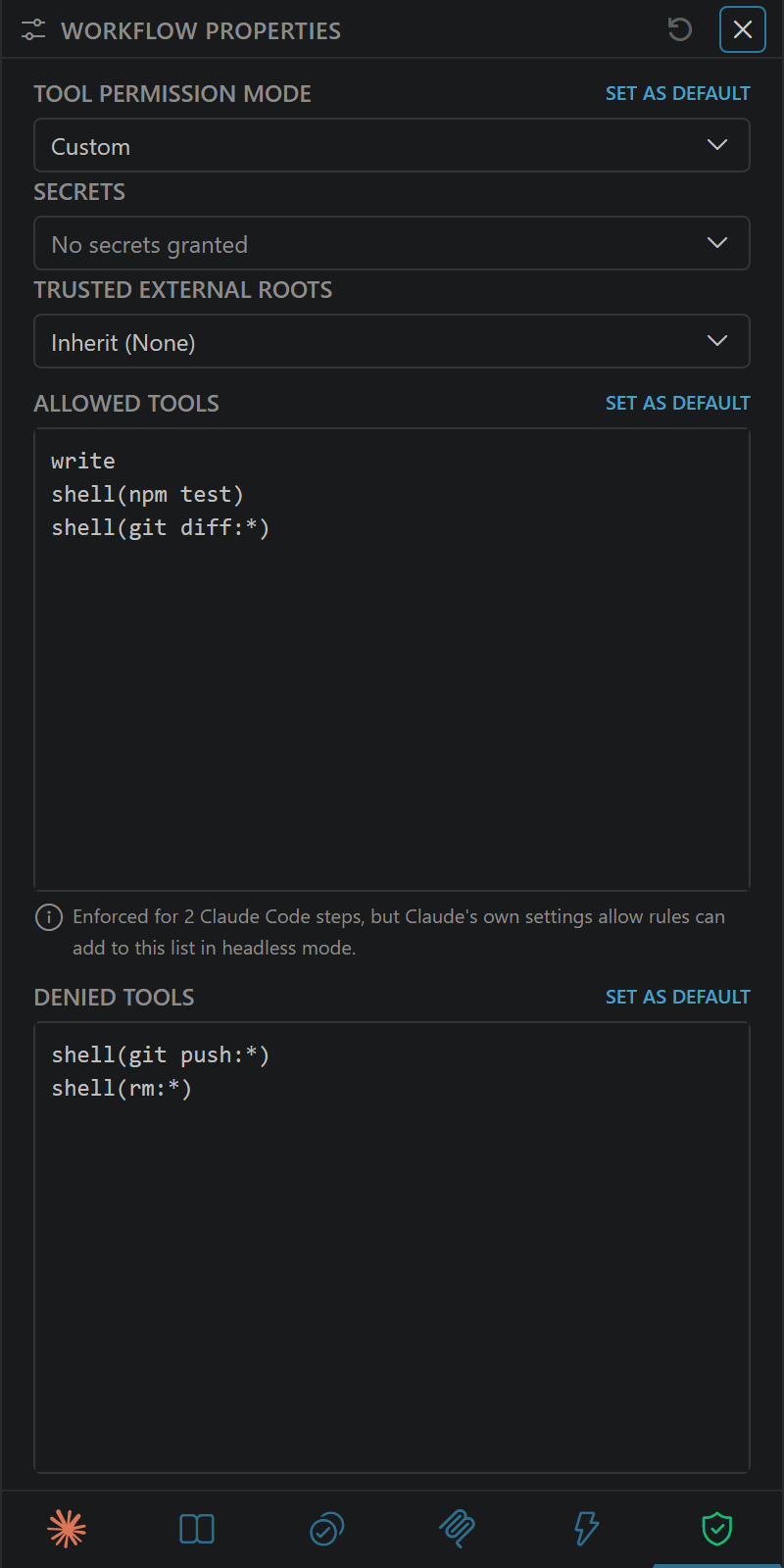
  mode: custom
  allowedTools:
    - write
    - shell(npm test)
    - shell(git diff:*)
  deniedTools:
    - shell(git push:*)
steps:
  - prompt: Fix the failing test in @src/api/users.test.ts.
Permission modes
| Mode | Dashboard label | What the harness may do |
|---|---|---|
dangerouslyAllowAll | Dangerously Allow All (yolo) | Everything, with no approvals and no deny list. Each harness's own "skip all permissions" flag. |
allowAll | Allow All | Everything except the Denied Tools list. This is the default. |
custom | Custom | The Allowed Tools list, minus the Denied Tools list. Anything else is left to the harness to ask about. |
none | None | ctrlyoke passes no permission flags at all. The harness uses its own configuration, such as ~/.claude/settings.json. |
none does not deny anything. It hands the decision back to the harness, so use it when you already manage permissions in the harness itself. Setting toolPermissions: null behaves the same as mode: none.
In the dashboard, set the mode on the Permissions tab of the workflow properties panel, or from the Permissions quick picker in the prompt editor's footer.
Headless runs
A headless step has no terminal, so an approval prompt can never be answered. With custom mode, a tool that is not on the allow list is refused and the step may not make progress. ctrlyoke warns once when a headless step starts with a mode other than allowAll or dangerouslyAllowAll (on Antigravity, other than dangerouslyAllowAll). Turn the warning off with ui.showHeadlessPermissionWarning.
For CI, see Tool permissions on CI.
Tool patterns
Allowed Tools and Denied Tools are lists of patterns. A pattern is a tool name, optionally followed by arguments in parentheses:
| Pattern | Matches |
|---|---|
write | Creating and writing files |
shell(npm test) | Exactly the shell command npm test |
shell(git add:*) | Any shell command that starts with git add |
shell | Every shell command |
mcp__github__create_issue | One tool from an MCP server: mcp__<server-id>__<tool> |
shellandbashare the same tool. Other common names arewrite,edit,read,glob,grepandwebfetch.:*at the end of the arguments matches anything after that prefix. A*must be inside the parentheses: writeshell(*), notshell*.- Denied Tools always wins. A command that matches both lists is denied.
- ctrlyoke translates each pattern into the harness's own syntax. For example, Claude Code receives
shell(git add:*)asBash(git add:*). - Copilot CLI always allows read-only tools (
read,grepand similar), so they are dropped from Copilot's lists.
The list editor in the dashboard suggests tool names as you type and marks a pattern it can't parse: an unclosed parenthesis or invalid syntax is an error, and a wildcard outside parentheses is a warning.
The default lists
The defaults.toolPermissions setting starts in allowAll mode with a short deny list, plus a starter allow list for when you switch to custom mode. allowAll ignores the allow list.
The starter allow list covers everyday development commands: write, git status, git diff, git show, git log, git add, git commit, git mv, git rm, npm, yarn, pnpm, node and npx. It's meant to get an unattended custom run working, not to lock it down. node, npx and package-manager scripts can run any code, so with this list custom is close to allowAll. To restrict a workflow, replace the list with only the commands it needs, such as shell(npm test) instead of shell(npm:*).
The deny list covers commands that git can't undo or that reach beyond your machine: sudo, git push, git reset --hard, git checkout, git restore, git clean, npm publish, yarn publish, pnpm publish and kubectl delete. It doesn't deny deleting files. Agents delete and rename files as a normal part of development, and a denied rm only sends them to an equivalent node or python command.
A deny list catches an agent's usual command. It is not a security boundary, because an agent can reach the same result another way. If you need a hard boundary, run the harness in a container or sandbox. Inside one, dangerouslyAllowAll is a reasonable choice. Copilot CLI, Claude Code, OpenCode and Qwen Code enforce the deny list. Codex enforces only its MCP tool entries, and Antigravity doesn't enforce it (see How each harness applies them). Because nobody chose the default list, a harness that can't enforce it shows an information note rather than a compatibility warning. Once you change the list, it warns.
Edit the defaults in Settings → Workflow Defaults → Permissions.
Which level wins
toolPermissions can be set in three places. The first one that is set wins:
- the step's own
toolPermissions - the workflow's
toolPermissions - the
defaults.toolPermissionssetting
The winning object is used as a whole; its fields are not merged with the levels below. A step that sets only mode: custom gets empty allow and deny lists, not the workflow's lists. A toolPermissions object without a mode is treated as allowAll.
toolPermissions:
  mode: allowAll
  deniedTools: [shell(git push:*)]
steps:
  - name: plan
    prompt: Read the codebase and write a plan to plan.md.
    toolPermissions:
      mode: custom
      allowedTools: [write]
      deniedTools: [shell]
  - name: implement
    prompt: Implement the plan in plan.md.
The ctrlyoke CLI can override the workflow level for one run with --permission-mode, --allow-tool and --deny-tool. See Tool permissions.
How each harness applies them
Each mode reads only some of the lists, whatever harness runs the step:
| Mode | Allowed Tools | Denied Tools |
|---|---|---|
dangerouslyAllowAll | ignored | ignored |
allowAll | ignored | applied |
custom | applied | applied |
none | ignored | ignored |
A list the mode ignores is not passed to the harness and never produces a compatibility warning. Not every harness can enforce individual tool patterns either. Antigravity only has coarse modes, so it ignores both lists in every mode. Codex ignores the allow list. From the deny list it enforces only mcp__<server>__<tool> entries for MCP servers the workflow attaches, which it receives as that server's disabled_tools. It can't enforce an entry for a server configured only in Codex's own config.toml, a wildcard tool name, or a shell pattern.
| Harness | dangerouslyAllowAll | allowAll | custom |
|---|---|---|---|
| Copilot CLI | --yolo | --allow-all-tools plus --deny-tool | --allow-tool plus --deny-tool |
| Claude Code | --dangerously-skip-permissions | --permission-mode bypassPermissions --tools default plus --disallowedTools | Headless: --permission-mode dontAsk; interactive: default mode; both use --allowedTools and --disallowedTools |
| Codex | --dangerously-bypass-approvals-and-sandbox | --sandbox workspace-write --ask-for-approval on-request plus MCP disabled_tools | -s and -a from the permissions.codex* settings, plus MCP disabled_tools; allow list ignored |
| OpenCode | no permission block (OpenCode's own defaults) | allow everything, plus the deny list | ask for everything, allow the allow list, deny the deny list |
| Qwen Code | -y | --approval-mode auto-edit plus --exclude-tools | --approval-mode default with --allowed-tools and --exclude-tools |
| Antigravity | --dangerously-skip-permissions | no flag (agy's own approvals); lists ignored | --sandbox; lists ignored |
For example, allowAll with the default lists starts Claude Code with:
--permission-mode bypassPermissions --tools default
--disallowedTools "Bash(sudo:*)" "Bash(git push:*)" "Bash(git reset --hard:*)" ...
The deny list is translated to Claude's syntax and the allow list is left out.
OpenCode receives its permissions through OPENCODE_CONFIG_CONTENT rather than flags; see Files ctrlyoke writes. Codex's sandbox and approval policy for custom mode come from the permissions.codexSandboxMode and permissions.codexApprovalPolicy settings, in Settings → Advanced Permissions.
Claude Code's custom mode uses dontAsk in headless runs, which denies tools that are not pre-approved, and uses its default prompting mode in interactive runs. Claude's own settings allow rules also count as pre-approved in headless mode, so an allow rule configured there can expand the effective allow list.
The compatibility matrix records which harness enforces each list.
Workflows that mix harnesses
When a workflow's steps run on different harnesses, the Permissions tab shows a note under each list naming the harnesses that won't enforce it. A step that runs on such a harness also records a compatibility warning when it starts. A list the mode ignores never warns: dangerouslyAllowAll skips both lists, and allowAll skips the allow list.
Trusted external folders
ctrlyoke only reads files inside the workspace. A context reference such as @C:/shared/specs/api.md, or a file link in the output, that points outside the workspace is blocked unless its folder is a trusted external root.
This check follows symbolic links and Windows junctions before deciding where a reference points. So @link/file.md, @link/, #selection and #sym are blocked when link resolves outside the workspace, unless the resolved target is under an approved trusted external root. Links that resolve back inside the workspace continue to work. To allow a deliberate link to another folder, add its target folder to permissions.trustedExternalRoots.
An approved root also reaches the harness. Copilot CLI, Claude Code, Codex and Antigravity each receive it as --add-dir, so the agent can read and edit files there. OpenCode and Qwen Code have no such option and don't receive it.
Roots come from three places:
| Where | Who approves it |
|---|---|
permissions.trustedExternalRoots in your user settings | Nobody. You wrote it on your own machine, so it is trusted at once. |
permissions.trustedExternalRoots in the workspace settings | You, once per workspace on each machine. |
trustedExternalRoots in a workflow file | You, once per workflow file on each machine. |
User and workspace roots are combined, unlike other list settings, which replace each other (see Settings).
Approving a workspace's or workflow's roots
A workspace or workflow file can be shared or committed, so a root it lists is only a request. Before it takes effect, ctrlyoke shows a single list of every new folder: This workspace requests N external file root(s) or This workflow requests N external file root(s). Each folder is ticked; untick one to keep it blocked, then click Confirm. Ask me later, or closing the prompt, records nothing and asks again next time.
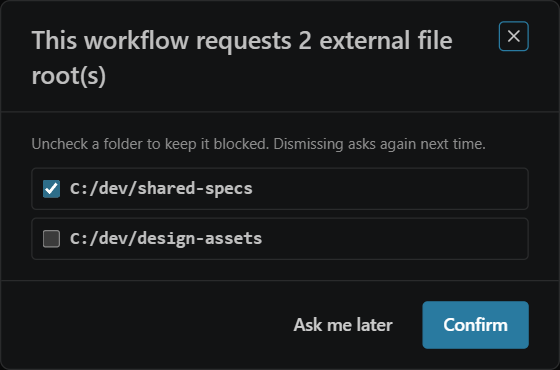
VS Code asks about a workspace's roots only after you have trusted the workspace in VS Code itself. A workflow's roots are asked about when the workflow loads.
Your decisions are stored on your machine only, in ~/.ctrlyoke/external-roots-trust.json, and never in the workspace or workflow file. A run whose workflow or workspace still has an undecided root does not start. From a terminal, review them with:
ctrlyoke trust-external-roots                                   # the workspace's roots
ctrlyoke trust-workflow-external-roots my-workflow.ctrlyoke.yaml # one workflow's roots
Add --yes to approve every pending root without prompting, for example on a CI runner. See ctrlyoke trust-external-roots.
Per-workflow roots
trustedExternalRoots:
  - C:/Users/me/.codex/sessions
The workflow field has three states:
- Omit it to use the approved user and workspace roots. In the dashboard this is Inherit.
- Set a list to use exactly those roots for this workflow. The list replaces the user and workspace roots rather than adding to them. Use it to give one workflow a folder no other workflow needs, or to narrow a risky workflow to fewer folders than usual. A root already approved at user or workspace scope needs no new approval.
- Set it to
nullto block every external folder for this workflow, even ones trusted in your settings.
Trust Parent Folder
When a file link in the output points outside every trusted root, opening it offers Trust Parent Folder instead of opening the file. It trusts the link's folder at the scope you pick:
- Trust for me (all workspaces) adds it to your user settings.
- Trust for this workspace adds it to the workspace settings and approves it.
- Trust for this workflow adds it to the workflow file's
trustedExternalRootsand approves it. If the workflow inherited its roots, the current inherited roots are written into the file too, so the workflow keeps access to them.
Turn the offer off with ui.offerTrustForUntrustedFileLinks; untrusted links are then simply blocked.
Related
- Secrets: credentials a step may receive.
- MCP servers: deny individual MCP tools with a server's
deniedTools. - Settings reference: permissions
toolPermissionsschema