
Workflow properties panel
The Workflow Properties panel in the ctrlyoke dashboard edits the root-level fields of the loaded workflow without opening its file. Each tab along the bottom of the panel covers one group of fields: Harness, Context, Validation, MCP, Hooks, and Permissions.
Everything here is the workflow-level value. A step can still override a field from its own properties drawer, and fields you leave unset fall back to the matching defaults.* setting. See How values are inherited for the full order.
- Set as Default appears next to a field when its value differs from your default. Click it to write the current value to the matching
defaults.*setting so new workflows start with it. - Reset all to defaults (the circular-arrow button in the panel header) sets every field back to your current defaults.
Harness
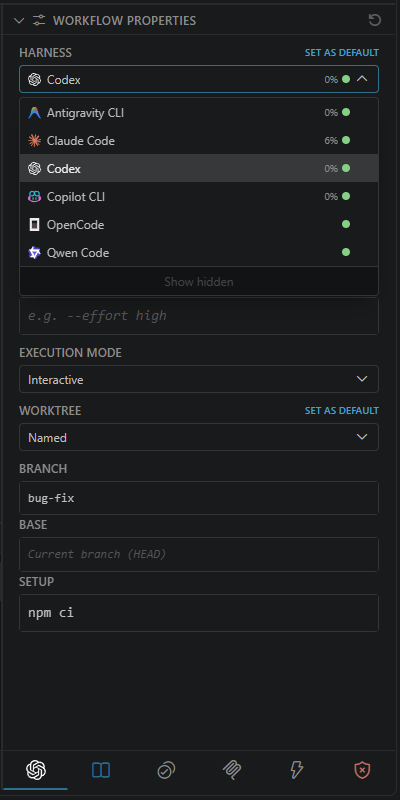
The Harness tab chooses what runs each prompt and where it runs:
- Harness and Model — the AI CLI and model. See Harnesses for what each one supports.
- Agent and Skills — portable prompt attachments that work the same on every harness. See Agents and skills.
- Additional Args — extra CLI flags appended to the ones ctrlyoke manages, such as
--effort high. - Execution Mode — Interactive runs in a live terminal; Headless runs in the background with output in the dashboard.
- Worktree — run in your working checkout or in a Git worktree.
Worktrees
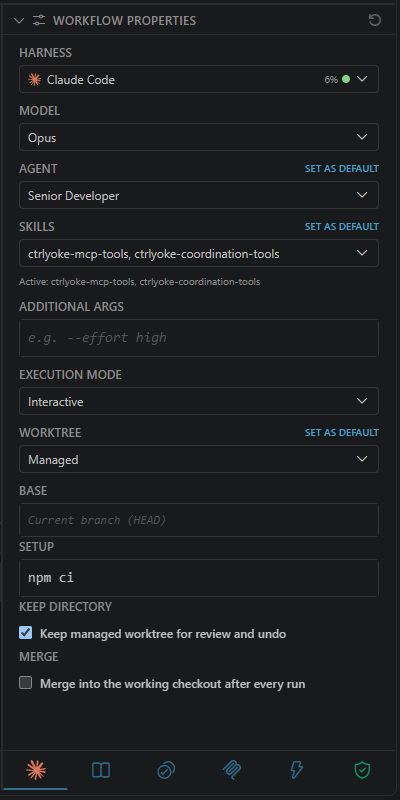
A Managed worktree is a throw-away worktree and branch created for each run. Base picks the Git ref it starts from, and Setup runs once after the worktree is created (for example npm ci). Keep directory leaves the worktree on disk after the run for review and undo, and Merge merges the branch back into your working checkout after every run.
A Named worktree targets a persistent branch you own. ctrlyoke creates it if needed but never commits, merges, or removes it, which suits workflows you keep appending to.
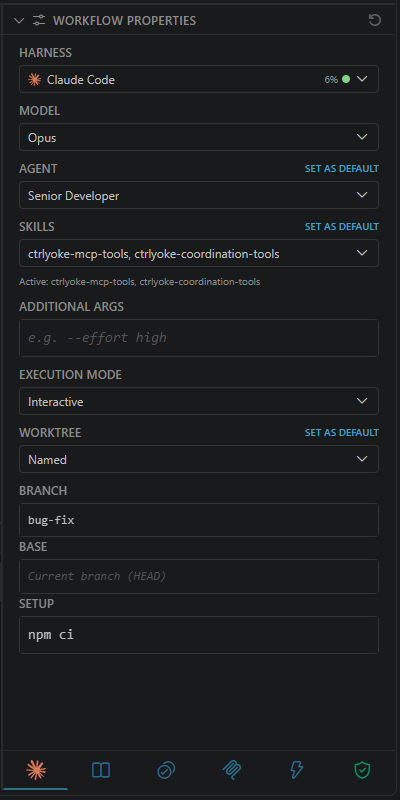
Field details: worktree.
Context
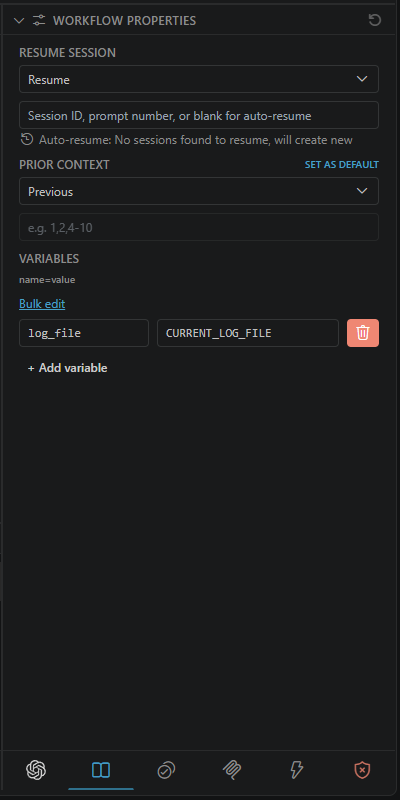
- Resume Session — continue an earlier harness session instead of starting fresh. Leave the session field blank to auto-resume, or enter a session ID or a prompt number. See Session management.
- Prior Context — inject earlier step outputs into each prompt. The field below the selector takes specific prompt numbers, such as
1,2,4-10. - Variables — workflow-level
{{name}}values. Use Bulk edit to paste severalname=valuelines at once.
Validation
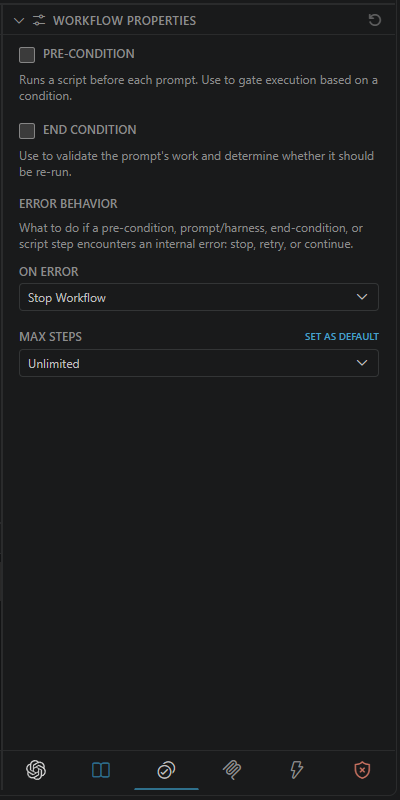
With nothing enabled, the Validation tab shows the Pre-Condition and End Condition toggles, plus the workflow's Error Behavior and Max Steps.
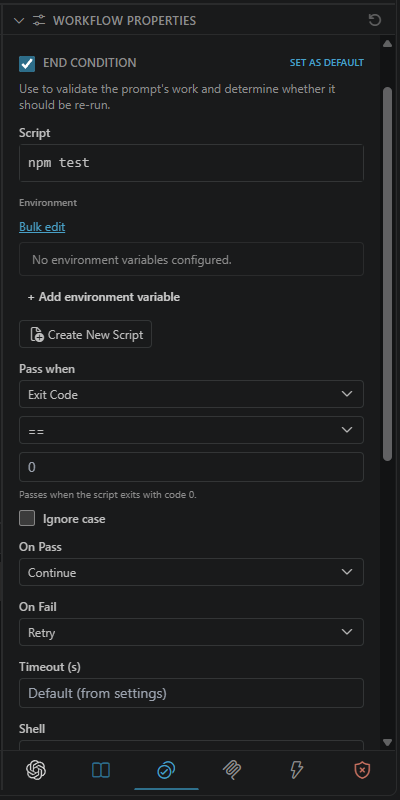
Enable End Condition to run a script after each prompt and decide whether the work passed. Pass when compares the script's exit code or output against an expected value, and On Pass / On Fail decide what happens next.
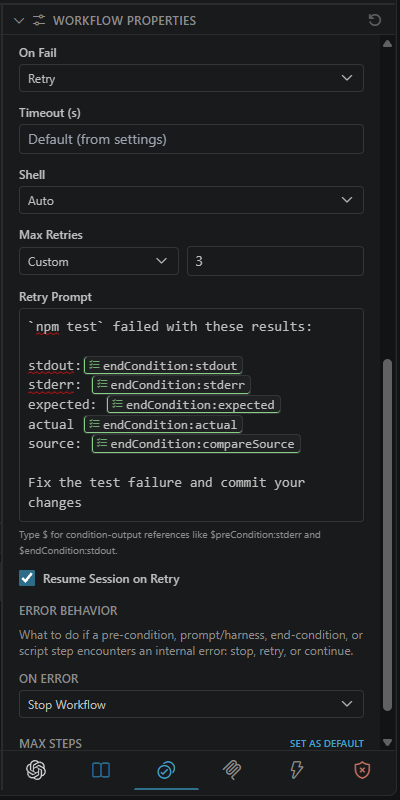
When On Fail is Retry, the Retry Prompt tells the harness what went wrong. Condition-output references such as $endCondition:stdout insert the script's actual results.
See End conditions and pre-conditions for every option.
MCP
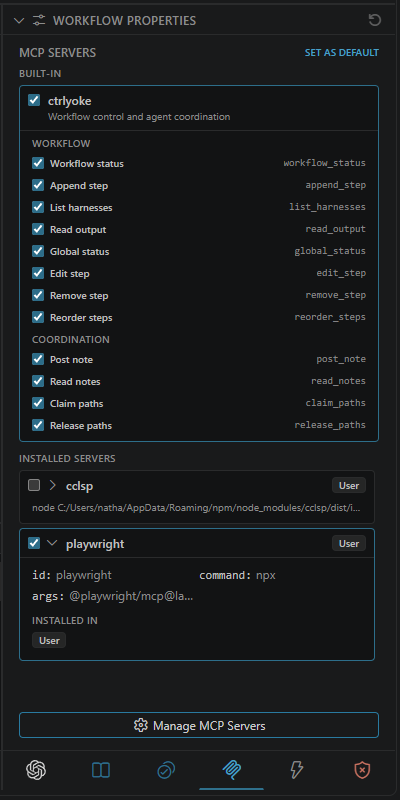
The MCP tab picks which MCP servers are attached to the harness. The built-in ctrlyoke server lets the AI read workflow status and extend the queue (see Dynamic queue), and each of its tools can be switched off individually. Installed Servers lists the servers registered with ctrlyoke; Manage MCP Servers opens the MCP manager in Settings to add, edit, or remove them.
Tool reference: MCP tools.
Hooks
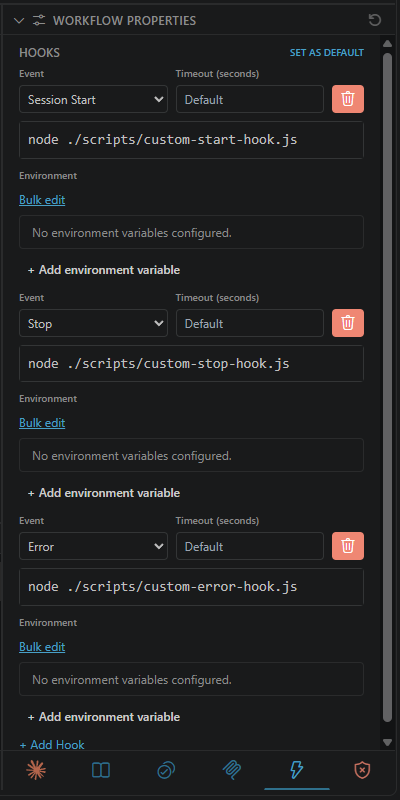
Hooks run your own commands on harness events such as Session Start, Stop, and Error, alongside the hooks ctrlyoke uses for completion detection. Each hook has a command, an optional timeout, and its own environment variables. Supported events vary by harness; unsupported events are skipped.
Field details: hooks.
Permissions
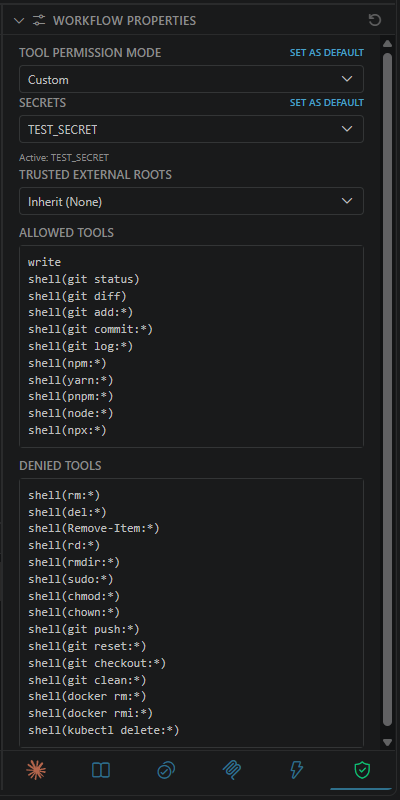
- Tool Permission Mode — how much the harness may do without asking. In Custom mode only the Allowed Tools list is granted, and Denied Tools always wins over it.
- Secrets — secret environment variables this workflow may use.
- Trusted External Roots — directories outside the workspace this workflow may use. Inherit keeps the roots from your settings. See External file roots.
Not every harness enforces individual tool patterns. See toolPermissions and the permission settings.