
File changes and undo
ctrlyoke records which files every step changes, so you can review a step's edits as diffs and put any of them back, down to a single file, whichever harness made them. This works in the VS Code panel and in the browser dashboard.
Before each step runs, ctrlyoke takes a snapshot of the workspace. After the step, it compares the workspace with that snapshot and combines the result with the edits the harness reported. That combined list is what the File changes view shows and what undo restores from.
Two different Undo buttons
The Undo and Redo buttons in the dashboard header undo edits to the workflow definition, such as a step you deleted or a prompt you changed. This page is about undoing the files a step changed in your project.
Viewing changes
Once a step stops running, links to its changes appear in the output:
| Where | What it opens |
|---|---|
| View N changes in the output toolbar | Workflow changes: every file changed by any step of the run. |
| View N changes… on a step's output header | Step changes: the files that one step changed. |
| The same link on a parallel group's header | Step changes for the whole group (see below). |
| A step marker in the output minimap | Step changes for that step. |
| Undo on an edited, written or deleted file in the output | File changes: that one operation. |
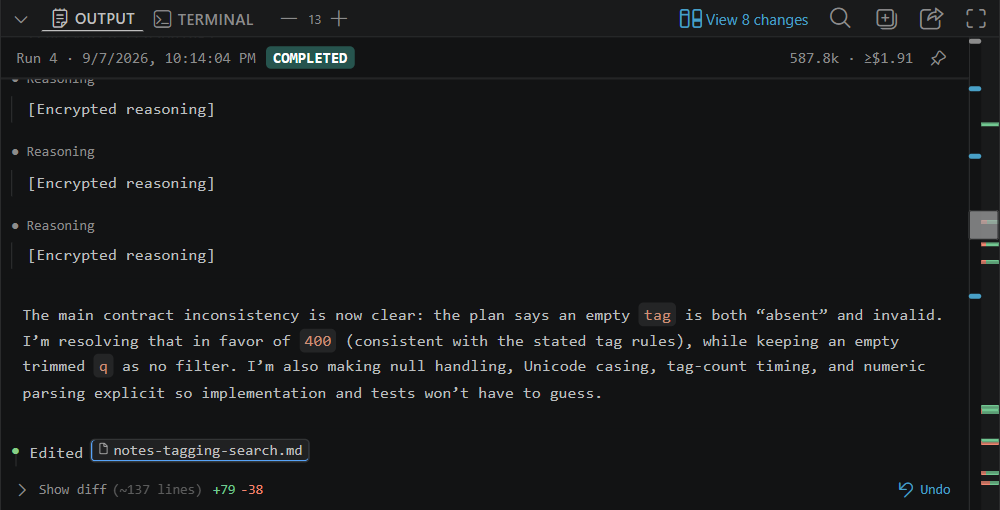
The link counts the files, and adds "(K undone)" in green when you've undone some of them. In a narrow output pane the toolbar link shortens to View N.
The step and workflow links are hidden while the run you're watching is still running, because the files are still changing. They come back when the run finishes, stops or pauses, and they are always available when you open a past run from the workflow menu.
Steps in a parallel group share the workspace and run at the same time, so ctrlyoke can't tell which member changed which file. A parallel group has one View N changes… link on the group header instead of one per step.
The changes dialog
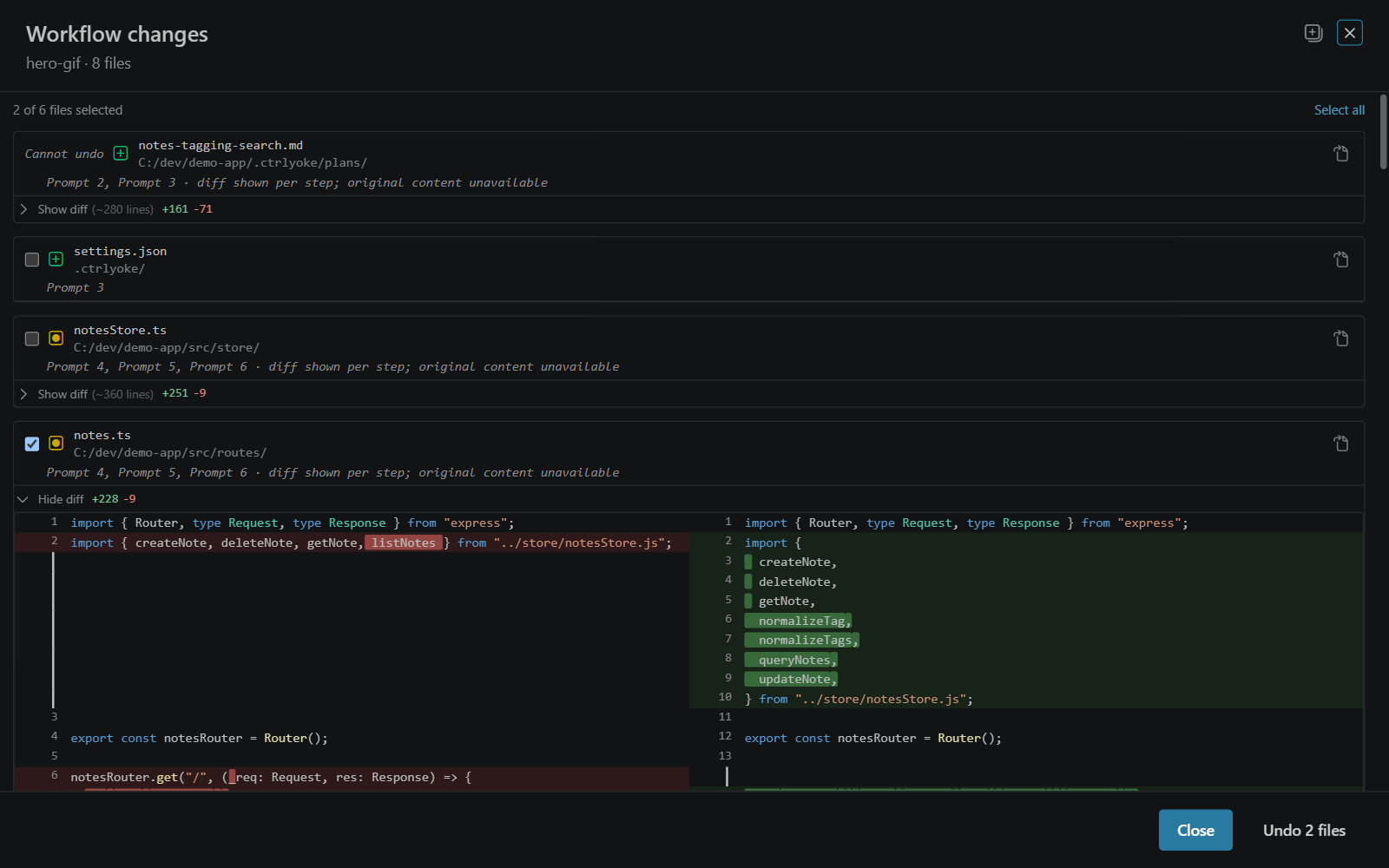
The dialog's title says what it covers (Step changes, Workflow changes or File changes), and the line under it names the step or workflow, the number of files, and how many of them are undone.
Each file is a row with:
- a checkbox to include it in the undo or redo
- an icon for what happened to it: created (+), modified (●) or deleted
- its name and folder
- an Open file button, which opens it in VS Code, or in the workspace viewer in the browser dashboard
- Show diff, with the approximate size and the lines added and removed
In Workflow changes, each row also lists the steps that changed the file, for example "Step 4, Step 5, Step 6". A file that was created and then deleted within the run nets out and isn't listed. When ctrlyoke can't combine the steps' edits into one before-and-after diff, the row adds "diff shown per step; original content unavailable" and shows each step's diff in turn.
The button at the top right expands or collapses every diff at once. Diffs are side by side when the dialog is at least 1024 px wide, and unified (one column) when it's narrower. The dialog remembers whether you last left diffs expanded.
Reported and detected changes
In Step changes, files can be listed under two headings:
- Changes the AI reported: edits the harness announced through its file tools. ctrlyoke knows exactly what changed.
- Other changes we detected: files that differ from the snapshot but that the harness didn't report, typically from shell commands, build tools or formatters the step ran. These can also include edits made at the same time by you or by another workflow in the same folder, so check them before you undo.
The headings appear only when a step has both kinds.
Files your .gitignore excludes aren't compared, so changes to them appear only when the harness reported them.
Files you can't undo
A row whose checkbox is replaced by grey text can be reviewed but not undone:
- Content not captured: the file was larger than 512 KB, so its earlier content wasn't saved.
- Cannot undo: ctrlyoke has nothing to restore from, for example a deleted file whose content wasn't captured, or a change the snapshot didn't record.
Undoing changes
- Tick the files to put back. Select all and Deselect all are at the top right, with a count of how many files are selected.
- Select Undo N files.
Opening the dialog from a View N changes link selects nothing, because you usually only want to look; its main button is Close. Opening it from a file's Undo button selects that file, and its main button is Undo 1 file.
What undo does depends on what the step did to the file:
| The step... | Undo... |
|---|---|
| created the file | deletes it |
| deleted the file | recreates it, with any missing folders, from the content saved before the step |
| modified the file | reverses that step's changes and keeps the file's line endings |
Undoing a modified file reverses the step's change as a patch, so edits you made afterwards elsewhere in the file are kept. If you or a later step changed the same lines, the patch can't apply and that file fails with "Patch did not apply cleanly — the file may have changed since this edit was made". Recreating a deleted file and deleting a created file don't check for later edits.
The Undo button on a single edit in the output reverses only that edit, and leaves the step's other edits to the same file in place.
In Workflow changes, undo is applied to the newest step first, so a file that several steps changed goes back to how it was before the first of them.
When it finishes, the dialog shows how many files were restored, lists any that failed with the reason, and closes itself shortly after. Each file is handled on its own, so one failure doesn't stop the rest.
Undo changes only files in your working folder. It doesn't touch the git index or any commits, so if a step committed its work, undo leaves the commit in your history and the reverted files show as uncommitted changes.
The Undo button on a "Wrote" block uses the step snapshot to decide what to restore. If the file existed before the step, it reverses the step's changes; if the step created it, undo deletes it. If no snapshot entry is available, ctrlyoke marks the operation Cannot undo rather than guessing.
Redo
Undone files stay in the dialog with a green Undone label. Tick them and select Redo N files to put the step's version back. On the output, a step shows Redo on the file blocks that have been undone; files from the same step that have not been undone keep their Undo button.
Undo and redo can't be mixed in one action. When the dialog has both, ticking a file of the other kind switches the selection to it, and the dialog notes "Undo and redo are applied separately."
Each step remembers the latest undo state for each file, so files can be undone and redone one at a time.
Undo and worktrees
For a step that ran in a worktree, undo changes the files in that worktree, not your main checkout. Once a managed worktree's directory is removed after it lands, its files can no longer be undone; keep the directory (keep: true, or Keep directory in the dashboard) if you want undo to stay available.
Undo history
Every undo and redo is recorded in the run's timeline (events.jsonl; see Run files), so the Undone state survives reloading the dashboard and is shown when anyone reopens the run.