
The terminal
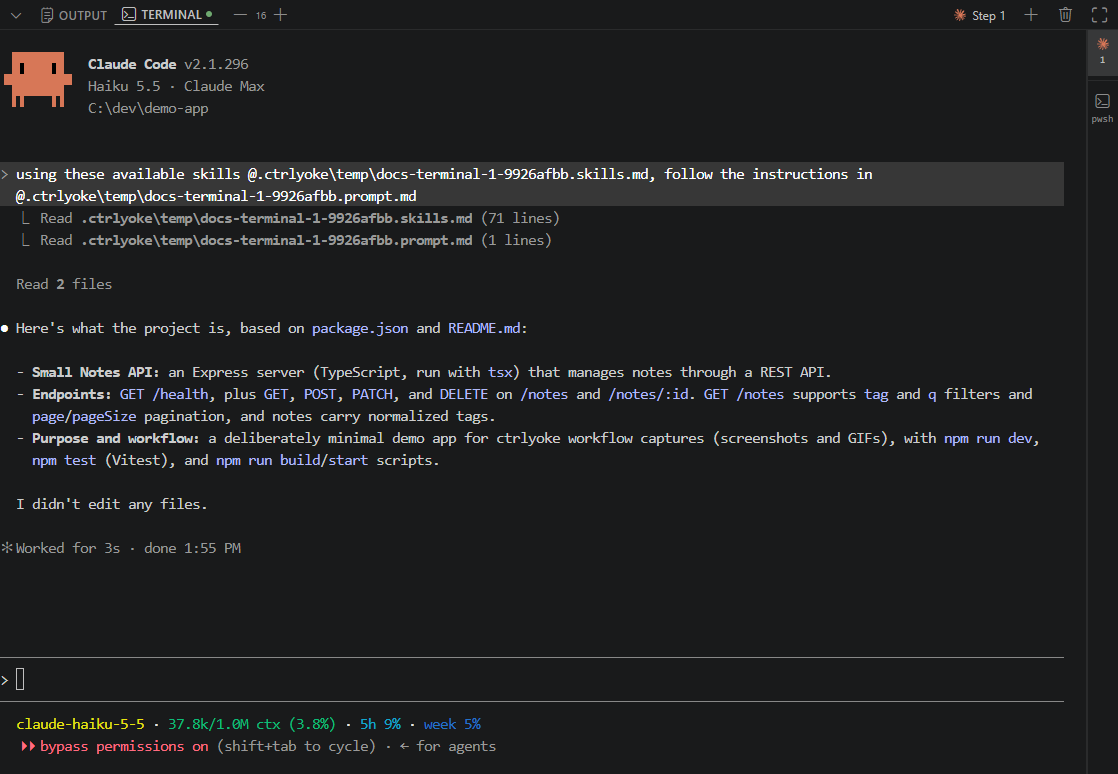
The Terminal tab beside Output holds the live terminals of a workflow: the harness's own terminal UI for each interactive step, and any shells you open yourself. Interactive steps run there so you can watch the harness work, answer its questions, and type to it mid-step.
Interactive and headless
Each step runs in one of two execution modes:
- Interactive (the default,
defaults.executionMode) starts the harness's terminal UI in a real terminal on the Terminal tab. You can type into it at any time. - Headless runs the harness in the background with no terminal. Its output appears only on the Output tab.
Both modes fill the Output tab: ctrlyoke reads the harness's session log or output stream and renders replies, tool calls and diffs the same way. Set the mode for a workflow in Workflow Properties, or for one step with the execution-mode button in the prompt editor header or executionMode in the workflow file. Pre-conditions and end conditions always run headless.
When a step starts, the dashboard switches to the tab that shows it: Terminal for an interactive step, Output for a headless one. Turn ui.autoFocusOutputOnExecution off to stay on the tab you're looking at.
The CLI picks its own default from whether it has a terminal; see Headless and interactive mode.
Terminals in the tab
There are two kinds of terminal:
- AI terminals run a step's harness. ctrlyoke opens one when an interactive step starts, labelled with the step's number and name.
- Shells are ordinary terminals in the workspace folder. New Terminal in the tab's toolbar opens one. Opening the Terminal tab when the workflow has no terminal at all starts a shell for you. The shell is your system default unless
terminal.shellExecutablenames another.
With more than one terminal, a rail on the right lists them, AI terminals first and then shells. Click one to show it, or click its trash icon to close it. You can't close the terminal of a step that is still running. Drag the rail's edge to resize it, or narrow it to a column of numbered icons.
Right-click (or long-press) in a terminal for Copy, Paste, Clear, Interrupt (sends Ctrl+C) and Close Terminal. The − and + buttons in the toolbar change the font size (8–24 px, terminal.fontSize).
The tab title gets a pulsing dot while a terminal in the workflow is running. If you are looking at an earlier run of a workflow that is running now, the tab reads Terminal · Live Run N: the terminals always belong to the run that is executing, not the one on screen.
Typing to a running step
Click into an AI terminal and type, exactly as you would in the harness on its own. What you type during a step is recorded in the output as a User message. You can also send text from the prompt editor with Send Steer Message in the Run menu (see The Run menu).
What happens when a step ends
A finished interactive step leaves its terminal open, with its session still live, so the next step can continue the same conversation:
- Reuse running terminal (
execution.reuseRunningTerminal, on by default) types the next step's prompt straight into the terminal holding the session it resumes, instead of starting the harness again. That terminal doesn't have to be the previous step's: a step that resumes an earlier conversation, for example after you continue a run from an earlier step, is typed into that conversation's terminal if it is still open. This only happens when the step is interactive, uses the same harness, and doesn't change anything the harness only reads at start-up: the model, permissions, hooks, MCP servers, additional arguments or secrets. Otherwise ctrlyoke starts a new terminal. - A step that starts a new session (
resumeSession: false), or changes one of those start-up properties, gets a terminal of its own beside the old one, so both conversations stay open. When a new terminal resumes a session that another terminal still holds, that older terminal is closed first and its tab removed, because a harness session can only be open in one place and the new terminal continues the same conversation. - A headless step between two interactive steps closes the terminal, so the next interactive step starts a fresh one.
The terminal also stays open when the workflow finishes, so you can keep talking to the harness or continue the run later. Anything that happens in it after the step ended, such as your messages and the harness's replies and tool calls, still appears in that step's output. Terminals close on their own only in these cases, and a strip at the bottom of an ended terminal says why:
| Message | Why the terminal closed |
|---|---|
| Process closed — step complete | A parallel member finished, or execution.closeTerminalOnComplete is on. |
| Process closed — worktree released | The run used a worktree, which is released when the run ends. |
| Process closed — replaced by a new session | The terminal was closed to make way for a later step's terminal. |
| Process stopped | You stopped the run. |
Turn on execution.closeTerminalOnComplete to close every AI terminal when its work is done. That also turns terminal reuse off, since there is no terminal left to type into. Both settings are on the Execution tab of Settings.
Background work
Claude Code, Copilot and Antigravity can start work in the background, such as a long test run, and end their turn while it runs. ctrlyoke notices this and keeps the step running until the background work finishes and the harness has dealt with its result, instead of moving on to the next step too early. While it waits, the output shows a row like Stop hook received — step kept running until 1 background task finishes, with each task's name and command. There is no time limit on the wait; execution.maxPromptTimeoutSec still applies, and Stop ends it.
Several devices on one terminal
When the same workflow is open in more than one place, such as VS Code and a phone, only one of them controls each terminal: its keyboard input goes to the harness and its window size sets the terminal's size. The others show a View Only badge and mirror the terminal at the controller's size. Click Take Control on any device to move control there.
A browser that reconnects replays the most recent output of each terminal (50 KB by default, terminal.replayBufferKb).
On a phone or tablet
In the browser dashboard on a touch screen, a control bar under the terminal gives you the keys a phone keyboard lacks: Ctrl (applies to the next key you press), Esc, Tab, the arrow keys and Enter. The ... button (More shortcuts) opens more: Shift+Tab, Ctrl+C, Ctrl+Z, Ctrl+L, Ctrl+R and Ctrl+A.
Customise it under Settings → Terminal → Mobile Control Bar:
- Mobile control bar (
terminal.mobileControlBar): auto shows the bar only in the browser dashboard on a touch device; always and never override that. - Drag keys to reorder the bar and the shortcut list, move a key between them, or hide it. Reset to default restores the built-in layout. The layout is saved as
terminal.mobileBarLayout, whosebar,popupandhiddenlists hold key IDs such askey:esc,modifier:ctrlandshortcut:ctrl-c. See the settings reference for every ID. - + Add shortcut creates your own: give it a label, then click the keyboard button and press the key combination, or type the sequence in escape notation such as
\x1b[1;5Aor\t. Custom shortcuts are saved interminal.mobileCustomShortcuts.
Terminal settings
The Terminal tab of Settings also sets the font size, line height, scrollback, cursor style, the shell, and whether macOS Option acts as Meta. See the settings reference for each one.