
Dry Run
A Dry Run shows exactly what a workflow would do, without running anything: the command each step would start, the prompt payload it would send, the files ctrlyoke would write along the way, and any problems it can already see. Use it to check a workflow before you spend tokens on it, or to copy a step's command and run it yourself.
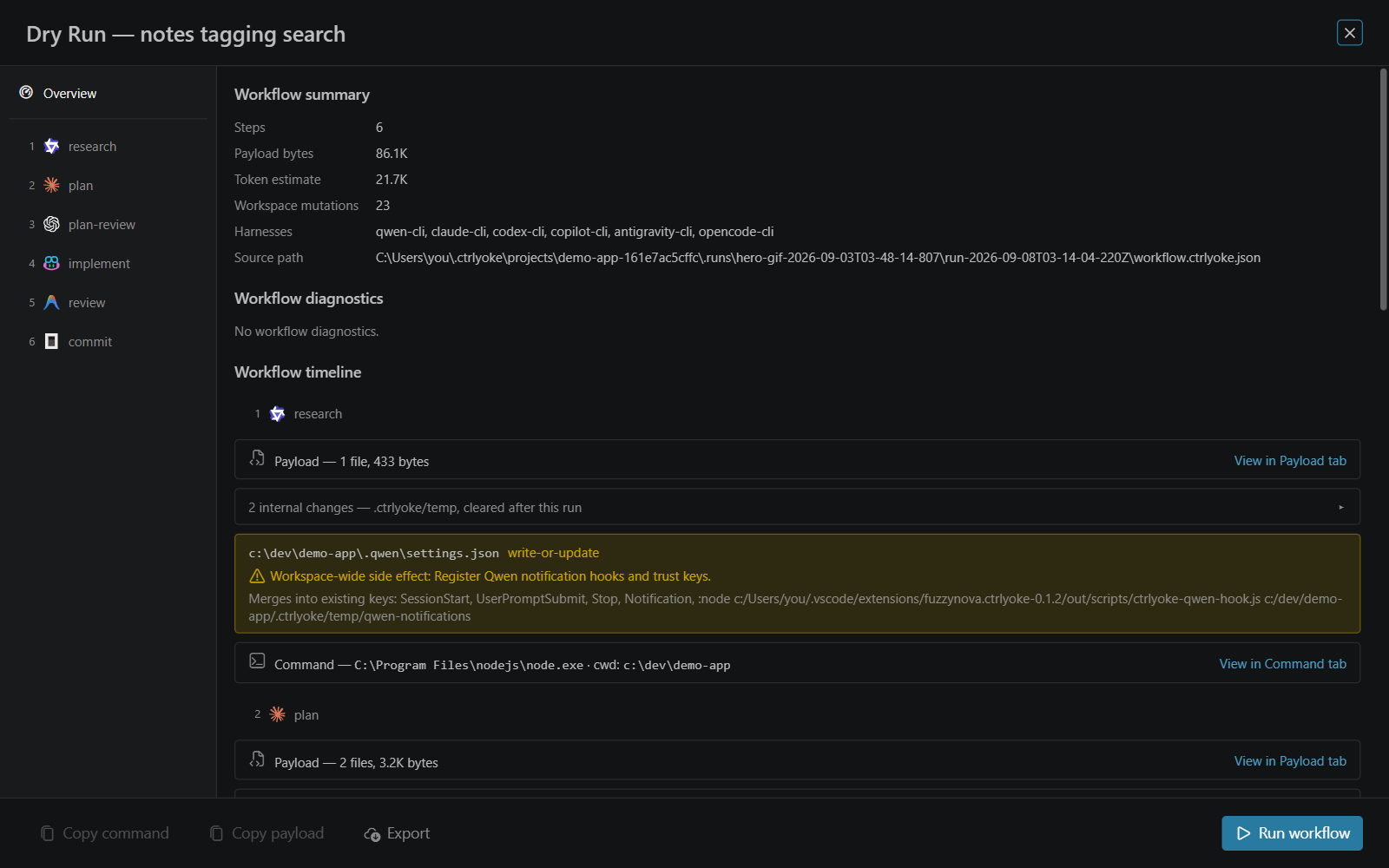
The preview uses the workflow as it is in the dashboard, including edits you haven't saved. If you change the workflow while the Dry Run is open, a banner reads Definition changed with a Refresh button.
Opening a Dry Run
| From | Previews |
|---|---|
| Dry Run (the telescope button) in the dashboard header | The whole workflow |
| Right-click or long-press the header's first run button (Run or Re-run), then Dry Run | The whole workflow |
| Right-click a step (or long-press it) and choose Dry Run Step | That step |
| The telescope button on the Validation tab of the prompt properties drawer | The step in the prompt editor. A new, unqueued prompt is previewed as if it were added to the end of the workflow. |
The header button is unavailable for a run you can only view, such as one owned by the CLI or another window.
The Overview
A whole-workflow Dry Run opens on Overview. A rail on the left lists Overview and every step, with its harness icon and a coloured dot if the step has a diagnostic. On a narrow dashboard the rail becomes a dropdown.
The Overview has these sections:
- Workflow summary: the number of steps, the total payload bytes and token estimate, the number of workspace mutations, the harnesses used, and the workflow's source path.
- Worktree, for a workflow that runs in a worktree: the mode, branch and base, where the setting came from, and the working directory. It says so if the run won't use a worktree, and why.
- Workflow diagnostics: problems found in the workflow, such as a property a harness doesn't support.
- Workflow timeline: for each step, in order, what it will do. Parallel groups are boxed, with their
failFastsetting and how many members will run at once. - Harness compatibility report: how the workflow fares on each harness installed on this machine.
The timeline
Each step in the timeline lists:
| Entry | Meaning |
|---|---|
| Payload — files and bytes | The prompt and context the step sends. View in Payload tab opens it. |
| N internal changes | Files ctrlyoke writes under .ctrlyoke/temp, such as the prompt file and per-step hook settings. They are removed after the run. Click to list them. |
| A highlighted path with an operation | A workspace-wide side effect: a file outside .ctrlyoke/temp that ctrlyoke will create or update, such as a harness's settings file. It names the keys it merges into. |
| Command | The program the step starts, and its working directory. View in Command tab opens the full command. |
See Files ctrlyoke writes for why each harness needs the files it does.
A step's tabs
Select a step in the rail, or open Dry Run Step, to see that step's detail. Its header shows the step's name, harness and number, above four tabs:
| Tab | What it shows |
|---|---|
| Summary | The resolved execution: harness and version, model, execution mode, continuation, whether a session exists, permission mode, granted secrets (names only), MCP servers and the step's token contribution. Then the step's diagnostics and timeline. |
| Command | The full command line, then the executable, working directory, arguments, the names of the environment variables passed, and the native permission arguments. |
| Payload | The categorized payload, in the order it is sent, with the bytes and tokens of each part. Long parts are collapsed; click to expand. Referenced files are listed by path, because the harness reads them itself. |
| Conditions | The step's pre-conditions and end conditions, and its retry settings: maximum attempts, backoff and error behaviour. |
A badge on the Summary tab marks the step's most severe diagnostic, and a shield on the Command tab is coloured by the step's permission mode.
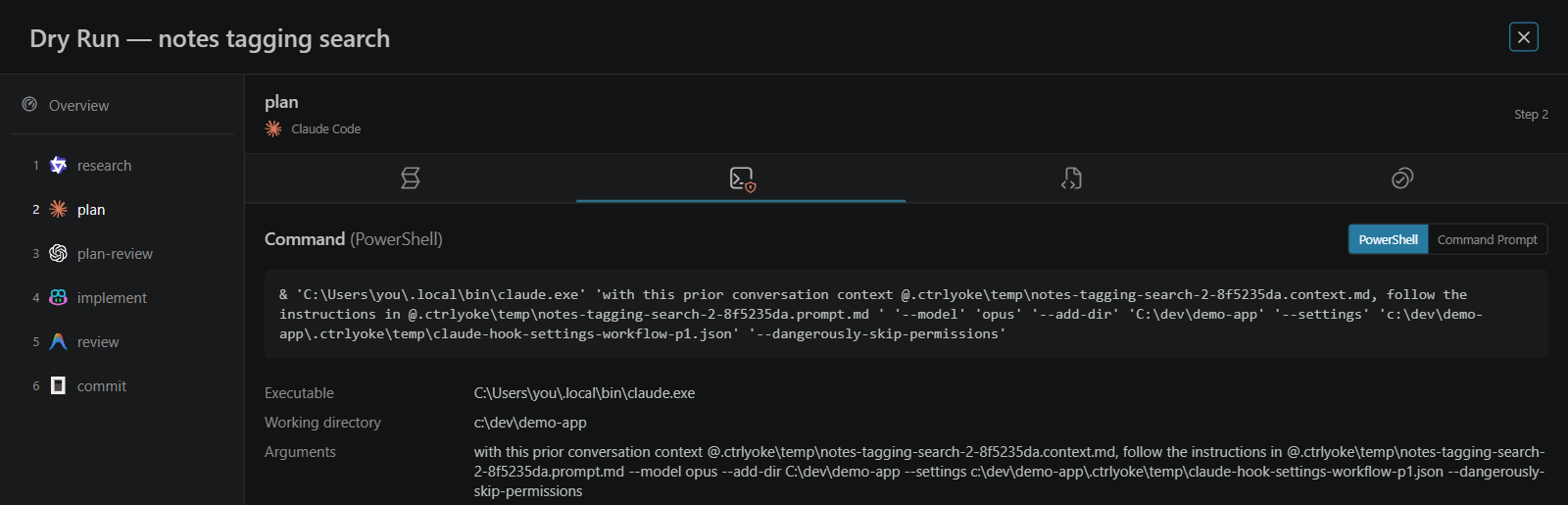
On Windows, the Command tab can show the command for PowerShell or Command Prompt; pick one before you copy it. On macOS and Linux it shows the POSIX shell form.
Secret values never appear: granted secrets are listed by name, and the Command tab lists environment variable names without their values.
The footer
| Button | What it does |
|---|---|
| Copy command | Copies the selected step's command, in the shell you picked. The command may name prompt files that ctrlyoke only writes when the step runs. |
| Copy payload | Copies the selected step's payload as plain text, so you can paste it into a tool ctrlyoke doesn't support. |
| Export | Exports the whole preview as JSON. VS Code opens it in an editor tab; the browser dashboard downloads it. |
| Run workflow | Closes the Dry Run and runs the workflow. |
Copy command and Copy payload need a step to be selected, so they are unavailable on the Overview.
From the CLI
ctrlyoke run <file> --dry-run prints the same preview, with secrets redacted, without starting a harness. With --json it prints the preview as JSON and exits 1 if the preview has an error diagnostic. See ctrlyoke run.