
Workspace viewer
The workspace viewer lets you browse, search and edit the project's files, and work with git, from the browser dashboard. Use it to check what a workflow did from a phone or another computer without opening VS Code. It has three tabs: Explorer, Source Control (see Source control) and Search.
The viewer is part of the browser dashboard only. In the VS Code panel, the same links open files in VS Code's own editor instead. Everything the viewer shows and changes is on the computer running ctrlyoke, inside the workspace it serves.
Opening the viewer
- Select Explore files and changes (the files icon) at the right of the dashboard header.
- Select a file, folder, line or symbol reference anywhere in the output or in a prompt. The viewer opens at that file or folder, scrolled to the line.
- Select a
~gitreference, such as uncommitted changes or a commit, to open its diff in Source Control. - Select Open file on a diff in the File changes dialog or the output.
- Select View Diff on a finished worktree run's summary to see the branch against its base commit.
Close it with the × at the top right. The viewer keeps its state while closed: when you reopen it, the same file is open at the same scroll position, with its undo history and any unsaved edits intact.
The header shows the open file's name and its path in the workspace, or the workspace name when no file is open. A ● after the name means the file has unsaved changes. Back and Forward step through the files, folders and views you opened.
Every place in the viewer has its own URL, so the browser's address bar, back button and bookmarks work: a link can open the viewer straight to a file and line, a search, or a commit's diff.
Explorer
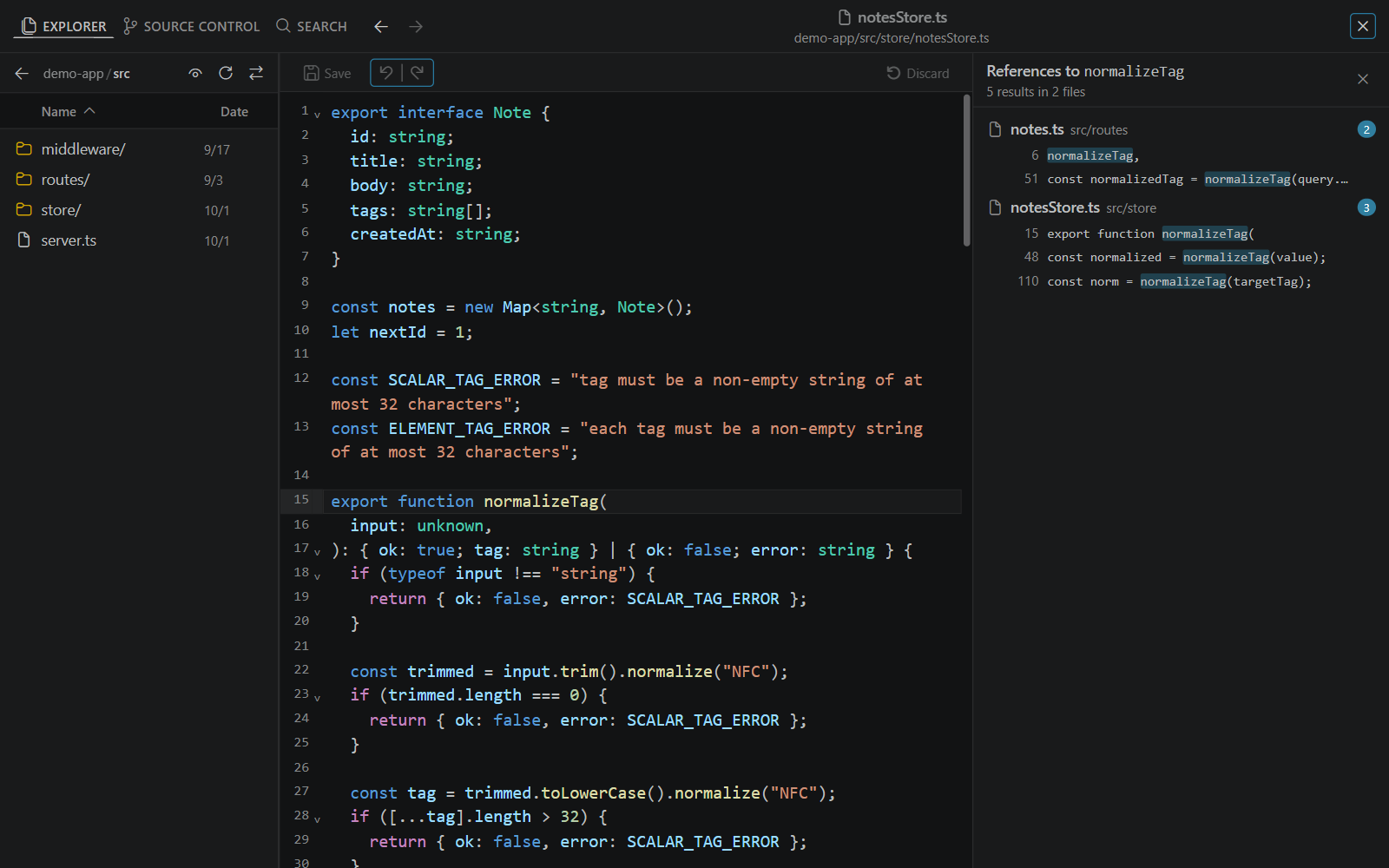
The left side lists one folder at a time. Select a folder to open it, and use the breadcrumb path or Go to parent directory (the back arrow) to go up. In a multi-root workspace, the top level lists each root folder.
Files and folders are coloured by their git status, like VS Code's Explorer, and files git ignores are dimmed. The toolbar above the list has:
- Show git-ignored files / Hide git-ignored files (the eye icon, inside a git repository). This sets
ui.hideGitIgnoredFiles, which also sets the default for Search. - Refresh directory.
- Sync explorer to open file, which shows the open file's folder.
Sort the list by Name or Date modified with the column headings; select the same heading again to reverse the order. Large folders load in pages as you scroll.
Right-click a file or folder (long-press on a phone) for:
- Cut, Copy and Paste, to move or copy entries between folders
- Add File to ctrlyoke / Add Directory to ctrlyoke, which adds a reference to the prompt editor
- View File History, which opens the file's commits in Source Control
- for workflow files: Run Workflow, Load Workflow and Queue Workflow (Append and Continue Workflow while you view a run)
- Delete
DANGER
Delete asks for confirmation before permanently removing a file, or a folder and everything in it, from disk. Choose Don't warn me again to turn off delete confirmations through ui.confirmDeleteOperations.
The Explorer can't create new files or folders, or rename them.
Editing files
Select a file to open it in the editor. It has syntax highlighting, follows your ui.wordWrap and ui.editorFontSize settings, and has these buttons above it:
- Save (
Ctrl+S, orCmd+Son a Mac) - Undo and Redo
- Preview / Edit, for markdown files, to switch between the rendered page and its source. A
.prompt.mdfile also shows an estimate of the tokens it sends beside it: its text without the frontmatter, plus the files and other references it attaches. The estimate treats the file as run on its own, so a./or../reference is counted relative to the file's own folder. - Discard, which drops your unsaved changes and reloads the file from disk
Saving keeps the file's line endings. Your unsaved edits survive closing the viewer and reloading the page.
Workflow files (.ctrlyoke.yaml, .ctrlyoke.json) and prompt files get the same completions, checks and hovers as the dashboard's prompt editor, and file, symbol and secret references in any file are links you can select.
When a file changes on disk
If a workflow step or another program changes the open file while you have no unsaved edits, the editor reloads it. If you do have unsaved edits, a banner says "This file changed on disk." with three choices:
- Reload: drop your edits and load the new version.
- Compare: open the file's diff in Source Control.
- Keep mine: keep editing. Saving then overwrites the other change.
Saving also checks that the file hasn't changed since you opened it, and fails rather than overwriting a change you haven't seen.
Files you can't edit
These open read-only, with a banner giving the reason:
- files larger than 2 MB
- images (PNG, JPEG, GIF and WebP), which are shown as a picture
- other binary files, which don't open
- files that contain a stored secret: the viewer shows them with the secret's value masked, and never lets you save over them
Go to definition and references
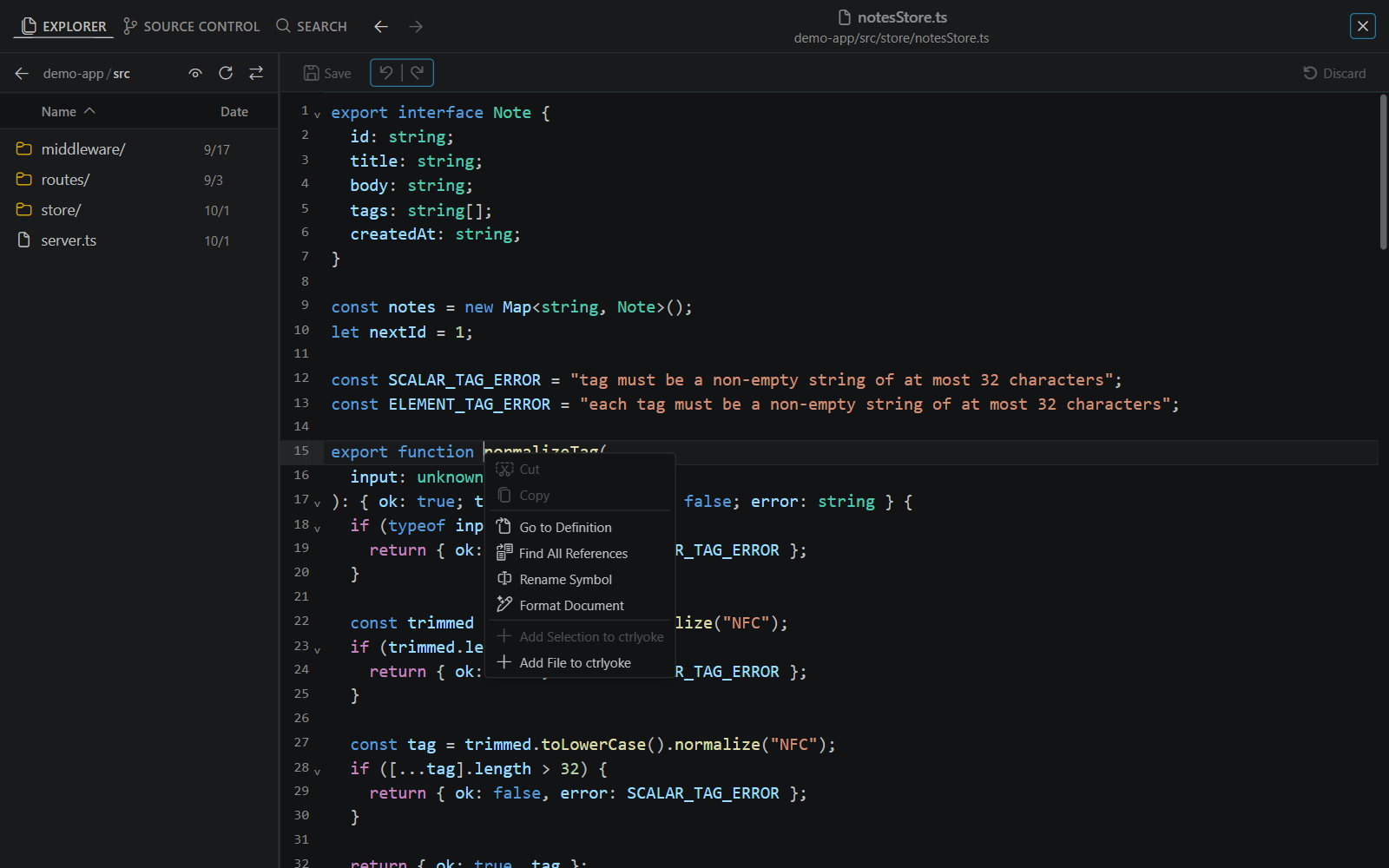
For languages with a language server, right-click in the editor for Go to Definition (or press F12), Find All References, Rename Symbol and Format Document. ctrlyoke knows the servers for TypeScript and JavaScript, Python, Go, Rust, C and C++, C#, Java, Bash, Lua, JSON, YAML, TOML, CSS, HTML, Markdown and Dockerfiles. Install and choose them on the Language Servers settings tab (see Settings); ctrlyoke starts a server when you first open a file it handles and stops it after it has been idle for a while. If a server is stopped, the workspace isn't trusted, or a server needs approval, a note under the editor says so.
Find All References opens a References panel beside the editor (over it, on a phone) listing each result by file and line. Select a result to jump to it, or Add reference to ctrlyoke to use it in a prompt.
Rename Symbol asks for the new name. If the rename would change files you don't have open, the viewer lists them and asks you to confirm with Apply Rename.
The same menu has Add Selection to ctrlyoke and Add File to ctrlyoke, to reference what you're reading in the next prompt. It opens with the same editing items as the prompt editor's menu: Cut, Copy, Paste, Select Word, Select Line and Select All.
Search
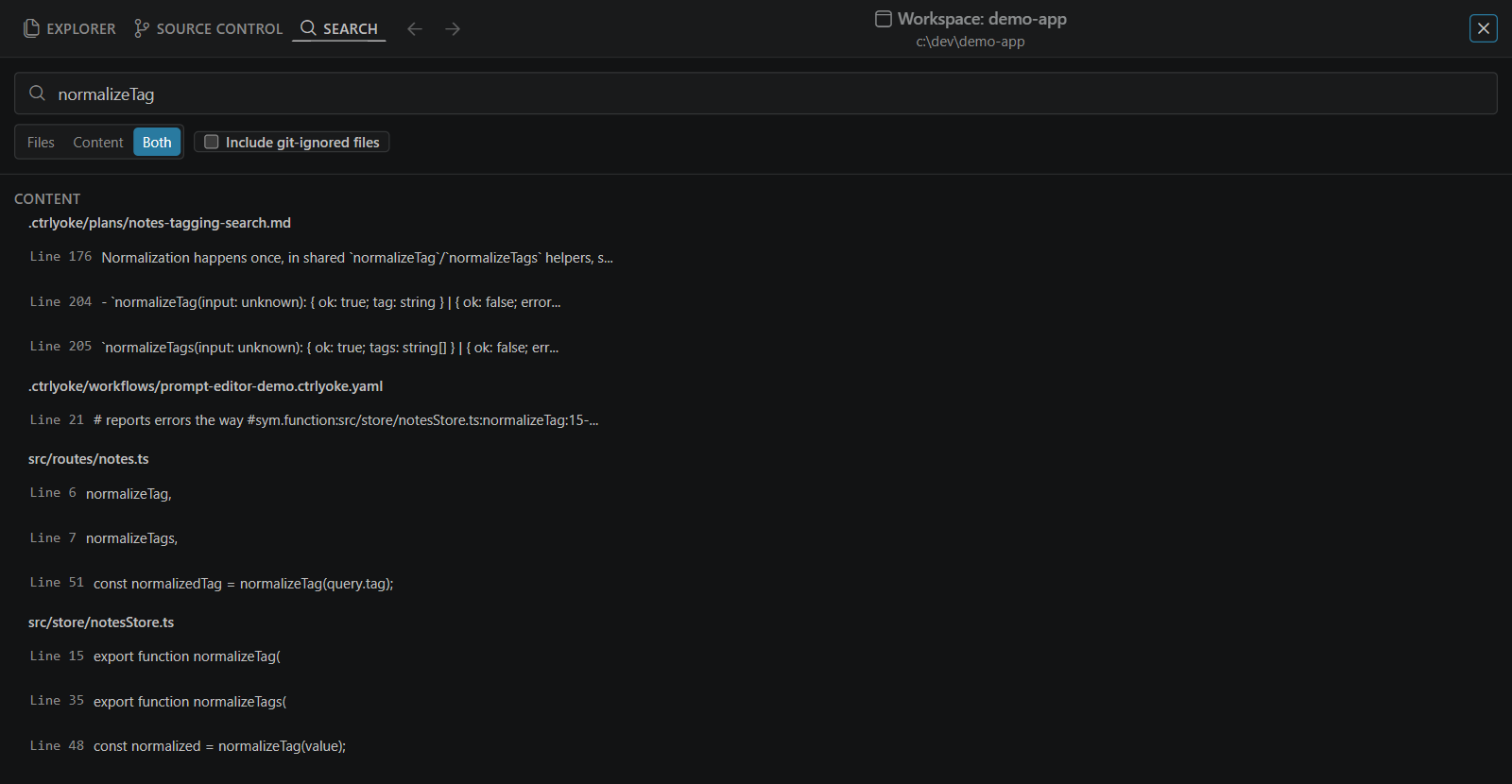
Type at least two characters in Search workspace.... The search runs as you type and matches file names and file contents, ignoring case. It matches the text exactly as typed: there are no regular expression, whole-word or file filter options, and no replace.
- Files, Content or Both chooses what to search.
- Include git-ignored files adds files git ignores, such as build output and logs. It starts from your
ui.hideGitIgnoredFilessetting. - A Repository picker appears when the workspace holds more than one git repository.
Results are grouped by file, with up to three matching lines per file. Select a line to open the file there. Load more fetches more results. Very large searches stop early and say so; narrow the query to see the rest. Binary files and files over 2 MB aren't searched.
On a phone
On a narrow screen, the file list and the open file are separate screens: select a file to open it, and Back to file list to return. Touch and hold an entry for its menu. The editor stays above the on-screen keyboard while you type.
Security
The viewer can read and change anything in the workspace folders ctrlyoke serves, and in worktrees ctrlyoke created, but nothing outside them. It runs git commands, including push and pull, as you on the computer running ctrlyoke. Anyone with the dashboard link has the same access, so share the link only with people you'd let edit the project. See the access link.