
Source control
The Source Control tab of the workspace viewer covers the everyday git work you'd otherwise need VS Code or a terminal for: reviewing changes, staging, committing (with an AI-written message if you like), pushing and pulling, and browsing history. Like the rest of the viewer, it's in the browser dashboard only.
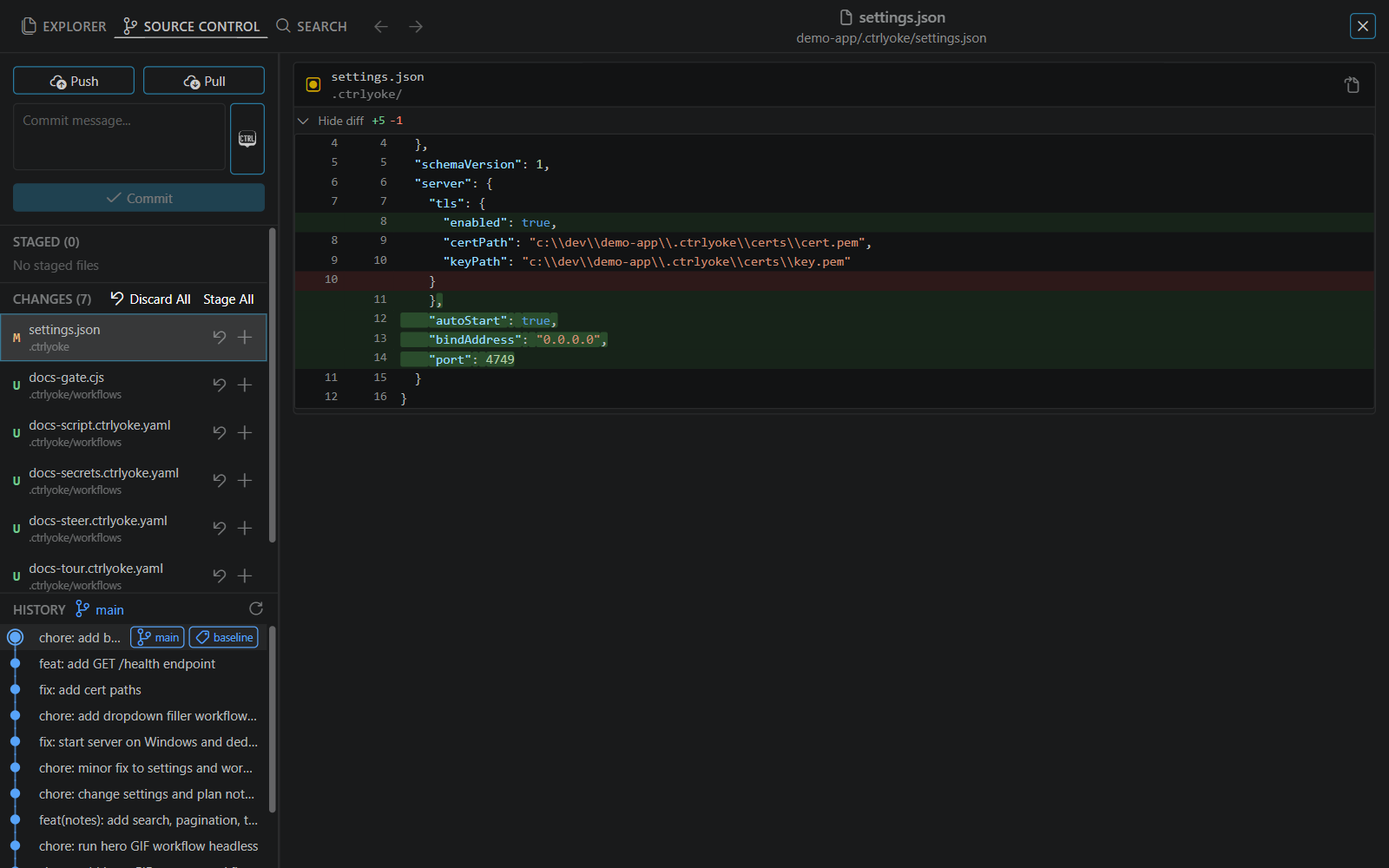
The left side has, from top to bottom: the sync buttons, the commit box, your changes, and the commit history. The right side shows whatever you selected: a file's diff, a commit, or a file's history.
Repositories
When the workspace contains more than one git repository (a multi-root workspace, or nested repositories), a Repository picker appears at the top. Everything on the tab then applies to the chosen repository.
Reviewing and staging changes
Changed files are listed under Staged and Changes, each with a count. A letter shows each file's state: M modified, A added, D deleted, R renamed and U untracked. Select a file to see its diff.
Rows under Changes have Discard changes (the curved arrow), which throws away the file's uncommitted changes, and Stage (+). Rows under Staged have Unstage (−). The section headings have Stage All, Discard All and Unstage All.
Discarding changes to a tracked file restores it from git without asking. Discarding an untracked file deletes it, so ctrlyoke asks first (Delete Untracked File?) unless you ticked Don't warn me again, which turns off ui.confirmDeleteOperations.
Committing
Type a message in the Commit message... box and select Commit. If nothing is staged, Commit stages all your changes first and commits them together, the same as VS Code's smart commit.
To have ctrlyoke write the message, select the button beside the box (Generate commit message with ctrlyoke). It reads the staged changes, or the unstaged ones when nothing is staged, and asks the harness and model set on the Commit Message settings tab to write a message. Anything already in the box is passed along as instructions, so you can type "mention the migration" and then generate. While it works the button becomes Cancel generation. When it had to use unstaged changes, it says "Generated from unstaged changes. Stage files for a more accurate message."
You can edit a generated message before committing. The same generator runs from VS Code's Source Control title bar and from ctrlyoke commit; see the commit command.
Push and pull
Push and Pull run git push and git pull on the current branch's upstream, as you, on the computer running ctrlyoke, so they use that machine's git credentials. When the branch is ahead of or behind its upstream, the buttons show how many commits, for example Push (2).
There are no fetch, branch-switch or merge buttons. Use a terminal for those.
History
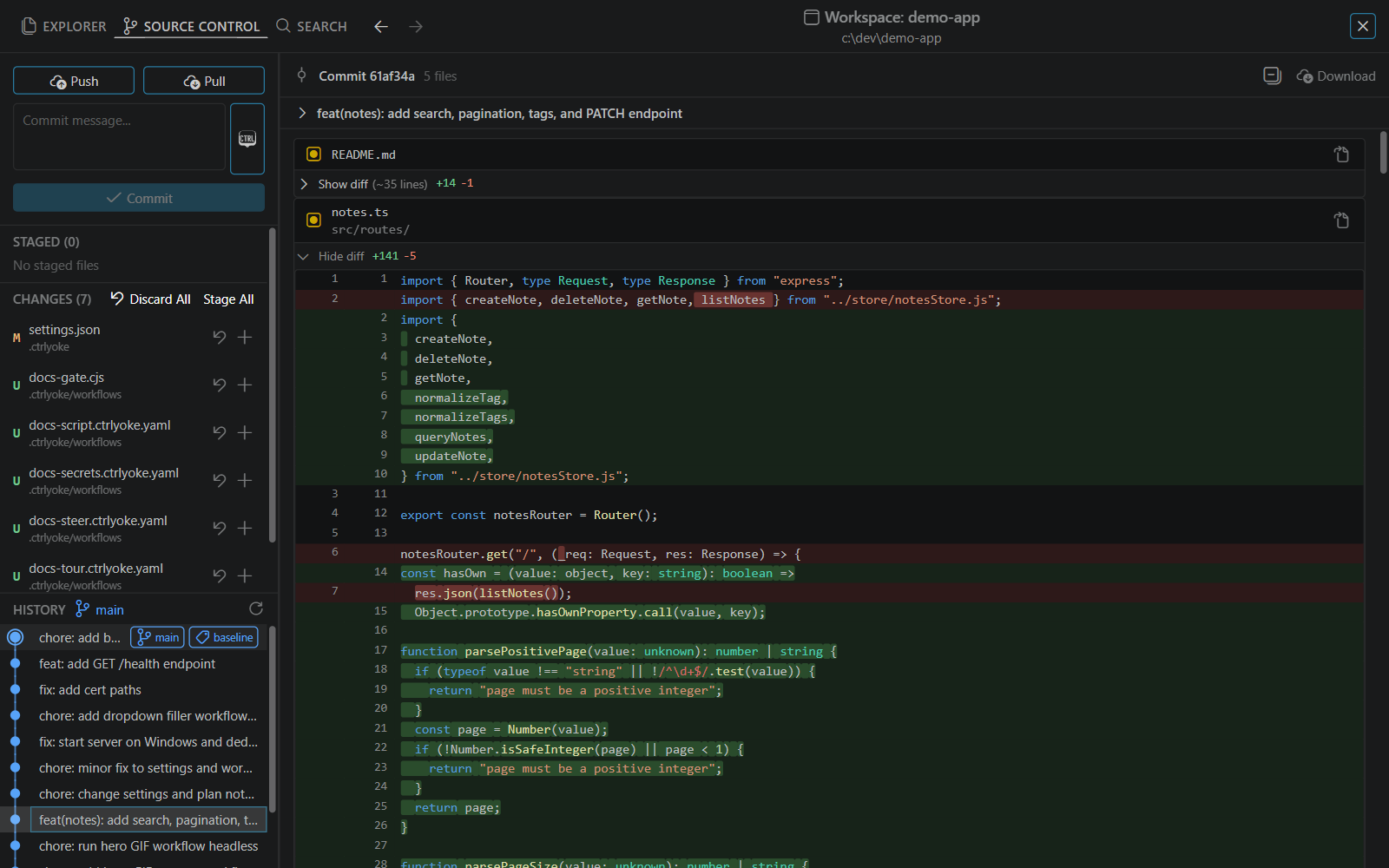
History, at the bottom left, is a commit graph of the current branch, with branch and tag labels on the commits they point to. The heading names the current branch, and Refresh commit history reloads it. Older commits load as you scroll.
Select a commit to see its diff on the right. Right-click a commit (long-press on a phone) for:
- Copy Hash and Copy Message
- View Diff
- Add Commit to ctrlyoke, to reference it in the next prompt
- Checkout Commit (Detach HEAD), after a confirmation
After a checkout, a Detached HEAD banner offers Return to <branch>.
Diffs
Selecting a changed file shows its diff against the last commit. A commit, a stash, the staged changes, or all working-tree changes open as a list of files, each with Show diff / Hide diff. A commit's diff has a collapsible section with its full message, author and date.
- Diffs are side by side when the right-hand side is at least 1024 px wide, and unified when it's narrower.
- The header button expands or collapses every file.
- Download saves the whole diff as a
.difffile. - Large diffs load more files as you scroll.
- Images show Before and After side by side. Other binary files, and files over 2 MB on either side, show a placeholder instead of a diff.
View File History on a file's menu in the Explorer lists every commit that changed it; select one to see that commit's change to the file.