
Notifications
ctrlyoke can tell you when a workflow or step finishes, and when a harness raises an event you care about, such as asking for permission. Notifications can appear as VS Code popups, as browser notifications from the browser dashboard, or as push notifications on your phone.
Configure them in Settings → Notifications.
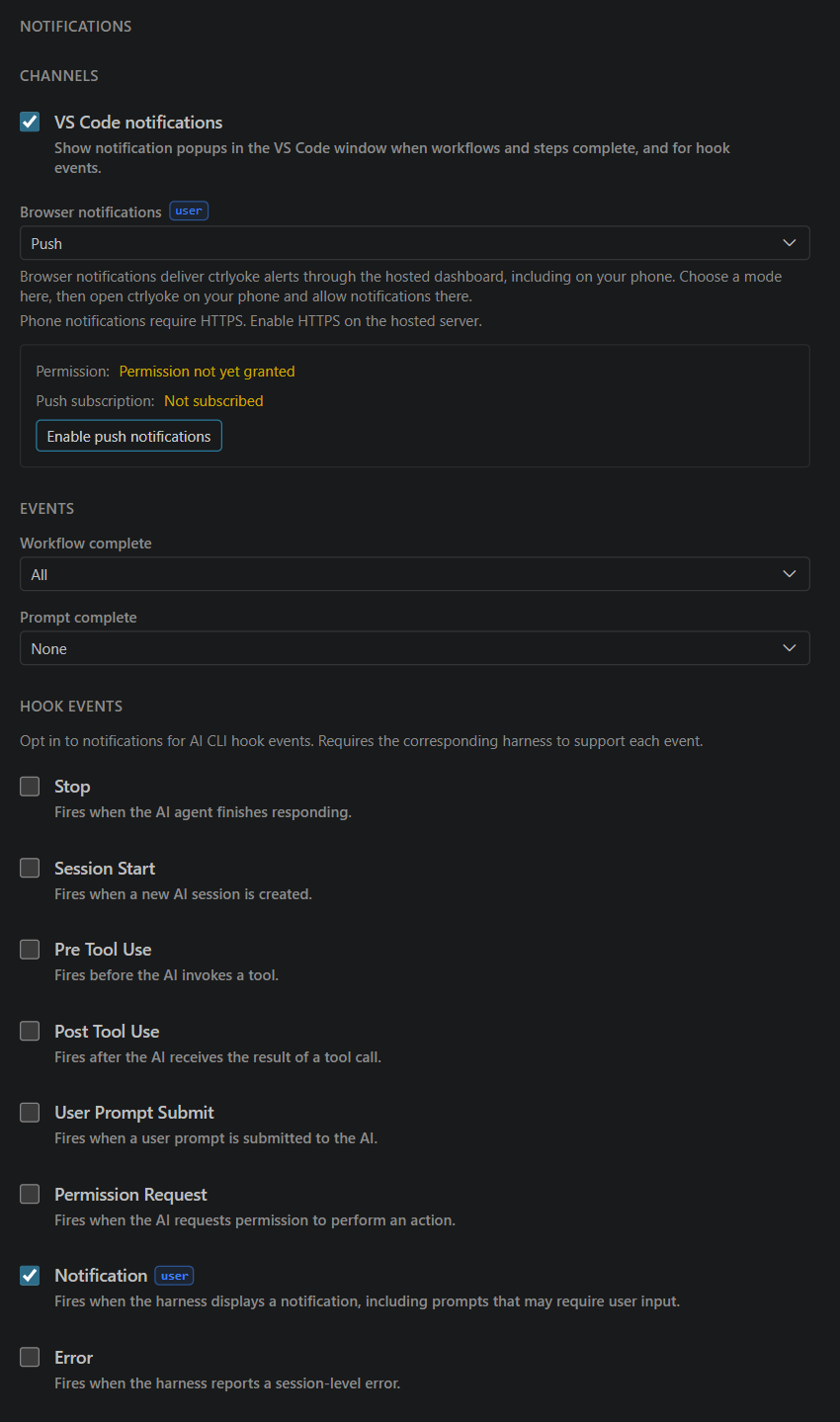
Channels
| Channel | Where it appears | Setting |
|---|---|---|
| VS Code notifications | A popup in the VS Code window running ctrlyoke | notifications.vscode.enabled (on by default) |
| Browser notifications | A system notification from the browser dashboard | notifications.browser.mode (Never by default) |
VS Code popups have an Open Dashboard button. Popups for a failure also have View Output, which opens ctrlyoke's output channel.
Browser notifications
Browser notifications has three modes:
| Mode | What happens |
|---|---|
| Never | No browser notifications. |
| Connected Only | An open browser dashboard shows a system notification. Nothing arrives once every dashboard tab is closed. |
| Push | ctrlyoke sends a Web Push notification to every subscribed browser or phone, even when the dashboard isn't open. Needs Pro or the remote-access trial. |
To turn them on:
- Choose a mode in Settings → Notifications.
- Open the browser dashboard on the device that should receive them, go to the same tab, and select Enable browser notifications (or Enable push notifications in Push mode).
- Allow notifications when the browser asks.
The box under the mode shows the browser's Permission and, in Push mode, whether this device has a Push subscription. Once it is subscribed, a Disable push notifications button removes the subscription. If the permission reads "Blocked", allow notifications for the site in the browser's own settings.
Browsers only allow notifications on a secure page: localhost, or HTTPS. To receive them on a phone or another computer, turn on HTTPS in the Server tab first; see HTTPS. On iPhone and iPad, notifications also need ctrlyoke installed on the Home Screen and opened from there. Use ctrlyoke on your phone walks through both.
Tapping a notification opens the dashboard. An installed app also shows a badge count of unread notifications.
Events
| Setting | Options | Default |
|---|---|---|
| Workflow complete | All, Failures Only, None | All |
| Prompt complete | All, Failures Only, None | None |
Workflow complete fires when a run finishes, either completed or failed with an error. A run you stop yourself doesn't notify. Prompt complete fires for each step that completes or fails. Failures Only keeps just the failures.
Hook events
ctrlyoke can also notify you when the harness reports a hook event during a step. They are all off by default.
| Event | Fires when |
|---|---|
| Stop | The AI finishes responding. |
| Session Start | A new AI session is created. |
| Pre Tool Use | The AI is about to call a tool. |
| Post Tool Use | The AI has received a tool call's result. |
| User Prompt Submit | A prompt is submitted to the AI. |
| Permission Request | The AI asks for permission to do something. |
| Notification | The harness shows a notification, including prompts that need your input. |
| Error | The harness reports a session-level error. |
Not every harness reports every event. Notification comes from Copilot, Claude Code and Qwen Code only, and Error from Copilot, Claude Code and OpenCode. See the Hooks rows of the compatibility matrix for the full picture.
Notification is the useful one for interactive steps: it tells you when the harness is waiting for you. Pre Tool Use and Post Tool Use fire on every tool call, so they are mostly useful for testing.
Content
Include workflow name and Include prompt name (both on by default) add the workflow's and step's names to the notification text. Turn them off if notifications appear somewhere others can see them, such as a phone's lock screen.
Noise control
- Toast notifications (
notifications.toastLevel) sets the minimum severity for ctrlyoke's other popups: the results of actions, such as a failed save or a validation error. Choose All, Warning and Error, Error Only or None. It doesn't affect the completion and hook notifications above. - Only notify when ctrlyoke is not focused (
notifications.onlyWhenWindowUnfocused) skips VS Code popups while the VS Code window has focus, and browser notifications while that dashboard tab is visible and focused. Push notifications are still sent to your other devices.