
The dashboard
The ctrlyoke dashboard is where you build, run and review workflows. In VS Code it opens in the secondary side bar; you can drag its tab to the bottom panel for a wider layout. The same dashboard also runs in a browser (see Browser dashboard).
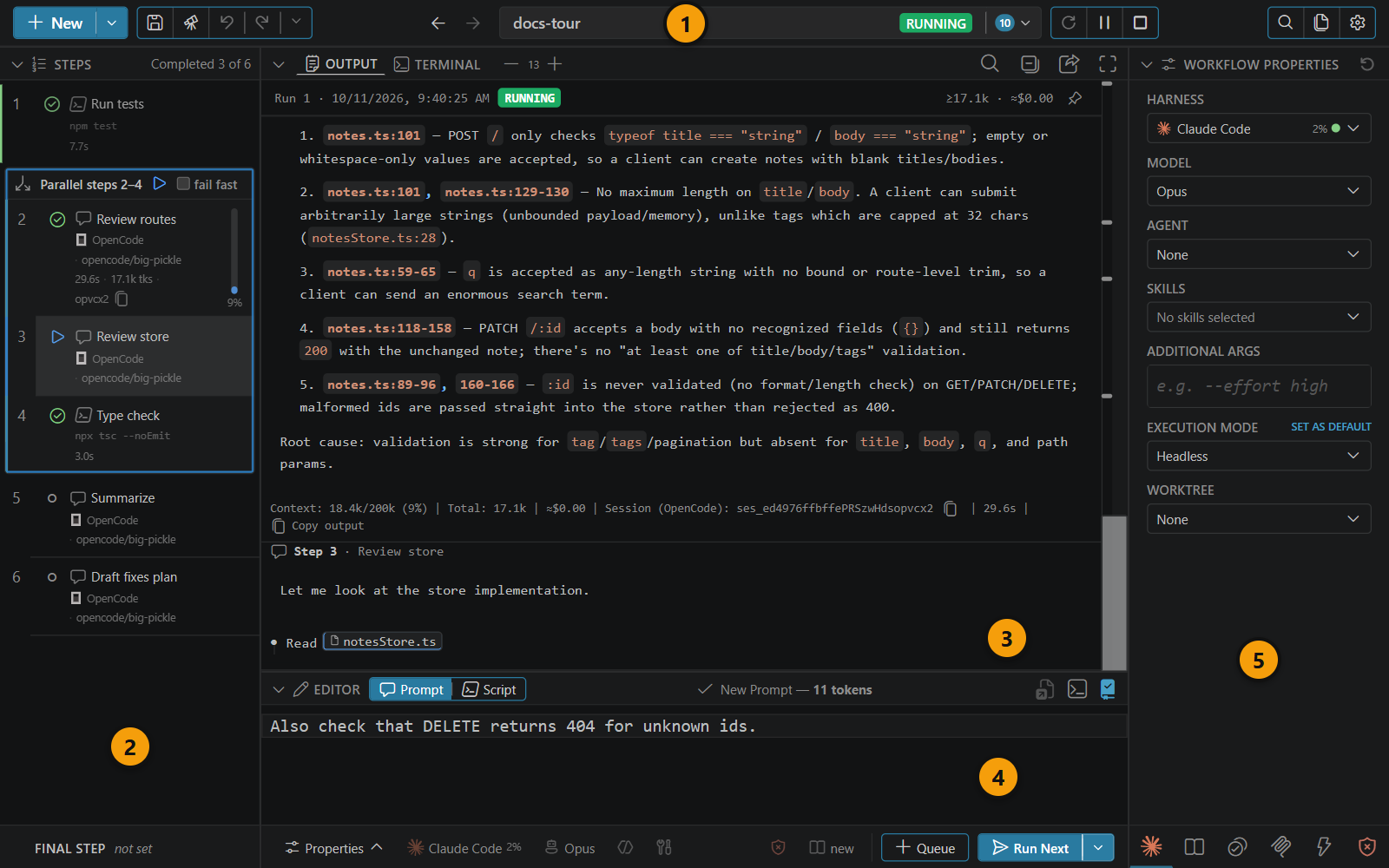
Layout
| # | Area | What it holds |
|---|---|---|
| 1 | Header | Workflow actions, the workflow name and state, the run controls, and buttons for history search and settings. |
| 2 | Steps panel | Every step in the workflow, its status, and the final step at the bottom. |
| 3 | Output | The output of each step as it runs, with a Terminal tab beside it for interactive sessions. See The output pane. |
| 4 | Prompt editor | Write a new step, or select a step to edit it. Its footer holds the per-step quick pickers and the Queue and Run buttons. |
| 5 | Workflow Properties | The workflow-level harness, context, validation, MCP, hooks and permissions. See Workflow properties panel. |
On a wide window these sit side by side: steps on the left, output above the prompt editor in the centre, and Workflow Properties on the right. Drag the dividers to resize them, or collapse the steps panel to a narrow rail of step chips with Collapse to sidebar.
When the dashboard is narrower than 640 px (a typical side bar, or a phone), the steps panel and Workflow Properties become drawers. Open them with the tabs at the left and right edges of the header's second row.
The header
From left to right:
- New: start a blank workflow. Its menu also has New From Template..., Load from File..., Queue from File... (appends a file's steps to this workflow) and Duplicate Workflow…. While you view a run, the last two read Append and Continue from File... and Duplicate This Run as New Workflow….
- Save workflow: save the workflow as a
.ctrlyoke.yamlor.ctrlyoke.jsonfile, or as a template. - Dry Run: preview exactly what each step would send to its harness, without running anything. See Dry Run.
- Undo and Redo: undo edits to the workflow definition. The chevron shows the undo history. To undo the files a step changed, see File changes and undo.
- Back and Forward (on layouts at least 768 px wide): move between the workflows and runs you viewed.
- The workflow name and state badge, which opens the workflow menu. Click the name to rename the workflow. A workflow loaded from a file starts with the file's
name, or its file name when it has none. Renaming doesn't edit the file; the next Save writes the new name into it. - The run controls.
- Search History (
Ctrl+Shift+F), Explore files and changes (browser dashboard only; see Workspace viewer) and Global Settings. See Settings.
The state badge reads Ready, Running, Pausing..., Paused, Stopped, Cancelling..., Completed or Error.
Run controls
The header has three run buttons. Their meaning follows the state of the workflow you're viewing.
| Viewing | First button | Second button | Third button |
|---|---|---|---|
| A new workflow that has never run | Run | Pause (disabled) | Stop (disabled) |
| A running workflow | disabled | Pause | Stop |
| A workflow that is pausing | disabled | Cancel pause | Stop |
| A paused workflow | disabled | Resume | Stop |
| A stopped or failed run | Re-run | Resume | disabled |
| A completed run | Re-run | disabled | disabled |
| A run you rewound (see below) | Restart | Continue | disabled |
- Run starts the workflow from its first step.
- Re-run creates a new run from the same steps and settings and starts it. The earlier run stays in history unchanged.
- Pause lets the current step finish, then stops before the next one. A banner reads "Workflow will pause after the current step completes", with a Cancel button. While paused you can edit, add, reorder or delete the remaining steps.
- Resume continues a paused, stopped or failed run from where it left off.
- Stop ends the current step immediately and stops the workflow.
Right-click (or long-press) the first button for a Dry Run of the whole workflow.
If a run belongs to the CLI or to another VS Code window, the dashboard shows it read-only with a lock banner. Its Stop button still works: it stops the run in the CLI or the other window.
Continuing from an earlier step
You can take a finished, stopped or paused run back to an earlier step:
- Choose Set Start Position on a completed step, or click the arrow under its status icon.
- Edit a completed step and click Update ("Update prompt and reset execution to this step").
The steps from that point on reset to pending, and a banner reads Continuing run from step N. Edit the remaining steps if you need to, then:

- Continue runs the edited steps in the same run.
- Restart discards the continuation and starts a new run from the beginning.
- Discard Continuation (in the banner) puts the run back the way it was.
WARNING
Continuing can't be undone. Once you continue, the output history is kept, but the run's captured file state for the re-run steps is overwritten. Use Restart if you want to keep the earlier run intact.
Setting the start position to a later pending step skips the steps before it instead.
Adding steps: Queue and Run
When the prompt editor holds a new step, its footer has two buttons:
- Queue (
Ctrl+Shift+Enter) adds the step to the end of the workflow without starting anything. - Run (
Ctrl+Enter) adds the step and makes sure the workflow runs. If the workflow still has pending steps, the button reads Run Next and the new step runs before them. On a running workflow it runs as soon as the current step finishes. On a completed run it resumes that run with the new step.
With no workflow loaded, both buttons create a new workflow.
The Run menu
The arrow beside Run opens more ways to send the prompt:
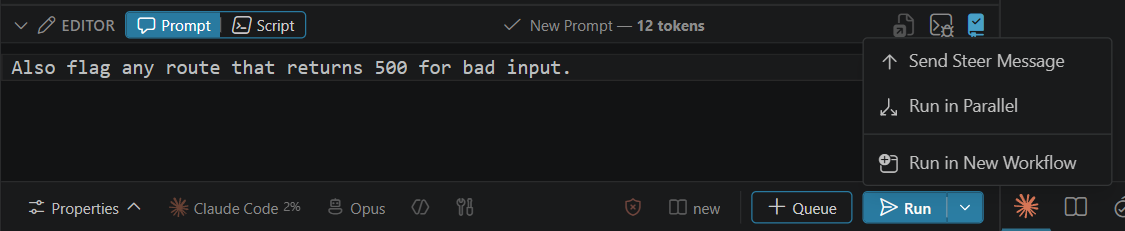
| Option | What it does |
|---|---|
| Send Steer Message | Types the prompt into the live harness session of the running step, so you can redirect it mid-step. Needs an interactive session. Step overrides from the footer are ignored. |
| Run in Parallel | Starts the prompt beside the running step as a parallel group. Its prior context resolves from before that step. Needs a running step, and queue.maxParallelSteps of 2 or more. |
| Run in New Workflow | Starts a separate workflow with default settings and just this prompt. |
Hover a disabled option to see why it's unavailable.
The steps panel
Each row shows the step's number, status, name or prompt, and any per-step overrides. A step's status is one of pending, running, completed, failed, cancelled or skipped; disabled steps are greyed out. Parallel groups appear as a boxed group with a Fail Fast toggle, and the final step sits in its own footer at the bottom.
- Click a step to open it in the prompt editor.
- Drag a pending step by its handle to reorder it.
Ctrl+Click(Cmd+Clickon macOS) adds a step to a selection, andShift+Clickselects a range, so you can enable, disable, move or delete several steps at once.Ctrl+A(Cmd+Aon macOS) selects every step. Select All applies only to the panel you're working in: in the output pane it selects the output text, and elsewhere on the dashboard it selects nothing.
Context window bar
While a step runs, a thin vertical bar at the right edge of its row shows how full the harness's context window is, with the percentage beneath it. It updates live on every harness and changes colour as it fills, so you can stop a step that is running away. Hover it for the token counts (and a cost estimate, unless ui.showCostEstimates is off). A fold icon above the bar means the harness compacted its context during the step. The bar is hidden when the context window size isn't known.
Step menu
Right-click a step (or long-press it on a touch screen) for:
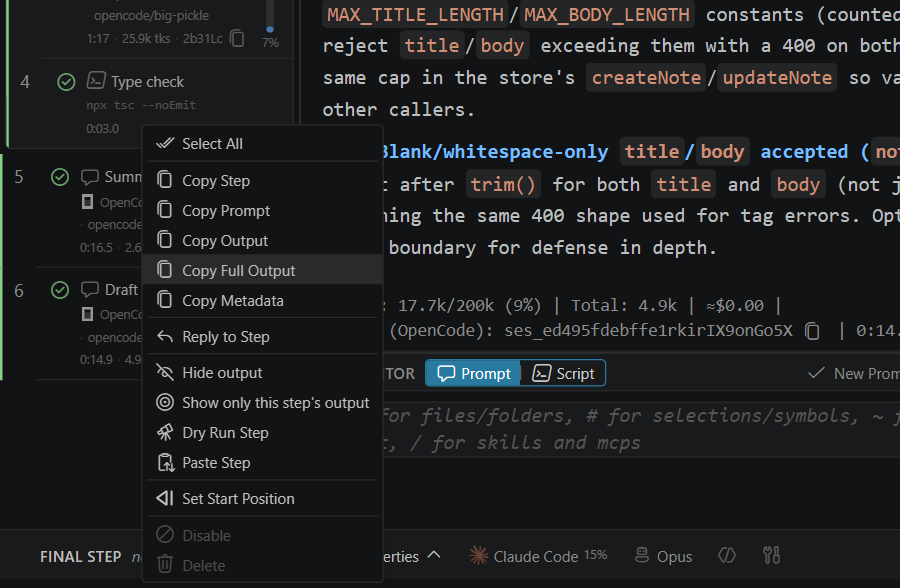
| Item | What it does |
|---|---|
| Select All, Select to Here, Add to Selection | Build a multi-step selection. |
| Copy Step | Copies the whole step, with its properties, so Paste Step can insert it in this or another workflow. |
| Copy Prompt / Copy Script | Copies just the prompt text or script. |
| Copy Output, Copy Full Output, Copy Metadata | Copies the assistant's text, the complete rendered step output, or the step's resolved execution properties (harness, model, agent, skills, MCP servers and so on). |
| Reply to Step | Starts a new prompt that resumes this step's session. |
| Hide output, Show only this step's output | Filters the output pane. |
| Dry Run Step | Previews just this step. |
| Paste Step | Inserts a copied step after this one. |
| Set Start Position | Rewinds to a completed step, or skips ahead to a pending one. See Continuing from an earlier step. |
| Move Up, Move Down | Reorders a pending step. |
| Group with previous step, Group with next step, Ungroup parallel steps | Builds or splits a parallel group from pending steps. |
| Enable / Disable | A disabled step stays in the workflow but is skipped. |
| Delete | Removes the step. |
With several steps selected, the last items become Enable N steps, Disable N steps and Delete N steps.
The workflow menu
Click the workflow name in the header to open the Workflows menu.
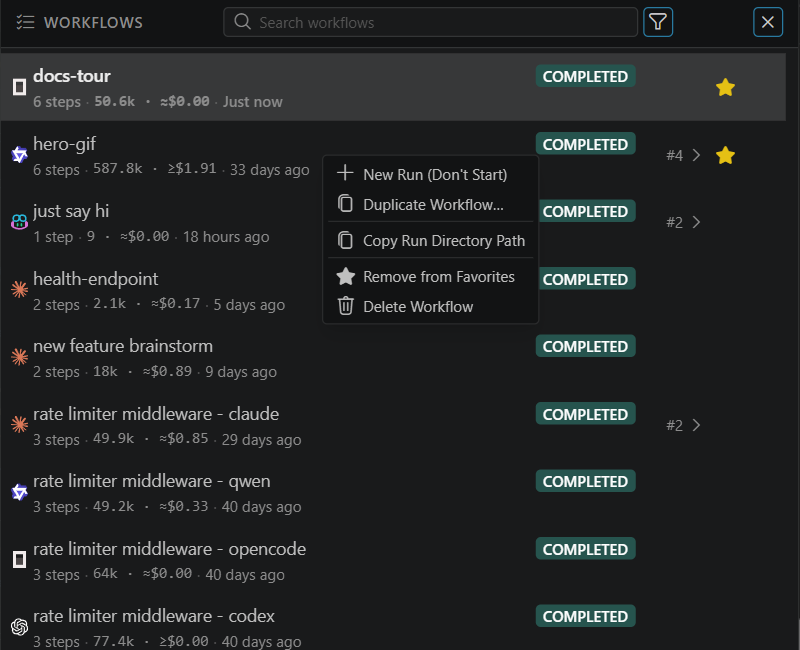
- Running lists every workflow executing now, with Pause, Continue and Stop buttons on each row. Click a row to switch to it.
- Below it are your recent workflows. Starred workflows sort to the top. Click the star to add or remove a favorite.
- Search by name, or filter by state, harness or Favorites only.
Each row shows the workflow's step progress, its token total and estimated cost, and its run time. Durations everywhere in the dashboard read as a clock: 0:ss.t (with tenths of a second) under a minute, m:ss under an hour and h:mm:ss from an hour on. A run's time leaves out the time it spent paused.
Each time a workflow runs it creates a numbered run. The #N › at the right of a row opens that workflow's runs, newest first, with Newer run and Older run buttons. When the workflow you're viewing has more than one run, the header also shows a Run N badge that opens the same list.
Right-click a workflow or run for:
- New Run (Don't Start): create the next run from these steps and settings without running it, so you can edit it first.
- Duplicate Workflow…: copy the workflow's steps and settings into a new, independent workflow. You can pick a different Workflow Harness and Workflow Model for the copy, which makes it easy to run the same workflow on two harnesses and compare the results.
- Copy Workflow Key: copy the workflow's key, which another workflow's
priorContextuses to import this workflow's output. See Output from another workflow. - Copy Run Directory Path: copy the path of the run's files (its working copy,
events.jsonltimeline and manifest). In the browser dashboard the path is on the machine running ctrlyoke. See Run files. - Add to Favorites / Remove from Favorites.
- Delete Workflow / Delete Run: moves it to Recently deleted. You can restore it from Settings → General → Run History.
Keyboard shortcuts
These work while the dashboard has focus. On macOS, use Cmd for Ctrl and Option for Alt, except Run and Queue, which use Ctrl on every platform.
| Shortcut | Action |
|---|---|
Ctrl+N | New blank workflow, with the cursor in its name |
Ctrl+Shift+N | New workflow from a template |
Ctrl+Enter | Run the prompt in the editor |
Ctrl+Shift+Enter | Queue the prompt in the editor |
Ctrl+Shift+F | Search history |
Alt+H | Pick the workflow harness |
Alt+M | Pick the workflow model |
Alt+R | Pick the workflow's resume session setting |
Alt+Shift+H | Pick the harness for the step you're editing |
Alt+Shift+M | Pick the model for the step you're editing |
Alt+Shift+R | Pick the resume session setting for the step you're editing |
A new workflow takes no mouse at all: press Ctrl+N, type its name, press Tab (or Enter) to move to the prompt editor, type the prompt and press Ctrl+Enter. Tab out of the name also moves to the prompt editor when you rename an existing workflow; there Enter just saves the name.
The Alt shortcuts open their picker with the current value highlighted: the workflow ones in Workflow Properties (expanding it if collapsed), the step ones in the prompt editor's footer. Press the same shortcut again to move to the next option, or use the arrow keys, Home and End, or type part of a name to jump to it. Enter applies the highlighted option and Escape closes the picker; either way the cursor returns to where it was. The shortcuts are left alone while the terminal has focus, where Alt + letter belongs to the shell.