
Browser dashboard
The VS Code extension can serve the same ctrlyoke dashboard to a web browser. Open it in a browser tab on the same computer to run different workflows side by side, or, with Pro or the remote-access trial, on a phone or another computer on your network.
The server runs inside VS Code and serves the workspace that window has open. Workflows, harness CLIs and files stay on that computer; the browser is only a view and a remote control. To serve a workspace without VS Code, use ctrlyoke server instead.
What's free and what's Pro
| Feature | Free | Pro or trial |
|---|---|---|
| Dashboard in a browser on the same computer (localhost) | ✓ | ✓ |
| Connections from other devices (LAN, VPN) | ✓ | |
| HTTPS, certificate download, and the QR code | ✓ | |
| Custom app icon colors | Pro only |
Each installation gets a one-time 14-day remote-access trial. The 14 days start the first time a browser or phone on another device connects, or makes an authenticated HTTP request, not when you start the server or switch Bind address to all interfaces. When the trial ends without a Pro license, the next server start binds to localhost only, and the Server tab says so. The localhost dashboard keeps working. See ctrlyoke Pro for licensing.
Start the server
Use any of these:
- From the dashboard: select the gear icon (Global Settings), open the Server tab, and select Start server. Select Stop server to stop it.
- From the Command Palette: run
ctrlyoke: Start Hosted Dashboard Serverorctrlyoke: Stop Hosted Dashboard Server. Both confirm with a notification. The start notification shows the URL with the access token hidden; the full link is on the Server tab. - Automatically: turn on Auto Start (
server.autoStart) on the Server tab, and the server starts whenever the extension activates.
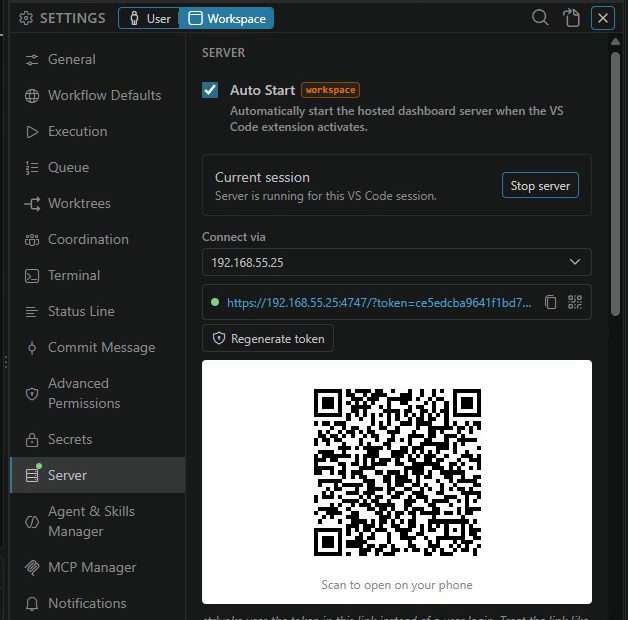
While the server runs, the Server tab shows its link with a green dot. Select the link to open it, or the copy button to copy it. Stopping the server disconnects every browser.
Server settings take effect the next time the server starts. After changing the port, bind address or HTTPS settings, select Stop server, then Start server.
The access link
The link looks like http://localhost:4747/?token=…. There is no user login: the token in the link is what lets a browser in, so treat the link like a password. A browser that opens the dashboard without the right token gets an "access token" error page instead.
Each workspace has its own token, kept in your system's credential store. It stays the same across restarts, so bookmarks and installed home-screen apps keep working, and ctrlyoke server uses the same token for the same workspace.
If the link is exposed, or someone should lose access, select Regenerate token. The new token takes effect when you restart the server; until then the old link keeps working. After the restart, every browser and phone needs the new link, and a home-screen app for that workspace must be added again. Regenerating is only available on the Server tab, not from the Command Palette, so it can't be done by accident.
Port
The server listens on port 4747 (Server port, server.port). If that port is already in use, it tries each port in Fallback ports (server.fallbackPorts) in order, then a random free port. When it falls back, the Server tab shows a warning naming both ports. If the port is taken by another VS Code window serving the same workspace, ctrlyoke also tells you where that server is running.
Add one or two fallback ports if you often run several VS Code windows and want each workspace's link to stay the same across restarts.
Connect from other devices
By default the server only accepts connections from the same computer (Bind address: Localhost only (127.0.0.1)). To reach it from a phone, tablet or another computer, set Bind address to All interfaces (0.0.0.0) and restart the server. This option needs Pro or an active trial.
The server then listens on every network interface of your computer. If your computer has more than one network address, choose the one other devices can reach under Connect via; the link and QR code use it.
Anyone on the network who has the link can control ctrlyoke on your computer, including starting workflows that run harness CLIs with the permissions you configured. Bind to all interfaces only on networks you trust. To connect from outside your network, use a VPN rather than forwarding the port to the internet. Connect from anywhere covers Tailscale, your own VPN server, the Public hostname setting, and keeping your computer awake.
HTTPS
Without HTTPS, the dashboard on another device works over plain HTTP, but the connection isn't encrypted, and phones can't install ctrlyoke as an app or receive push notifications. HTTPS needs Pro or an active trial.
In the HTTPS / TLS section of the Server tab, turn on Enable HTTPS, then either:
- enter your own Certificate file (.pem) and Private key file (.pem), or
- select Generate self-signed certificate. ctrlyoke creates a local certificate authority and a server certificate for this computer's addresses, and fills in both paths. It's saved under
.ctrlyoke/certs/(gitignored) for the workspace scope, or~/.ctrlyoke/certs/for the user scope.
Set Bind address to All interfaces before generating, so the certificate covers your network addresses and not only localhost. The Server tab shows the addresses a generated certificate covers, its expiry date, and a warning when it doesn't cover the address in Connect via. Restart the server after generating.
Browsers warn about a self-signed certificate until the device trusts it. To install it on a device, select Download certificate on the Server tab, or open /cert on the server (for example https://192.168.1.20:4747/cert). That page needs no token, because a phone has to install the certificate before it can connect; the certificate is public and contains no secret.
Use ctrlyoke on your phone walks through the whole setup, including trusting the certificate on iPhone and Android and installing the app.
Open it on a phone
Select the QR code button next to the server link and scan the code with the phone's camera. The code contains the full link, including the token. The QR code needs Pro or an active trial. Follow Use ctrlyoke on your phone for certificates and app install.
Several browsers at once
Every browser tab, phone and the VS Code panel is its own view. Each can show a different workflow, and switching workflows in one doesn't move the others. Runs are shared: a workflow started in one view shows its progress live in every view that has it open, and any view can pause, stop or steer it.
Drafts and layout are stored per browser and per workspace, so they survive closing the tab but don't sync between your phone and your computer.
Theme and icon
The browser dashboard follows each browser's light or dark preference. Set Browser dashboard theme on the General settings tab (server.theme) to light or dark to pick one for every browser, or add ?theme=light or ?theme=dark to the link for one browser. A change applies when the page reloads.
With Pro, Icon Colors on the Server tab set the background and foreground colors of the browser tab icon and the home-screen app icon, which helps tell workspaces apart.
Settings
| Setting | Default | What it does |
|---|---|---|
server.autoStart | false | Start the server when the extension activates. |
server.port | 4747 | The port to listen on. |
server.fallbackPorts | [] | Ports to try, in order, when port is taken. |
server.bindAddress | 127.0.0.1 | 127.0.0.1 for this computer only, 0.0.0.0 for every interface. |
server.publicHostname | empty | Name to reach this computer from outside your network (details). |
server.tls | off | enabled, certPath and keyPath for HTTPS. |
server.theme | auto | auto, light or dark. |
See the settings reference for the full list and Settings for user and workspace scopes.