
The prompt editor
The prompt editor sits below the output pane. Use it to write a new step, or select a step in the steps panel to edit it. It understands ctrlyoke's reference syntax as you type: it completes file paths, symbols, commits, earlier steps, secrets and skills, and it flags references that won't resolve before you run anything.
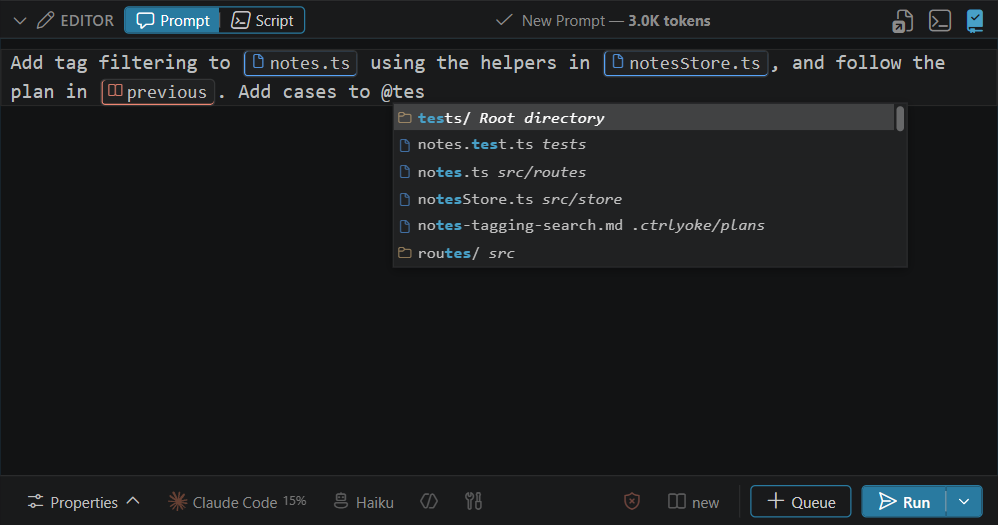
This page covers the editor itself. For what each reference sends to the harness, see Context references.
The editor header
The row above the text shows what you are editing and a few controls:
| Control | What it does |
|---|---|
| Prompt / Script | Switches the step between a prompt for a harness and a script step. |
| Enable toggle | Disables the step without deleting it. A disabled step is skipped when the workflow runs. |
| Colour dot | Sets the step's colour. Shown when Step colours (ui.stepColorMode) isn't none. |
| The step label | Reads New Prompt, Editing: Prompt 2 of 5, Editing: Final Step, and so on. Click it to give the step a name. |
| Token estimate | An estimate of the tokens the step sends, including attached files and earlier output it references. For a prompt file reference, it counts the file's text and the references in it. It turns yellow at 50K tokens and red at 100K. |
| Convert to prompt file | Moves the prompt text into a new .prompt.md file under .ctrlyoke/prompts/, opens it, and replaces the text with a reference to the file. When the prompt is already a file reference, the button reads Open prompt file instead. |
| Execution mode | Overrides the step's execution mode: Interactive or Headless. Highlighted while the step has an override. |
| Respect .gitignore | When on (the default, ui.respectGitignoreForCompletions), file completions leave out git-ignored files. When off, ignored files are indexed in the background and may take a few seconds to appear in a large workspace. |
Reply to Step in a step's menu starts a new prompt that resumes that step's session. A banner above the editor reads Replying to harness session … until you send the prompt or cancel the reply.
Completions
Type a trigger character to open a completion list. Matching is fuzzy, so you can type a few letters from anywhere in a name, and the matched letters are bold in each row.
| Trigger | Offers |
|---|---|
@ | Files and folders in the workspace. Type a / to narrow to a folder; a folder name that isn't at the workspace root, like @backlog/, matches anywhere in the path. |
# | Symbols from the language servers, as #sym: references. In VS Code, the current selection in each visible editor appears first, as a #selection: reference. |
~ | diff (uncommitted changes), staged, your stashes, and recent commits. Typing searches commit subjects and hashes beyond the most recent 50. |
$ | previous, previous:, all, step:, finalStep, allFinalStep, and the preCondition: / endCondition: script output fields. |
! | The names of your secrets. Values are never shown. |
/ | /skill: and /mcp:, then the skills and registered MCP servers you can attach. Only at the start of a line or after a space, so src/ and ./ don't open the list. |
Press Tab or Enter to accept a completion and Esc to close the list. With no list open, Tab inserts a tab character.
Reference chips
By default (ui.atomicContextReferences), a reference in the editor collapses into a compact chip that shows just the file, folder, commit or step name, with an icon for its kind. A chip behaves like a single character: the arrow keys skip over it, and Backspace or Delete removes the whole reference.
A reference stays as plain text while you're typing it, and becomes a chip when you type a space, pick a completion or move the cursor away. To see the completions for a chip again, put the cursor right after it and press Ctrl+Space. Backspacing through other text up to a chip leaves it a chip, so the next Backspace removes the whole reference.
- Click or tap a chip to open what it points to.
- Right-click or long-press a chip for Go to Reference, Copy Reference and Send as Plain Text. Send as Plain Text wraps the reference in backticks, so it is sent as written instead of expanded (see Writing references literally).
Right-click or long-press anywhere else in the editor for Cut, Copy, Paste, Select Word, Select Line and Select All. Selecting and then pressing Backspace is the quick way to clear text on a phone. Select Word takes the whole run of text around the cursor, so it selects a complete reference such as @src/app.ts at once.
Turn the setting off to edit references character by character. They then show as underlined links; Ctrl+Click (Cmd+Click on macOS) opens one.
Problems the editor flags
The editor checks the prompt as you type and underlines anything that won't work. Hover an underline to see why, and use its quick fix where there is one:
- a file, folder, selection or symbol that doesn't exist, with Change to … suggestions for a close match
- a
$step:number or$previous:count that reaches past the earlier steps, or$endCondition:outside a retry prompt - a
{{name}}placeholder the workflow doesn't define, with Add "name" to workflow vars (see Variables) - a misspelled word, with spelling suggestions
A reference that fails at run time warns and the step runs anyway, unless execution.contextResolutionFailure is fail.
Pasting images
Paste an image from the clipboard (PNG, JPEG, GIF or WebP, up to 15 MB) and ctrlyoke saves it to .ctrlyoke/attachments/ as pasted-image-<hash>.<ext>, then inserts an @ reference to it at the cursor. Pasting the same image again reuses the same file. The folder is git-ignored.
Copilot, Claude Code, Codex and OpenCode receive images natively. Qwen Code and Antigravity don't support images, and the editor warns when the step's harness can't take one. See the compatibility matrix.
Keyboard shortcuts
| Keys | Action |
|---|---|
Ctrl+Enter | Run a new prompt |
Ctrl+Shift+Enter | Queue a new prompt |
Ctrl+F | Find and replace in the prompt |
Ctrl+Z / Ctrl+Shift+Z | Undo / redo |
Ctrl+Space | Open the completion list |
See Adding steps: Queue and Run for what Run and Queue do in each workflow state.
The footer quick pickers
The footer under the editor holds quick pickers for the step's most-used properties:
| Picker | Sets |
|---|---|
| Harness | The step's harness. Its badge shows the harness's usage percentage (see Usage and stats), and its tooltip says whether the CLI is installed. Changing it also clears the step's model and additional arguments. |
| Model | A model from the harness's list. |
| Agent | An agent file to run the step as (see Agents and skills). |
| Skills | Skills to attach. |
| Permissions | The tool permission mode. |
| Context | Whether to resume a session, and which one: Inherit, Resume with an optional session ID or step number, New Session, or Final Step Session. See Session management. |
Each picker starts at Inherit (…), naming the value the step gets from the workflow or your defaults. An icon is dimmed while the step inherits, and highlighted once the step has its own value. Pick Inherit again to remove the override. On a narrow dashboard the pickers show only their icons.
The model and additional arguments belong to one harness. When a step runs on a different harness from the workflow, these pickers show Default (…) instead. The step then uses the settings default for its own harness, not the workflow's value. See Steps on another harness.
In a harness list, hover a harness you never use and click its eye icon to hide it. Show hidden at the bottom of the list brings hidden harnesses back into view, each with an eye icon to unhide it.
The prompt properties drawer
Properties at the left of the footer opens the full set of step properties, and the footer's pickers give way to its tabs: Harness, Context, Validation, MCP, Hooks and Permissions. They match the workflow properties panel, but apply to this step only:
| Tab | Step fields |
|---|---|
| Harness | Harness, model, agent, skills, additional arguments and execution mode |
| Context | Resume session and session ID, and prior context |
| Validation | Pre-condition, end condition and error behaviour, plus a Dry Run Step button (see Dry Run) |
| MCP | The MCP servers attached to this step |
| Hooks | Hook commands for this step |
| Permissions | Permission mode, granted secrets, and the allowed and denied tool lists |
Every field inherits until you change it. Reset all to inherit (the circular arrow in the drawer header) clears every override on the step.
A model, agent or skill the step names but the workspace doesn't have, such as a model the harness no longer lists, is marked with a warning under the field.
Additional arguments completes the flags of the selected harness's CLI as you type, read from its --help output, and suggests values for flags that take one. They are added before ctrlyoke's own permission flags.
Editing several steps at once
Select several steps in the steps panel (Ctrl+Click or Shift+Click) and the editor switches to bulk mode: the label reads N steps selected, and the pickers and drawer change every selected step at once. A field whose value differs between the steps shows (mixed); leave it that way to keep each step's own value. Update applies the changes.