
The output pane
The output pane shows everything each step produced: the harness's replies and reasoning, the commands and tools it ran, the files it changed, and the result of each script and end condition. It sits above the prompt editor in the dashboard, with a Terminal tab beside it for interactive sessions.
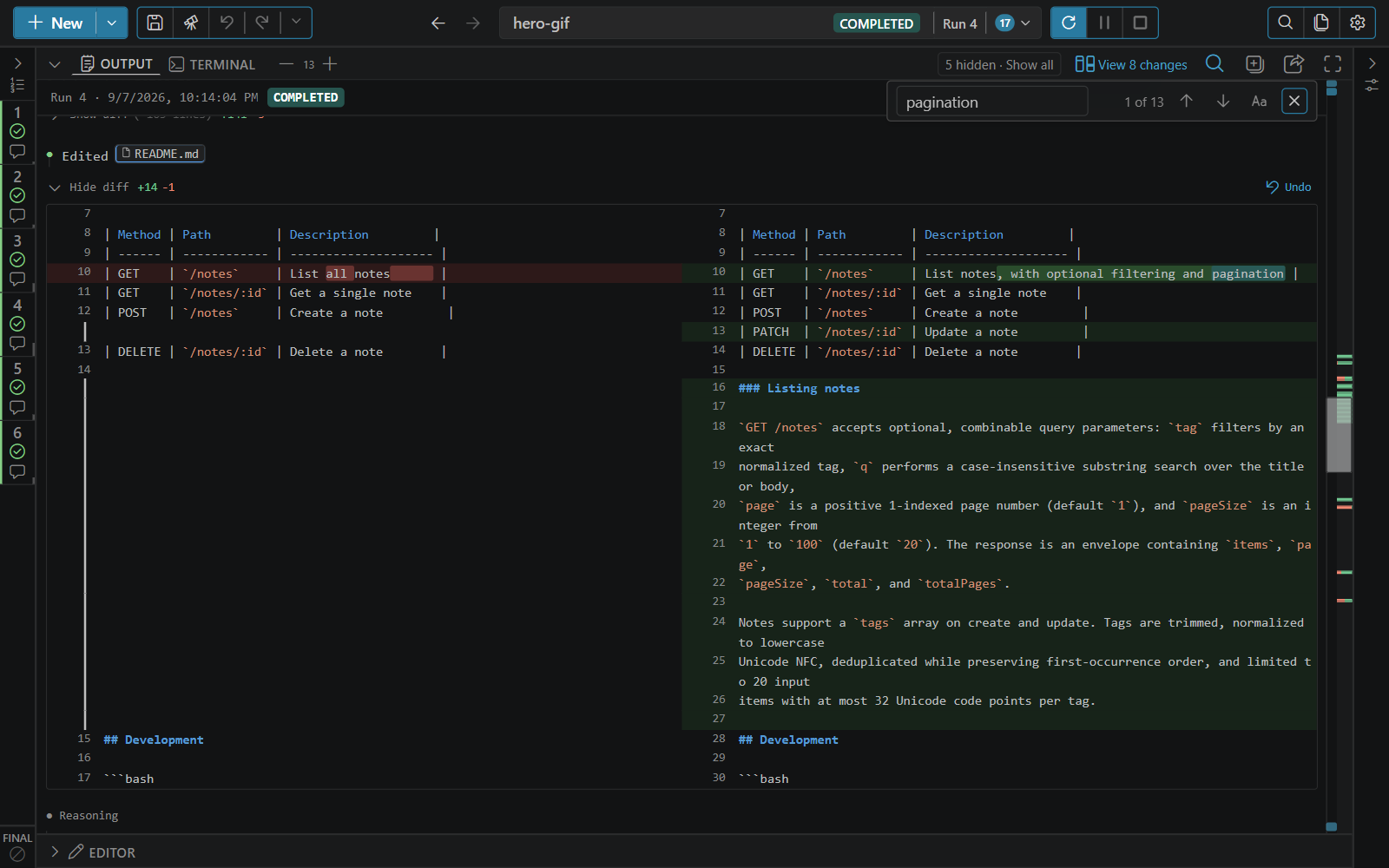
What a step's output contains
Each step's output starts with a header row: the time, the step number and name, and its harness and model. Below it, in the order they happened:
| Block | What it shows |
|---|---|
| Replies | The harness's text, rendered as Markdown. File paths and references are links; click one to open it. |
| Thinking / reasoning | The model's reasoning, dimmed and indented, when the harness reports it. The label comes from the harness, and shows a token count, or "encrypted" when it is hidden. |
| Commands | Each shell command with its exit code and result. |
| Tool calls | Tools the harness called, including MCP tools (see Tool calls). |
| File operations | Files the harness read, edited, wrote or deleted. Changes have a diff and an Undo button (see Diffs). |
| User message | A steer message you sent to the running step. |
| Script and condition rows | A script step's or condition's output, and its verdict: Passed, Failed or Errored, the comparison, and what happens next. |
| Stats | Context window use, tokens, an estimated cost, the session ID, the duration, and Copy output. |
A banner at the top names the run, when it started, how long it has run, its state and its token total. Click the pin to keep it at the top of the pane while you scroll, or unpin it to let it scroll away with the output. While you look at an earlier run of a workflow that is running now, the banner has a Back to Live link. For a run in a worktree, the banner also shows the worktree and whether its changes were merged.
The toolbar
| Control | What it does |
|---|---|
| − / + | Change the output font size (10–24 px, saved as ui.outputFontSize). On the Terminal tab they change terminal.fontSize. |
| N hidden · Show all | Appears when you have hidden steps. Click it to show every step again. See Hiding steps. |
| View N changes | Opens every file the run changed. See File changes and undo. |
| Find in output | Opens the find bar. See Finding text. |
| Collapse all diffs / Expand all diffs | Collapses or expands every file diff in the output at once. |
| Export output to markdown | Exports the output as a Markdown file. See Copying and exporting. |
| Full screen | Fills the dashboard with the output pane. Press Esc or click the button again to leave. |
On a narrow dashboard, some controls show only their icon.
The minimap
The narrow rail down the right edge is both a map of the output and its scrollbar.
- Drag the thumb to scroll, or click anywhere on the rail to jump there.
- Each step has a marker at the point where its output starts. Click a marker to jump to that step. Steps too close together to tell apart share one larger marker.
- Hover a marker (or tap it on a touch screen) for a popup with the step's name, Hide / Show for its output, and a link to the step's file changes.
Alt+Clicka marker to show only that step's output.- File edits appear as red and green marks: a thin line for a collapsed diff, or bands lined up with the rows of an expanded one.
Finding text
Press Ctrl+F (Cmd+F on macOS), click Find in output, or right-click the output and choose Find in Output. In the prompt editor, Ctrl+F opens the editor's own find instead.
The find bar searches the whole output, including file diffs, and shows the match count (for example 1 of 13). Each match you move to is scrolled into view.
| Key or button | Action |
|---|---|
Enter, F3, or Next match | Next match |
Shift+Enter, Shift+F3, or Previous match | Previous match |
| Match case | Toggle case-sensitive matching |
Esc | Close the find bar |
Opening a result from Search History loads that run with the find bar already set to your search, and shows the step again if you had hidden it.
Hiding steps
Hide the output of steps you don't need, so the rest is easier to read. A hidden step stays in the steps panel with its status and progress; only its output is hidden.
- Click the eye icon on a step's output header (Hide output for this step).
- Right-click a step in the steps panel and choose Hide output or Show only this step's output.
- Use Hide in a minimap marker's popup, or
Alt+Clickthe marker to show only that step.
The toolbar then shows N hidden · Show all. Click it, or use Show in a marker popup or the step menu, to bring the output back.
Copying and exporting
Copy output at the end of each step copies the assistant's text for that step. The step menu also offers Copy Full Output, which includes thinking, tool calls and results, diffs, commands, and terminal output.
Right-click the output for Copy (the selected text), Copy All, Copy Step Output (the step under the pointer), and Copy Full Output for that step. Copy All leaves out hidden steps and says how many it skipped.
Export output to markdown opens Export Output, with these options:
- Include CLI command: the command each prompt step ran.
- Include metadata: step headings, token stats, session IDs and separators. Clear it for a clean conversation history.
- Step range: for example
1,3,5-10. Leave it blank to export every step. When steps are hidden, the range starts with the visible steps.
In VS Code, Export asks where to save the file. In the browser dashboard, Download saves it through the browser.
Collapsed tool output
Long results are collapsed to a few lines so one command doesn't push the rest of the output off screen.
- Show full output (or Show full error) above a result expands it. While expanded, the toggle sticks to the top of the pane so you can collapse it from anywhere inside a long result. A collapsed result ends with a note of how many lines are hidden.
- Show full command expands a long command line.
The number of lines shown before a result collapses is Collapsed tool output lines in Settings → General (ui.collapsedToolOutputLineCount, default 3).
Tool calls
A tool call shows the tool's name with its key parameters. For an MCP tool the name reads MCP: server.tool. Click the expand button in the header to show every parameter, and Show full output to see the whole result.
Calls to ctrlyoke's own MCP server, such as appending a step or reading another step's output, are shown as a summary of what happened. Click Raw on one to see the underlying call and its result. See Dynamic workflows and MCP tools.
Diffs
Every file the harness edited or wrote has a diff in the output. Click Show diff to expand it; the toggle also says roughly how many lines it holds. Use Collapse all diffs in the toolbar to fold them all again.
- When the output pane is at least 1024 px wide, diffs are side by side: the old file on the left and the new one on the right. Narrower panes show a single inline diff. Collapse the steps panel or Workflow Properties, or use Full screen, to get the wider layout.
- Changed words within a line are highlighted, and code is syntax-highlighted.
- Unchanged lines between changes are folded when ctrlyoke has the whole file. Click Show N hidden lines (or Show all) in the fold to expand them.
- Long lines wrap unless you turn off
ui.wordWrap.
The Undo button on a file operation puts that one file back. To review or undo a whole step or run, use View N changes. Both are covered in File changes and undo.
Step colours
Step identity colors in Settings → General (ui.stepColorMode) adds a coloured bar to each step in the steps panel and down the left edge of its output, so you can tell steps apart at a glance:
| Value | Colour |
|---|---|
| None | No identity colour; the bar shows the step's status (the default). |
| Harness | Each harness's colour. Change them under Settings → Workflow Defaults (ui.harnessColors). Parallel members on the same harness get distinct colours. |
| Unique | A different colour for every step. |
A step's own color field overrides Harness and Unique. With None, no identity colours are shown at all.